Wireless access points are a critical part of modern networks, and a weak link if not secured properly. Here’s what you need to know:
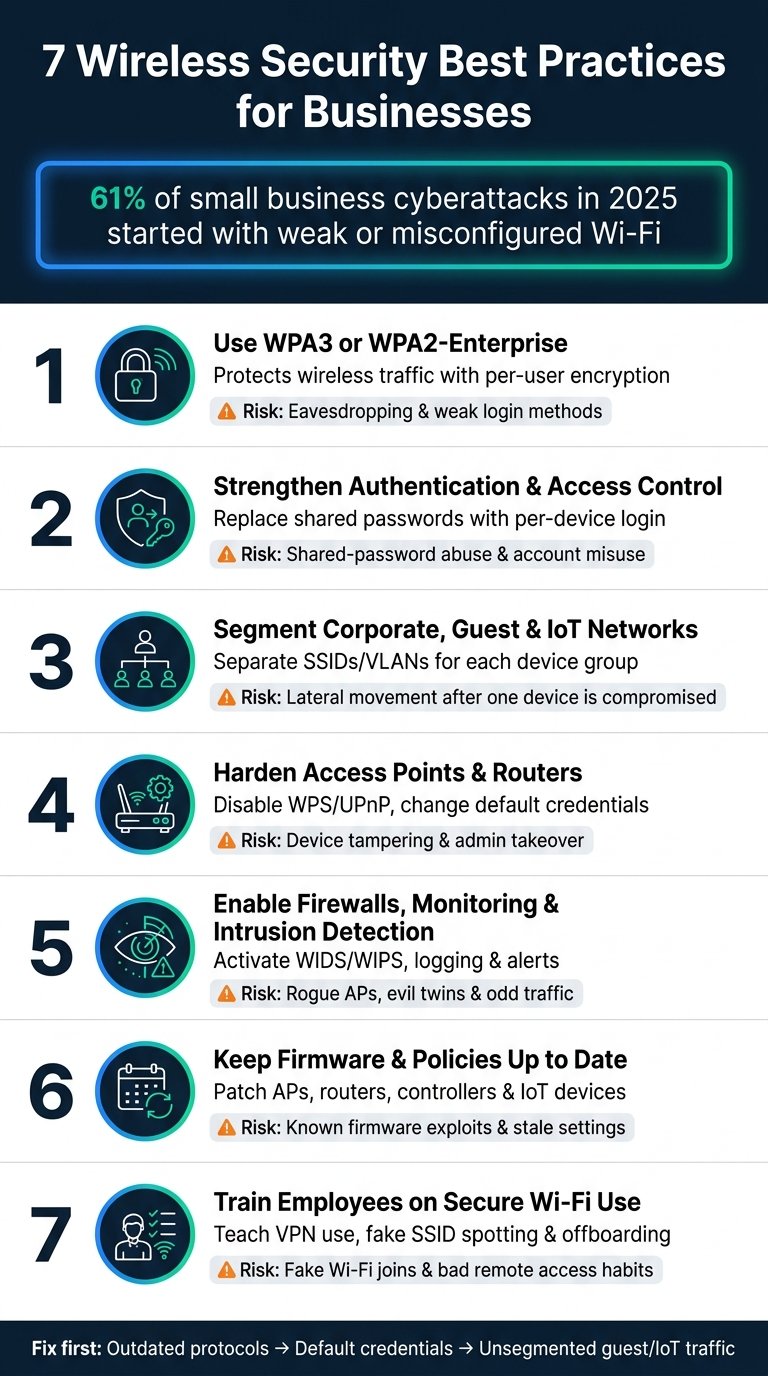
- Change Default Settings: Update default SSIDs, passwords, and admin credentials.
- Use Strong Encryption: Enable WPA3, or WPA2 with AES if WPA3 isn’t available.
- Regular Firmware Updates: Patch vulnerabilities and enable newer security features.
- Physical Security: Restrict physical access and secure devices in locked areas.
- Network Segmentation: Use VLANs to isolate traffic and contain breaches.
- Monitor Activity: Review logs, scan for rogue devices, deploy intrusion detection.
- Employee Training: Teach staff to spot and report wireless security risks.
- Secure Device Disposal: Erase or destroy decommissioned hardware properly.
A note on the statistics that used to be here. The previous version of this article carried eight statistics attributed to Verizon’s Data Breach Investigations Report, the Ponemon Institute and NIST, plus two named-organisation breach examples. We could not find any of them in the cited sources, and several described findings those reports do not publish – the DBIR, for instance, does not break out breaches by wireless access point involvement. Attributing invented figures to real research bodies is worse than having no figures, so all of it has been removed. The technical guidance below stands on its own; none of it needed a percentage to be true.
Change Default Settings and Passwords
Wireless access points ship with factory settings that are documented publicly. Manufacturers publish default usernames, passwords and network names in manuals, and third parties compile them into searchable databases. Automated scanning tools check for them because checking is cheap and it works often enough.
Unchanged configurations expose more than a weak password: SNMP community strings, vendor-set encryption keys, and management interfaces reachable from the network are all part of the default state.
Update Default SSID and Passwords
Your SSID is the name your network broadcasts. Defaults like “Linksys”, “NETGEAR” or “TP-Link_5G” tell an attacker what hardware you run, which narrows their choice of exploit before they have touched anything.
Choose an SSID that does not identify your organisation, your location, or your equipment. Your company name followed by “_WiFi” tells a passer-by exactly whose network they are looking at and makes targeted attacks easier to justify. Something neutral like “AP-7x9Q2” or “Network-Delta” gives away nothing.
Replace the default network password with a long passphrase – at least 12 characters, mixing cases, numbers and symbols. Avoid dictionary words, company names and anything guessable from public information about your business.
Update vendor-provided encryption keys too. These are frequently left as shipped because nobody looks past the Wi-Fi password.
Use Strong Admin Passwords and Rotate Them
Administrative access gives complete control: redirecting traffic, capturing data, or installing a persistent backdoor. This is the credential that matters most and the one most often left at its default.
Set a strong admin password and rotate it on a schedule – quarterly is a reasonable default – and immediately after staff changes or any suspected compromise.
Change credentials the day someone leaves or changes role, not at the next scheduled rotation. Use an encrypted password manager so changes leave an audit trail and so the credential is not living in someone’s notes app.
Also: change default SNMP community strings if SNMP is enabled, disable management interfaces you do not use, and turn off remote administration unless you genuinely need it. Remote admin left enabled on a public-facing interface is how a lot of small networks are found.
For businesses managing several access points, BizBot lists credential management tools that keep this consistent across sites.
| Setting | Default Risk | Recommended Action |
|---|---|---|
| SSID | Publicly known | Change to a unique identifier |
| Admin Password | Easily guessed | Set a strong, complex password |
| Encryption Key | Publicly known | Use a unique, strong key |
| SNMP Community String | Publicly known | Use a complex string, enable SNMPv3 |
| Shared Keys | Publicly known | Rotate on a fixed schedule |
This step is unglamorous and it removes the largest category of opportunistic attack. Do it before anything else on this list.
Set Up Strong Encryption and Authentication
Encryption protects data in transit; authentication controls who gets on the network. You need both.
Use WPA2 or WPA3 for Encryption
WPA3 is the current standard. The Wi-Fi Alliance describes it this way: “Users of WPA3-Personal receive increased protections from password guessing attempts, while WPA3-Enterprise users can now take advantage of higher-grade security protocols for sensitive data networks.”
Two details worth getting right, because the previous version of this article got them wrong. WPA3-Personal uses Simultaneous Authentication of Equals (SAE), which resists offline dictionary attacks against captured handshakes, and provides forward secrecy so past traffic stays protected if the passphrase later leaks. The 192-bit security level is an optional mode of WPA3-Enterprise, not a blanket property of WPA3. Saying “WPA3 uses 192-bit keys” overstates what you get on a typical small-business deployment.
To enable it, log into the access point’s management interface, go to security settings, and select WPA3. If WPA3 is unavailable, select WPA2 and set the cipher to AES rather than the deprecated TKIP.
During migration, WPA2/WPA3 mixed mode lets older devices connect. Mixed mode weakens the guarantees, so treat it as temporary and set a date to turn WPA2 off.
Configure Enterprise Authentication Protocols
A pre-shared key is fine for a small office. It has one structural weakness: everyone shares it, so revoking access for one person means changing it for everyone, which is why nobody does it.
802.1X with EAP authenticates individual users instead. Access is granted and revoked per person, which makes staff departures a non-event. EAP-TLS, using client certificates, is stronger again and removes passwords from the equation entirely.
Setting this up needs a RADIUS server and access points configured for WPA2-Enterprise or WPA3-Enterprise. Smaller organisations can use cloud-hosted authentication services that integrate with an existing directory, avoiding the RADIUS server entirely.
Be honest about the cost: 802.1X is more work to run and more work to troubleshoot. If you have fewer than about ten staff and no compliance driver, a strong pre-shared key rotated on departures is a defensible choice.
Disable Outdated Security Standards
WEP and original WPA should be off. Both have practical, well-published attacks. Leaving them enabled also allows downgrade attacks, where a client is pushed onto the weaker protocol regardless of what else you support.
Go through the configuration interface and disable anything labelled WEP, WPA (not WPA2), or a mixed mode that includes them. Check guest networks specifically; they frequently default to weaker settings and are configured once and forgotten.
| Protocol | Encryption | Security Status | Recommendation |
|---|---|---|---|
| WEP | 40/104-bit RC4 | Broken; practical attacks are trivial | Disable immediately |
| WPA (original) | TKIP | Multiple known vulnerabilities | Disable completely |
| WPA2 | AES 128-bit | Known issues, patched | Minimum acceptable standard |
| WPA3 | AES; optional 192-bit Enterprise mode | Current best practice | Recommended for new deployments |
Audit periodically. Firmware updates and factory resets have both been known to re-enable legacy protocols silently.
Keep Firmware Updated with Security Patches
Firmware updates close vulnerabilities that are, by the time you hear about them, already public. A factory reset can also revert a device to old firmware and default settings at once, which is why reset is a step that needs following up rather than a fix in itself.
This section previously cited a study on patching delays and a named school district’s breach as an example. Neither could be sourced, and the breach attribution to access point firmware was not supported by any public account of that incident. Both are removed.
Schedule Regular Updates
Set a cadence – monthly or quarterly for most organisations, more often in regulated or high-risk environments – and hold to it. Ad hoc patching means patching after an incident.
Keep an inventory of every access point with model, firmware version, location, and the person responsible. Without it you will patch the ones you remember.
Subscribe to vendor security notifications when you deploy a device, not later. Most manufacturers offer mailing lists or feeds for firmware releases.
Schedule updates for low-activity periods, and use redundant access points to maintain coverage during the window. Enterprise wireless management platforms centralise this and are worth the cost above roughly a dozen devices.
Test and Document Updates
Test firmware in a lab that mirrors production before rolling it out. Focus testing on authentication, segmentation and guest access, and check throughput and connection stability afterwards. Wireless firmware updates break these things more often than vendors admit.
Document each update: device model, firmware version, date, who did it, and anything that went wrong. This is tedious and it is what an auditor asks for.
NIST recommends a formal patch management policy covering testing, deployment and documentation, and PCI DSS requires documented patch management for in-scope systems. If you are subject to either, the documentation is not optional.
If a device can no longer receive firmware that supports WPA2-AES or WPA3, replace it. An access point past end-of-support is a permanent unpatched vulnerability, and no configuration will fix that.
Secure Physical Access and Network Segments
Restrict Physical Access to Devices
Physical access defeats most of the above. Someone at the device can reset it, flash malicious firmware, or read configuration off it.
Keep devices in locked areas or tamper-evident enclosures. Network closets, server rooms, or ceiling mounts that need a tool and authorisation to open.
Record each access point’s serial number, installation date, location and owner. This is what lets you notice that one has been swapped.
Inspect on a schedule. Quarterly checks for tampering, unfamiliar devices, or access points that have moved. Anything unexpected gets investigated the same day.
Set Up VLANs and Network Segmentation
Segmentation limits what a compromised wireless client can reach.
Use VLANs to separate traffic by purpose: staff, guests, and IoT devices such as printers and cameras. IoT deserves its own segment because those devices are rarely patched and frequently have hard-coded credentials.
Put firewall rules between VLANs and the core network. Default to deny, and open only what is needed. Staff devices probably need mail and file shares; they almost certainly do not need direct access to a finance database.
Consider out-of-band management. Put access point management on a dedicated VLAN or separate network so management traffic is not reachable from a user segment.
Review firewall rules quarterly. Rules accumulate, and the ones added for a temporary project are never removed by the person who added them.
Small businesses can achieve useful segmentation with a managed switch and a decent firewall. This is one of the few areas where a few hundred dollars of hardware materially changes your exposure.
Monitor Networks and Respond to Security Threats
Conduct Regular Network Monitoring
Monitoring means looking for the unexpected, not just checking that things are up. Wireless audit logs show repeated authentication failures, connections at odd hours, and traffic volumes that do not match the business day.
Automated tools flag anomalies and forward alerts centrally. Tune them, or the alerts will be ignored within a month.
Scan for rogue access points regularly. An attacker can place an unauthorised access point broadcasting an SSID close to yours – an “evil twin” – and collect credentials from devices that connect automatically. Your own staff also install unauthorised access points for convenience, which is more common than attacks and equally dangerous.
Keep an inventory of authorised wireless devices with MAC addresses and locations, so a scan produces a short list of unknowns rather than a long list of maybes.
Store logs on a central server with access controls, so someone who compromises an access point cannot edit its history. Assign named people to review them and define what gets escalated.
The general point about log review is worth keeping even though we removed the statistic that used to support it: automated alerting catches what it was configured to catch, and a person reading logs catches the things nobody thought to write a rule for.
Deploy Intrusion Detection Systems
Wireless intrusion detection identifies attack patterns – deauthentication floods, rogue APs, unusual association behaviour – that ordinary network monitoring misses.
Place sensors near critical access points, in high-traffic areas, and at perimeters. Make sure they cover every channel in use, not just the ones you configured deliberately.
Alert on new device associations, repeated authentication failures, and traffic to unexpected destinations. Integrate with your central logging so alerts reach someone who can act.
Test the setup with a controlled penetration test. An IDS nobody has tested is a licence fee, not a control.
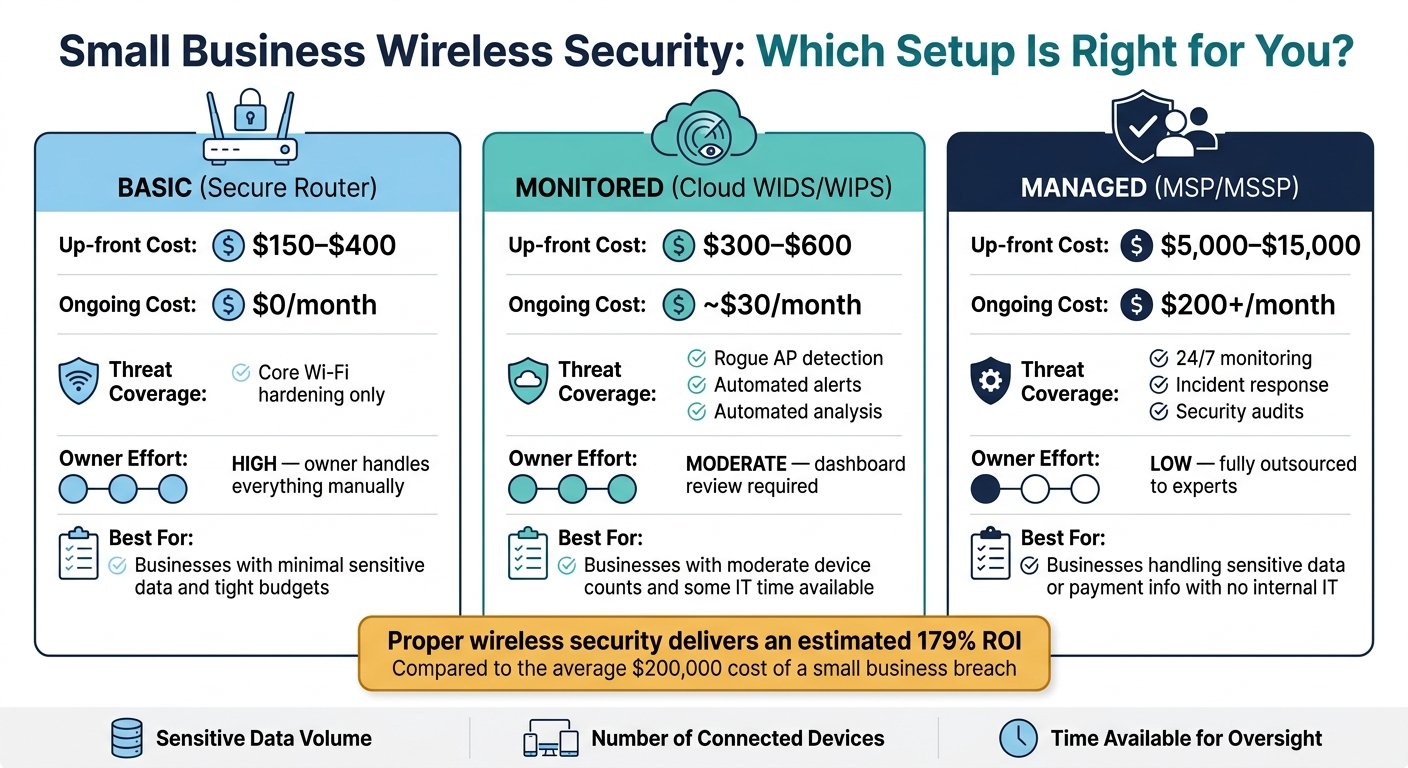
Cloud-based wireless IDS suits distributed sites and avoids on-premises infrastructure, at the cost of sending network telemetry to a third party. Check what that means for your compliance obligations before signing.
Train Employees on Security Risks
Run awareness training at least twice a year, focused on what staff will actually encounter.
Teach the warning signs: unexpected disconnections, prompts for credentials from something that looks like the corporate network, and networks appearing with names similar to yours.
Define the reporting route. Who to contact, and what to include. Vague instructions produce no reports.
Use concrete scenarios. Rogue access points in a car park or a neighbouring unit, and social engineering to get someone to connect to a fake network, are the realistic cases.
Most importantly, make reporting blameless. The person who connected to a rogue network and says so within the hour has given you a chance to contain it. The person who is afraid to say so has not.
Properly Dispose of Wireless Devices
Decommissioned access points can retain credentials, certificates and configuration that describe your network.
This section previously carried two statistics attributed to NIST and the Ponemon Institute about breaches from discarded devices, and an account of a named university’s breach following the resale of an access point. None could be sourced, and the incident described does not match any public account of that institution’s security incidents. All three are removed. The disposal guidance below does not depend on them.
Clear Configuration Settings
A factory reset does not reliably clear everything. Configuration data and logs can persist in non-volatile memory, and enterprise devices often store credentials in more than one place.
Reset the device, then go through the management interface and manually remove remaining credentials, certificates and cached configuration. Verify by reviewing the settings afterwards rather than assuming.
Follow the manufacturer’s documented sanitisation procedure; several vendors publish one specifically because the standard reset is insufficient.
For genuinely sensitive environments, destroy the flash memory. It costs more and it is the only method with no residual risk.
| Disposal Method | Residual Risk | Cost | Recommended For |
|---|---|---|---|
| Factory Reset Only | Medium | Low | Home/small business |
| Certified E-Waste | Low | Medium | Enterprise/regulatory use |
| Physical Destruction | Very Low | High | Highly sensitive data |
Document Device Removal
Update your asset register when a device leaves. Record serial number, MAC address, removal date, reason, final disposition, and who performed the erasure. Keep certificates of destruction from disposal vendors.
NIST SP 800-88 covers media sanitisation, and HIPAA and PCI DSS both require documented secure disposal for in-scope data. Keep the records somewhere auditable and have someone sign off.
Audit the inventory periodically. Gaps between what you think you own and what you can account for are how devices end up on eBay with your configuration on them.
Conclusion: Key Steps for Wireless Access Point Security
Change default settings first; it removes the largest class of opportunistic attack for no money.
Use WPA3, or WPA2 with AES where WPA3 is unavailable, and disable WEP and original WPA entirely.
Patch firmware on a schedule, and retire devices that can no longer be patched.
Control physical access and segment the network with VLANs and firewall rules, so a compromised wireless client reaches as little as possible.
Monitor, scan for rogue access points, and have a person read the logs occasionally.
Train staff, and make reporting a mistake safe.
None of this is difficult. Most wireless compromises happen because a default was never changed or a device was never patched, not because someone defeated the encryption.
FAQs
What if WPA3 isn’t available on my hardware?
- Use WPA2 with AES: still a sound protocol, and universally supported.
- Change default settings: SSID and admin credentials, to something not guessable.
- Set a long passphrase: length matters more than symbol variety.
- Keep firmware current: and check whether a WPA3 update exists for your model before replacing it.
- Turn off WPS: its PIN method has a known, practical attack. Disable it.
How should I monitor a wireless network for threats?
Turn on logging at the access point and send logs somewhere central where they cannot be edited by whoever compromises the device. Add network monitoring to see what is connected.
Keep firmware current, alert on failed authentication and unfamiliar devices, and review security settings on a schedule. Most of the value comes from the review, not the alerting.
Why change the default SSID and password?
Defaults are published by the manufacturer and compiled into databases anyone can search. An unchanged default is not a weak password; it is a published one.
A unique SSID that does not name your business also removes the easiest reason for someone to target you specifically rather than whoever else is in range.
More on this topic
Browse all 79 articles on Security & Compliance.