Quick facts
| Best for | Browser-first startups, agencies and professional services firms with no dedicated IT person. |
|---|---|
| Category | Productivity and Collaboration |
| Pricing from | Not published by the vendor |
| Free plan | No |
| Free trial | 14 days |
| Team size | solo, 2-10, 11-50, 51-200, 200+ |
Quick verdict
Consider it if: You are remote or hybrid and your day is email, shared documents and video calls that you want running with minimal setup.
Look elsewhere if: You depend on desktop Excel macros or exact Word formatting, or have data residency and archiving rules only top tiers meet.
Compiled from the vendor’s own documentation and pricing pages, checked on the date above. We have not tested this product hands-on. How we evaluate software.
Compare Google Workspace with Microsoft Teams · Not sure what you need?
Google Workspace is Google’s business subscription: professional email on your own domain plus Docs, Sheets, Slides, Drive, Meet, Calendar and Chat, managed from one admin console. The apps are the same ones most people already know from personal Google accounts, but you get your own domain, control over accounts and data, and support. For a lot of small businesses it is the whole software stack — email, files, documents and video calls — bought as one line item.
What you can actually do with it
The individual apps are familiar; what a subscription adds is ownership and administration:
- Run email on your own domain. Gmail with addresses at your company domain, plus shared aliases, groups and strong spam filtering, without running a mail server.
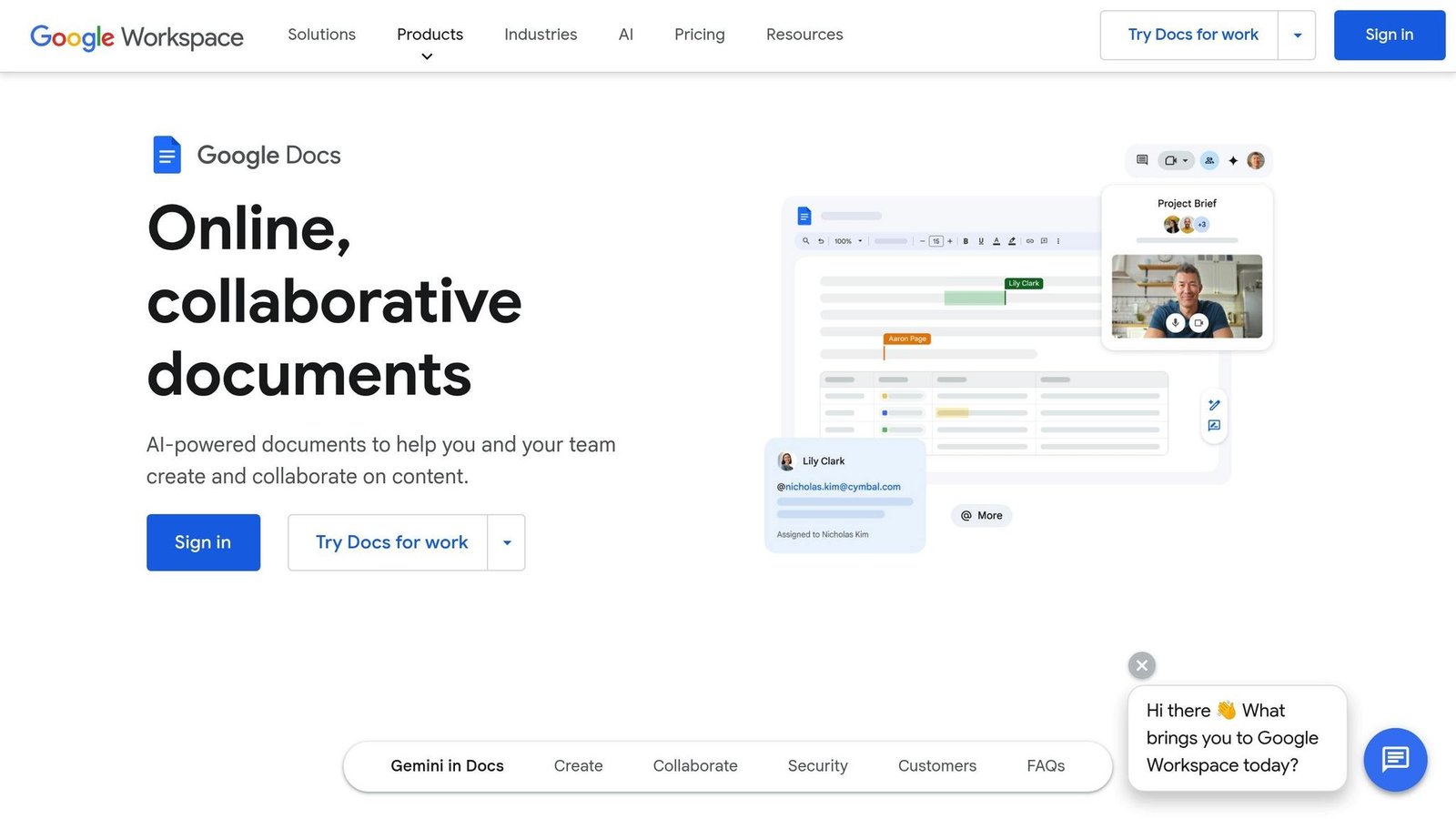
- Collaborate in documents live. Docs, Sheets and Slides let several people edit the same file at once with comments, suggestions and full version history, which removes most emailed attachments.
- Store and share files in Drive. Shared drives belong to the company rather than an individual, so files stay put when someone leaves.
- Meet and message. Meet handles video calls with recording and transcripts on the higher tiers, and Chat covers quick internal messaging and spaces.
- Administer accounts centrally. Create and suspend users, enforce two-step verification, control sharing rules and manage phones and laptops from the admin console.
- Use Gemini across the apps. AI assistance for drafting in Gmail and Docs, summarising threads, generating images in Slides and taking notes in Meet, with the deeper capabilities on higher tiers.
- Build small internal tools. Forms, Apps Script and AppSheet let non-developers automate approvals, intake forms and simple internal apps on top of your existing data.
Who it fits best
Google Workspace fits startups, agencies, retailers, non-profits and professional services firms from one person up to a few hundred — particularly teams that are remote or hybrid, work mostly in a browser, and have no dedicated IT person. If your day is email, shared documents and calls, it covers almost everything with minimal setup.
It fits less well where deep desktop Office use is unavoidable: heavy Excel modelling with macros and pivot-heavy workbooks, or clients who require Word documents with exact formatting. It is also less suited to organisations with strict data residency or archiving requirements that only the top tiers satisfy.
Things worth knowing before you commit
- Tier differences are substantial. Storage per user, Meet participant limits, meeting recording, and eDiscovery through Vault are all gated by plan, so the entry tier can turn out to be false economy.
- Business tiers have a user ceiling. The Business plans cap the number of users on an account; growing past it means moving to Enterprise, which is a different pricing conversation.
- No archiving on lower plans. Retention and legal hold live in Vault on the higher tiers. If you have compliance obligations, budget for that from the start or add a third-party backup.
- Sheets is not Excel. It is excellent for collaboration but slower on very large datasets and lacks some advanced Excel functionality, which matters for finance-heavy teams.
- Migration takes planning. Moving existing mail, calendars and files across is doable with Google’s tools but rarely as quick as expected, especially from an on-premises mail server.
Alternatives to compare it against
Microsoft 365 is the direct competitor and the better choice if your team relies on desktop Excel, Word and Outlook, or if you need Windows device management and Teams as the hub. Zoho Workplace undercuts both on price and suits cost-sensitive small businesses that still want a full suite. If you only need email on your domain, a standalone mail provider such as Fastmail or Proton is cheaper and, in Proton’s case, stronger on privacy. Google Workspace wins on real-time collaboration and simplicity of administration.
Plan contents, storage allowances, AI inclusions and per-user pricing change regularly. Check Google Workspace’s own pricing page for current details before you commit.
Further reading
- Top 8 Document Collaboration Tools for Teams — sets Docs, Sheets and Slides against the other options for live co-editing.
- Top 5 Cloud Storage Tools for Small Businesses — worth reading if Drive’s per-user allowance is the part of the plan you are sizing.
- How to Manage Cloud Storage Permissions — covers the sharing rules and shared-drive ownership decisions you make in the admin console.
- 10 Best Document Version Control Software for Small Business 2024 — context for how far Docs version history goes before you need something stricter.
- 7 Best Productivity Tools for Remote Teams in 2026 — relevant to the remote and hybrid teams Workspace is aimed at.
Have you used Google Workspace?
One sentence is enough. Would you pick it again, and why or why not? We publish the critical reviews too — that is the point.