Managing cloud storage permissions effectively is critical to protecting your data, ensuring compliance, and enabling smooth collaboration with the best business administration tools. The key takeaway? Grant only the access users need to do their job – nothing more. Mismanaged permissions can lead to data breaches, accidental loss, or exposure of sensitive files. Here’s a quick breakdown of what you need to know:
- Principle of Least Privilege (PoLP): Assign the smallest set of permissions necessary for each role or user. Avoid broad roles like “Owner” or “Editor.”
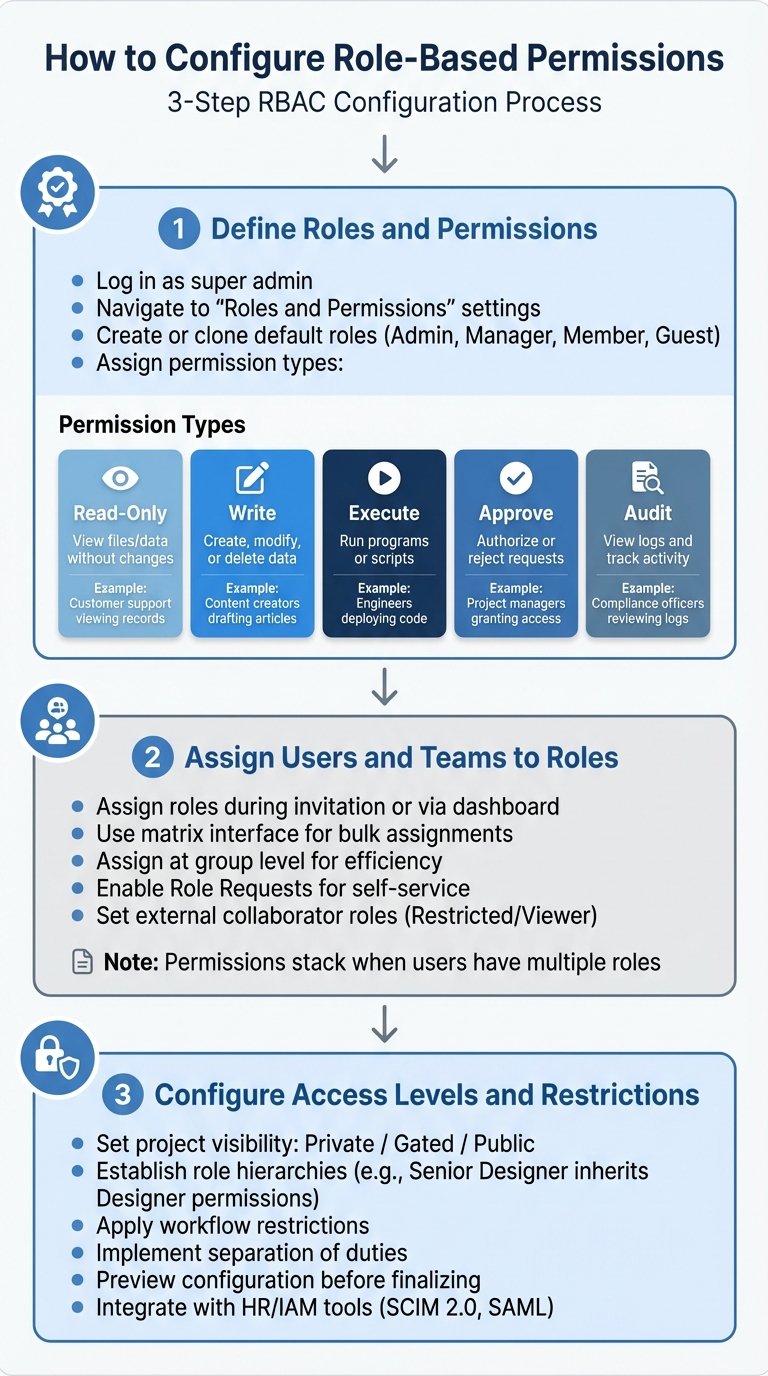
- Role-Based Access Control (RBAC): Use predefined roles for common tasks and only create custom roles when absolutely necessary. Assign roles to groups, not individuals.
- Service Accounts: Apply PoLP to service accounts too. Use separate accounts for different tasks and avoid long-term keys.
- Limit Public Access: Use tools like domain-restricted sharing, public access prevention, and signed URLs for temporary, controlled access.
- Strengthen Security: Enforce multi-factor authentication (MFA) for all users, including administrators, and keep guest access on a short leash.
- Regular Audits: Review permissions frequently, remove outdated access, and monitor activity logs to catch potential issues.
IAM Explained in Google Cloud: Manage Access and Permissions
Apply the Principle of Least Privilege
The Principle of Least Privilege (PoLP) is all about granting users and systems only the permissions they need to perform their tasks – nothing more, nothing less. When it comes to cloud storage, this means moving away from broad, catch-all roles like “Owner” or “Editor” and opting for more specific “Predefined” or “Custom” roles. Why? Because those basic roles often come with thousands of permissions bundled together, which can unnecessarily increase security risks.
“When you grant access based on the principle of least privilege, you grant the minimum permission that’s necessary for a user to accomplish their assigned task.” – Google Cloud Documentation
By applying PoLP, you can significantly reduce the “blast radius” of a security breach. If an account is compromised, the attacker’s access will be limited to only the resources that account was explicitly authorized to use. Permissions should be as narrowly scoped as possible – think specific buckets or folders, not entire projects or organizations. A good starting point is to analyze a 90-day activity sample to identify which permissions are actually in use. From there, refine your policies to grant only what is necessary.
“Follow the principle of least privilege: Grant users and service accounts only the minimum permissions they need to perform their job not more not less.” – Vishal Bulbule, Google Cloud Architect/Data Engineer
Define Required Permissions
The first step is identifying the permissions needed for each role. For example:
- A Viewer role (like
roles/storage.objectViewer) allows users to read and list objects but prevents them from making changes. - An Editor or Creator role (such as
roles/storage.objectCreator) allows uploading new objects but doesn’t necessarily include deletion rights. - Admin roles should only be assigned when full control is absolutely necessary.
Permissions should align strictly with job requirements. For instance, marketing staff who only need to download files should be assigned Viewer access, not Editor. A data analyst uploading reports might need Creator permissions but shouldn’t be given Admin rights. Tools like AWS IAM Access Analyzer can simplify this process by running over 100 policy checks and providing actionable recommendations for creating secure policies. It can also suggest tightened, least-privilege policies based on permissions your accounts have actually used, which makes it useful for refining roles over time rather than only at setup.
To streamline management, assign roles to groups instead of individual users. This way, access can be automatically revoked when someone leaves a group, reducing manual intervention.
And remember, PoLP isn’t just for human users – it’s critical for service accounts too.
Apply Least Privilege to Service Accounts
Service accounts need the same level of careful permission management as user accounts. To reduce the risk of breaches, create separate service accounts for each component or application.
“We recommend using HMAC keys for service accounts rather than user accounts. This helps eliminate the security and privacy implications of relying on accounts held by individual users.” – Subhasish Chakraborty, Group Product Manager, Google Cloud
Label service accounts clearly based on their purpose to make tracking easier. Restrict their permissions to specific buckets or folders, and avoid using long-term service account keys whenever possible. Instead, rely on identity federation or temporary credentials to minimize the risk of leaked credentials.
Use Role-Based Access Control (RBAC)
Role-Based Access Control (RBAC) has become the go-to method for managing cloud storage permissions. It organizes permissions into roles based on job functions, grouping them in a way that aligns with specific responsibilities. Unlike the older Access Control Lists (ACLs), which handle permissions on an object-by-object basis, RBAC simplifies management and scales effortlessly, even in large environments where ACLs would be overwhelming.
“ACLs are object-level and grant access to individual objects. As the number of objects in a bucket increases, so does the overhead required to manage individual ACLs. It becomes difficult to assess how secure all the objects are within a single bucket.”
– Subhasish Chakraborty, Group Product Manager, Google Cloud
One of RBAC’s biggest strengths is centralized control. Assigning permissions at the bucket or project level means they automatically apply to all objects within that scope. This eliminates the need to set access for each file manually. It also simplifies onboarding and offboarding: assign a role to grant access instantly, or update the role if someone switches departments or leaves the organization. This approach aligns perfectly with the principle of least privilege, even in complex cloud setups.
RBAC also makes auditing much easier. With roles, you can quickly see who has access to what resources, unlike ACLs, which require you to dig through permissions for potentially millions of individual files. Enabling uniform bucket-level access takes this a step further by disabling ACLs entirely, ensuring all permissions are managed through one consistent system. Once this setting is turned on, you have 90 days to revert before it becomes permanent.
It helps to know the three pieces every RBAC system works with, whichever provider you are on. In Azure RBAC, for example, a role assignment is made up of a security principal (the user, group, or service identity requesting access), a role definition (the set of actions that identity is allowed to perform), and a scope (the resource boundary those actions apply within). Assignments are additive: if an identity holds two roles, it receives the combined permissions of both, which is worth remembering when access appears broader than expected.
Use Predefined Roles
Most cloud storage providers offer predefined roles to simplify permission management. These roles are tailored for common tasks and follow security best practices. For example:
- Storage Object Viewer: Grants read-only access.
- Storage Object Creator: Allows uploading files but not deleting them.
- Storage Admin: Provides full control over buckets and objects.
Starting with these predefined roles is a smart move – they’re easier to manage and reduce the risk of misconfigurations. Assign roles to groups rather than individuals to streamline management. For instance, you could create a “Marketing Team” group and assign it the Viewer role for your brand assets bucket.
Avoid using basic roles like “Owner”, “Editor”, or “Viewer” in production environments. These roles often grant overly broad access, which can lead to unnecessary security risks. Instead, opt for roles that match the specific needs of the job.
Create Custom Roles When Needed
If predefined roles don’t meet your exact needs, you can create custom roles with highly specific permissions. For example, you might need a role that lets users upload files to a bucket without allowing them to list objects or change bucket settings. Google Cloud IAM provides over 64 permissions that you can mix and match to build such roles.
However, custom roles require more upkeep than predefined ones. To keep things manageable, always assign roles at the smallest scope possible. If a user only needs access to a single bucket, assign the role at that level rather than across the entire project. This approach not only limits unnecessary access but also makes regular audits and permission reviews more straightforward.
Strengthen Security with Sharing Controls and Multi-Factor Authentication
Even with RBAC in place, it’s crucial to enhance security by limiting file sharing and enforcing multi-factor authentication (MFA). These steps help safeguard your data, even if credentials are compromised or files need to be shared externally.
Limit Public and Anonymous Access
One of the most common security mistakes is allowing public access to buckets or objects. The allUsersand allAuthenticatedUsersprincipal types should only be used when it’s acceptable for anyone on the internet to access and analyze your data.
For external sharing, use Signed URLs. These grant time-limited access to specific objects, letting you control how long the link remains valid – whether for a few hours or up to a week. You can also define what actions are allowed, such as read, write, or delete. This ensures that access is both temporary and specific to the intended purpose.
To prevent accidental public exposure, enable Public Access Prevention through centralized settings. This feature overrides individual permissions at the bucket or object level, reducing the risk of data leaks. In Google Cloud, enabling uniform bucket-level access gives you a 90-day window to revert before the setting becomes permanent. Additionally, you can implement domain-restricted sharing to ensure files are only accessible to users within your organization, keeping external parties out.
For sensitive data, you can go a step further with IP filtering, which limits access to specific address ranges, such as your corporate VPN or office network. Another best practice is to use bucket and object names that are hard to guess. Adding random strings, like mybucket-gtbytul3, makes it more difficult for unauthorized users to discover resources through enumeration.
Pair these sharing controls with robust identity verification using MFA.
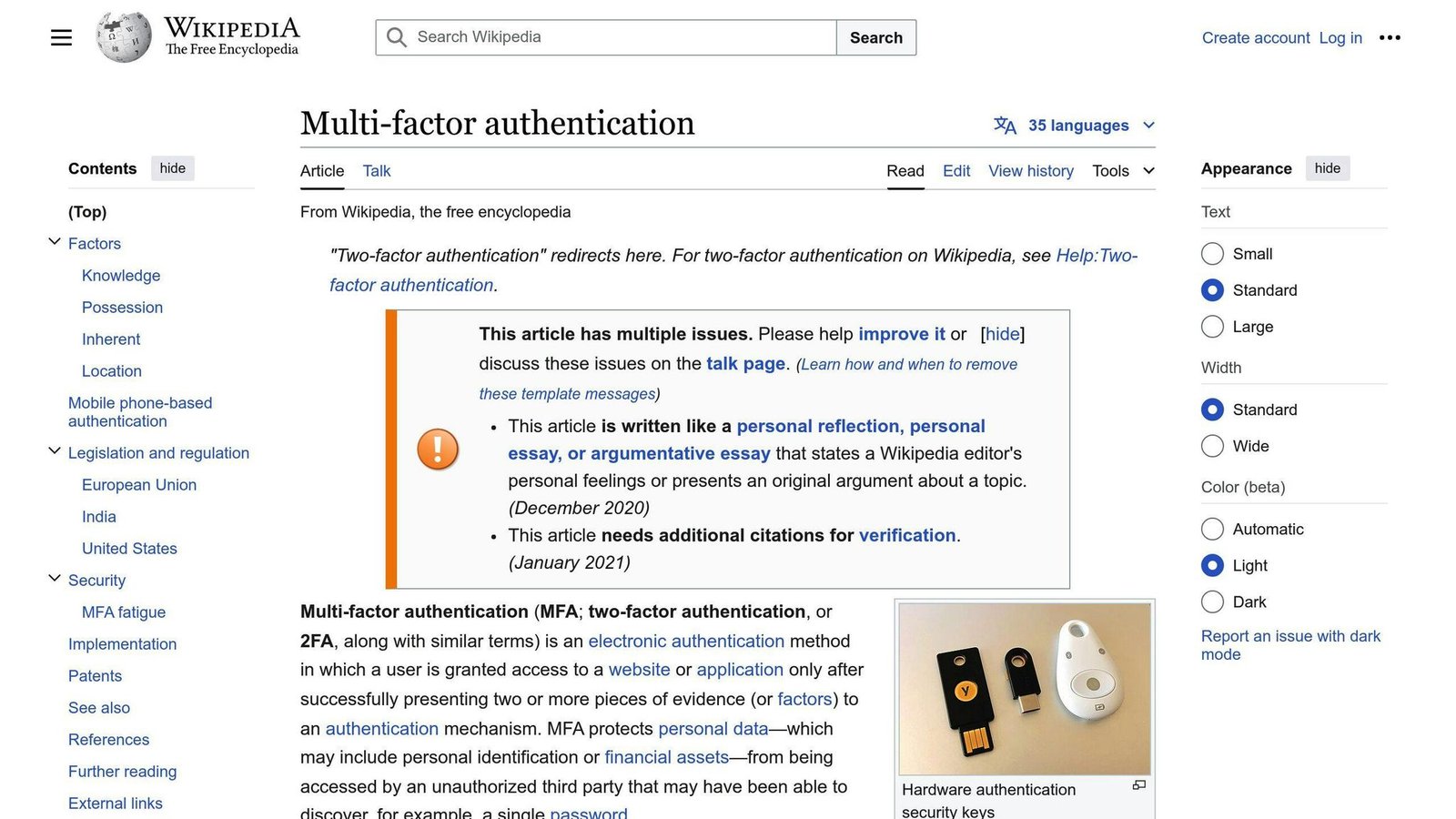
Enable Multi-Factor Authentication (MFA)
MFA adds an extra layer of security by requiring a device-generated response in addition to a password. This measure is particularly effective for protecting high-privilege accounts.
“With MFA, users have a device that generates a response to an authentication challenge. Each user’s credentials and device-generated response are required to complete the sign-in process.” – AWS Identity and Access Management Documentation
Make MFA mandatory for all human users, not just administrators. For centralized management, integrate MFA through your identity provider (IdP) using federation. This ensures that anyone accessing cloud resources must pass a multi-factor check before gaining entry.
Single sign-on (SSO) complements MFA by consolidating authentication into one identity provider, which means one place to enforce policy and one place to cut off access during offboarding. When rolling out SSO, confirm that user attributes map correctly between your IdP and your cloud storage provider, and pilot it with a small group before enabling it organization-wide.
Manage Guest and External Access Carefully
External collaborators are one of the most common sources of lingering, forgotten access. Treat guest accounts as temporary by default:
- Write down a guest access policy: Define how long external access lasts, what guests are permitted to do, and who approves it.
- Set expiration dates: Most platforms support this directly. In Microsoft OneDrive, you can apply an expiry when sharing a file or folder; in Google Cloud, IAM Conditions and signed URLs serve the same purpose.
- Share with named people, not open links: Use the “Specific people” option in your sharing settings, decide deliberately whether editing is allowed, and send the invitation to the individual’s email address so they must verify who they are before opening the file.
- Require MFA for guests too: External identities should clear the same authentication bar as employees.
- Monitor guest activity: Audit logs will show what external accounts opened, downloaded, or changed.
- Revoke promptly: When the project ends, remove the access the same day rather than waiting for the next audit cycle.
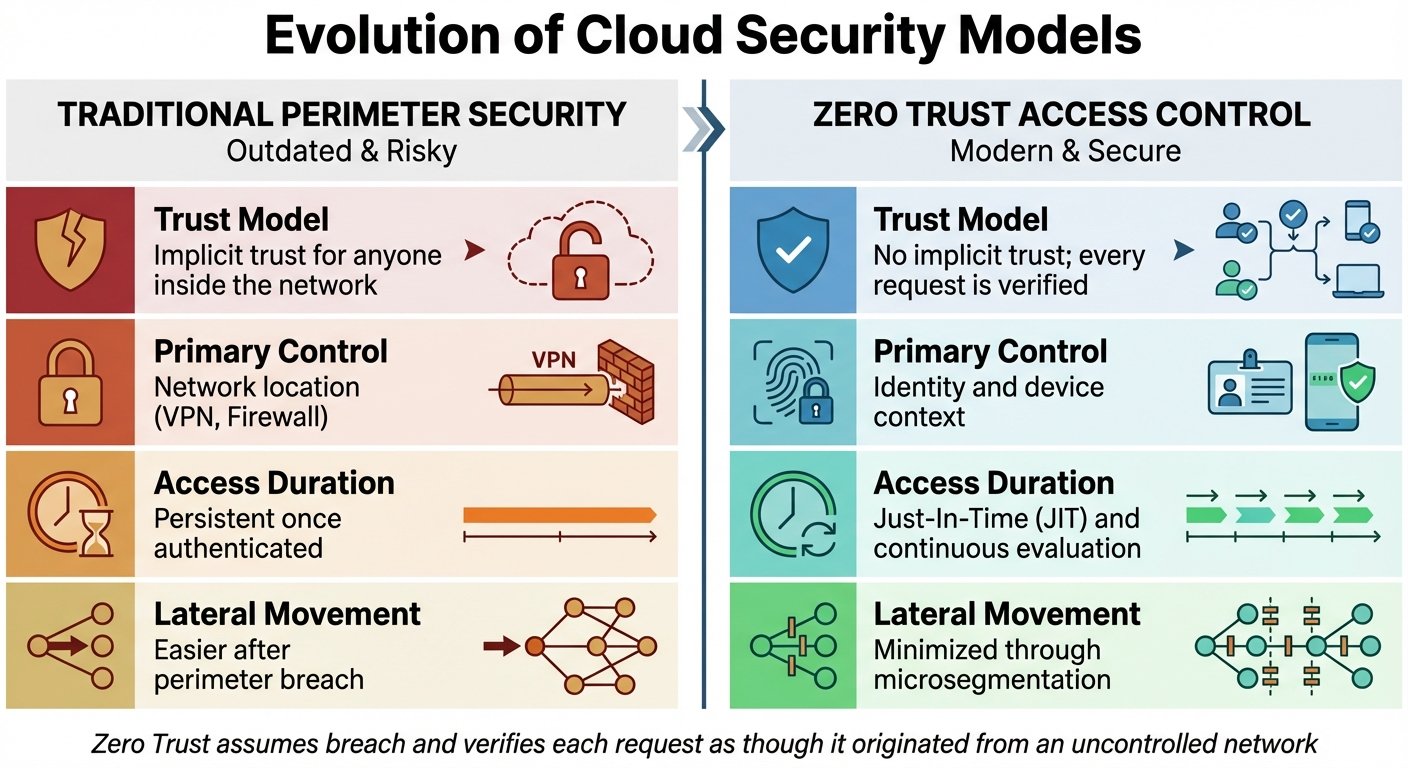
Layer on a Zero-Trust Approach
Zero trust assumes no request is inherently safe, whether it originates inside or outside your network. In practice that means verifying every access request rather than trusting a network location, keeping permissions narrowly scoped, monitoring continuously instead of at intervals, and backing passwords with stronger authentication factors.
“Zero-trust means strict access controls, non-stop container security monitoring, and user identity checks. Only the right people get into critical systems and data.” – Aztech Cloud Security Solutions
Audit and Review Permissions Regularly
Setting up secure roles and privileges is just the beginning – keeping them secure requires ongoing attention. Regular audits are essential to adapt to changes in teams, projects, or workflows. Without consistent reviews, outdated access can lead to security gaps or orphaned resources when key admins leave the company. It’s especially crucial to audit permissions right after employee departures, service shutdowns, or any signs of unauthorized access. These checks help uphold the principle of least privilege and ensure permissions remain purposeful and secure.
How to Conduct Permission Audits
Put a recurring monthly review on the calendar so audits happen on a schedule rather than after an incident. Here’s how you can perform an effective permissions audit:
- Review current policies: Use your cloud console’s Permissions tab or run
gcloud storage buckets get-iam-policyto list all principals and their roles. - Generate activity reports: Analyze user activity and credential usage. Remove any credentials that haven’t been active for a while.
- Replace wildcard permissions: Avoid using
*in Action or Resource elements. Instead, specify actions and resources unless broad administrative access is absolutely required. - Check for public access: Look for
allUsersandallAuthenticatedUsersprincipals, as these expose data to anyone online. - Flag over-privileged and dormant accounts: Accounts with more access than their role requires, or permissions nobody has exercised in months, are the weak points an attacker will find first.
If legacy ACLs are still in use alongside IAM, switch to uniform bucket-level access to consolidate permissions under IAM. Use Cloud Audit Logs to monitor changes to permissions over time, and export these logs to persistent storage for compliance purposes. Before removing any permissions, try the Policy Simulator to test the impact and avoid disrupting workflows.
Once you’ve identified outdated or excessive permissions, take immediate steps to address them.
Monitor and Alert on File Access
Audits catch drift after the fact; logging catches problems as they happen. Enable access logging across every cloud service you use, and centralize the output in one secured location so investigations don’t require stitching together three consoles. Configure real-time alerts for anomalous behavior – a bulk download at 3:00 a.m., access from an unfamiliar region, or a sudden spike in permission changes – and set aside time each week to actually read what the alerts and logs are telling you. Logs nobody reviews provide evidence after a breach but no defense against one.
Remove Outdated Access
Revoke unnecessary permissions right away using commands like gcloud storage buckets remove-iam-policy-binding. Implement expiration dates with IAM Conditions to keep access in check. This not only reduces vulnerabilities but also strengthens your adherence to the least privilege principle.
“In general, we suggest using HMAC keys for service accounts rather than user accounts. This helps eliminate the security and privacy implications of relying on accounts held by individual users. It also reduces the risk of service access outages as user accounts could be disabled when a user leaves a project or company.” – Subhasish Chakraborty, Group Product Manager, Google Cloud
Make sure to rotate keys regularly, avoid storing them in source code or local directories, and clean up unused identity providers like SAML or OpenID Connect to close potential security gaps. To prevent lockouts, ensure at least two individuals or a group hold administrative roles. However, be cautious about granting Owner roles to anyone you don’t fully trust.
Troubleshoot Common Permission Problems
Tightening permissions inevitably produces a few broken workflows. Two issues account for most of them.
Access Denied Errors
Start with the error message itself, which usually names the exact permission that is missing. For example:
ansible@vexpose.iam.gserviceaccount.com does not have storage.buckets.get access to the Google Cloud Storage bucket. Permission 'storage.buckets.get' denied on resource (or it may not exist).That tells you the service account needs storage.buckets.get, which a role such as Storage Admin would provide – though a narrower role carrying just that permission is the better fix. From there:
- Verify the assigned roles for the user or service account before granting anything new. A small role adjustment resolves most cases.
- Double-check resource names. A typo in a bucket or object name produces the same failure as a missing permission.
- Watch for name collisions. Bucket names are globally unique in Google Cloud, so a name already claimed by another organization can surface as a misleading “permission denied” message.
Permission Conflicts
When policies overlap, access can be broader or narrower than intended:
- Locate the conflict with tooling such as AWS IAM Access Analyzer or the Policy Simulator rather than reading policies by hand.
- Strip redundant permissions instead of adding more. Removing an unnecessary grant usually resolves the conflict and improves your least-privilege posture at the same time.
- Use explicit deny where your platform supports it, since a deny overrides any allow.
- Check inheritance. Permissions granted at the organization, project, or bucket level flow downward, so the source of unexpected access is often a parent resource.
- Test in staging first, then promote the change to production.
Platform Comparison: Permission Management Features
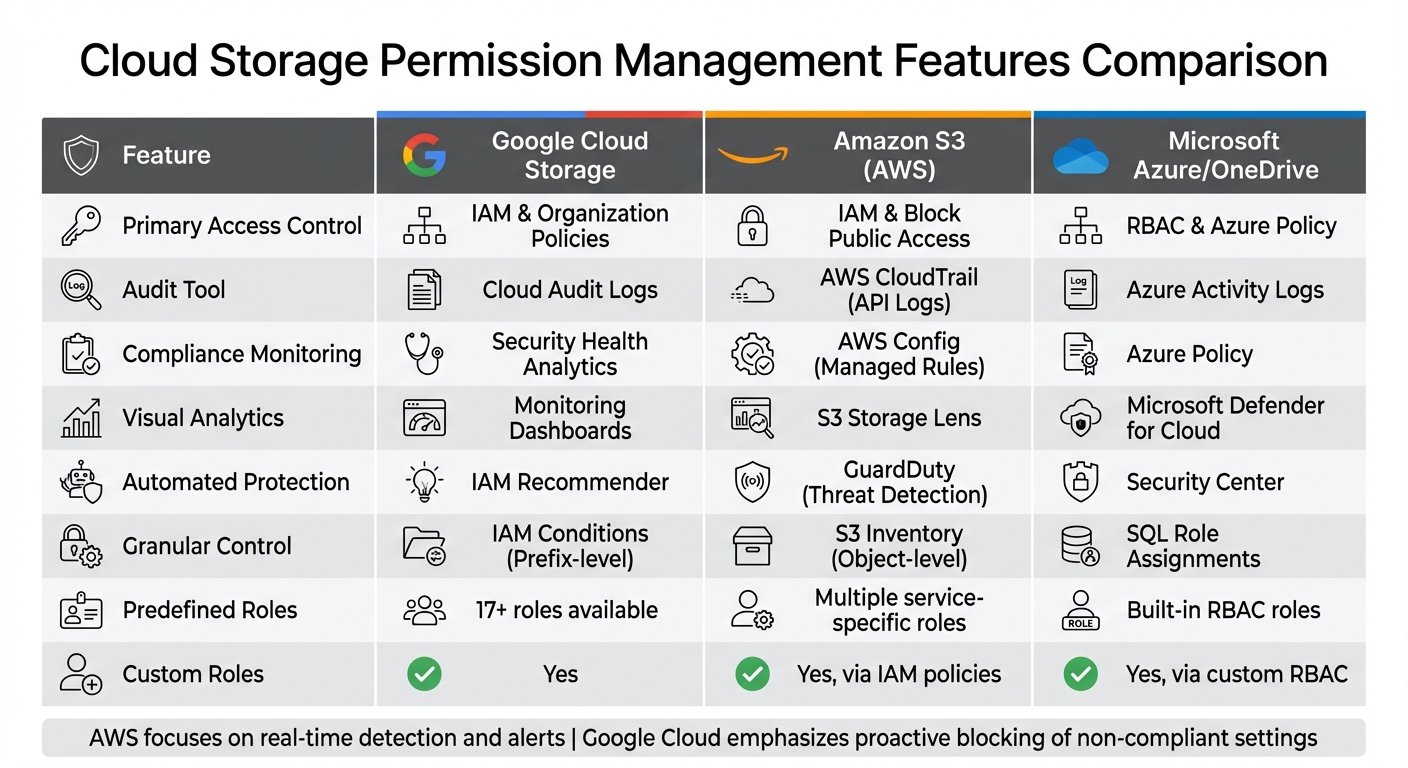
Cloud Storage Permission Management Features Comparison: Google Cloud vs AWS vs Azure
When it comes to secure cloud storage, understanding how providers handle permission controls is a big deal. Let’s dive into how some of the top platforms tackle the challenges of managing user permissions.
Each major cloud storage provider has its own approach to handling permissions. Below is a breakdown of how their features stack up, helping you decide which one fits your needs best.
Google Cloud Storage provides over 17 predefined IAM roles and allows for custom roles to bundle specific permissions. Key features include IAM Conditions, which enable time-limited or prefix-based access, and Public Access Prevention, a tool to block anonymous access. They also offer Bucket IP Filtering, which restricts access to specific networks. Google simplifies auditing with uniform bucket-level access, which disables object-level ACLs. Administrators get a 90-day grace period to revert to fine-grained access if needed before the change becomes permanent.
Amazon S3 integrates tools like AWS CloudTrail for tracking API activity, Amazon CloudWatch for real-time alerts, and AWS Config for automated compliance checks. It also features S3 Storage Lens, which provides organization-wide insights into storage activity and flags buckets that don’t align with security best practices. AWS supports up to 10,000 buckets per account by default and highlights automated asset tagging to enhance governance.
Microsoft Azure and OneDrive rely on Azure Policy and Security Center to manage and monitor permissions for over 40,000 actions. They also allow administrators to mute non-critical alerts, making it easier to focus on high-priority vulnerabilities.
Feature Comparison Table
Here’s a quick look at how the platforms compare in terms of permission management:
| Feature | Google Cloud Storage | Amazon S3 (AWS) | Microsoft Azure/OneDrive |
|---|---|---|---|
| Primary Access Control | IAM & Organization Policies | IAM & Block Public Access | RBAC & Azure Policy |
| Audit Tool | Cloud Audit Logs | AWS CloudTrail (API Logs) | Azure Activity Logs |
| Compliance Monitoring | Security Health Analytics | AWS Config (Managed Rules) | Azure Policy |
| Visual Analytics | Monitoring Dashboards | S3 Storage Lens | Microsoft Defender for Cloud |
| Automated Protection | IAM Recommender | GuardDuty (Threat Detection) | Security Center |
| Granular Control | IAM Conditions (Prefix-level) | S3 Inventory (Object-level) | SQL Role Assignments |
| Predefined Roles | 17+ roles available | Multiple service-specific roles | Built-in RBAC roles |
| Custom Roles | Yes | Yes, via IAM policies | Yes, via custom RBAC |
AWS leans heavily on tools that detect and alert you to misconfigurations in real time, while Google Cloud focuses on proactive measures that block non-compliant settings before they become an issue [19, 6]. Both platforms recommend phasing out legacy Access Control Lists in favor of IAM policies to streamline auditing and centralize control [19, 6].
Conclusion
The strategies outlined above provide a solid framework for effectively managing cloud storage permissions. At the heart of this approach is the principle of least privilege, which focuses on granting users and service accounts only the access they need to perform their tasks. This practice significantly lowers the risk of unauthorized data exposure.
To build on this foundation, uniform bucket-level access and role-based access control (RBAC) help simplify and strengthen permission management. By combining these with multi-factor authentication (MFA), domain-restricted sharing, public access prevention, and disciplined handling of guest accounts, organizations can establish a security framework that minimizes accidental data exposure while ensuring smoother compliance tracking and cleaner audit trails. For secure, temporary external access, signed URLs offer a practical solution.
Regular audits are essential to keeping permissions in check. Over time, roles evolve, projects shift, and permissions can drift from their intended setup. Monitoring policy changes and tracking service account activity ensures compliance with data protection standards and helps catch potential issues early. Exporting audit logs to long-term storage not only supports regulatory requirements but also provides a historical record of access patterns. Permission management is not a one-time configuration – it is an ongoing process that has to keep pace with organizational change and new threats.
FAQs
What is the Principle of Least Privilege, and why does it matter for cloud storage?
The Principle of Least Privilege is all about giving users just enough access to do their jobs – no extra permissions, no unnecessary access. By sticking to this approach, you can significantly reduce the risk of unauthorized access and keep sensitive information safer.
When it comes to cloud storage, this principle becomes even more critical. Limiting permissions to only what’s absolutely necessary helps protect your system from potential breaches. At the same time, it ensures users can still carry out their responsibilities without a hitch. It’s a straightforward yet highly effective way to strengthen security and maintain control over your data.
What are the security benefits of using Role-Based Access Control (RBAC) in cloud storage?
Role-Based Access Control (RBAC) strengthens cloud storage security by assigning permissions according to specific roles within an organization. This approach ensures that users only access the data and tools they need to perform their duties, significantly reducing the chances of unauthorized access.
By restricting access to sensitive information and key systems, RBAC helps lower the risk of security gaps and shields against both internal and external threats. Additionally, it streamlines permission management, enabling organizations to enforce consistent security policies with greater ease.
Which IAM permission allows a user to modify cloud storage ACLs?
Changing object-level Access Control Lists requires the storage.objects.setIamPolicypermission. It is easy to confuse with neighbouring permissions that sound similar but do different things:
| Permission Name | Function |
|---|---|
| storage.objects.setIamPolicy | Updates object ACLs |
| storage.objects.setRetention | Adds or updates object retentions |
| storage.objects.update | Changes object metadata (except ACLs) |
Note that storage.objects.updatecovers metadata but explicitly excludes ACLs, so granting it does not allow a user to change who can reach an object.
Why is it important to regularly review and update cloud storage permissions?
Keeping a close eye on cloud storage permissions and updating them regularly is crucial for safeguarding sensitive data and avoiding unauthorized access. Over time, employees might switch roles, leave the company, or no longer need access to certain files. If permissions aren’t reviewed periodically, outdated access levels could turn into serious security risks.
Routine audits can help ensure that only the appropriate individuals have access to specific data, minimizing the chances of breaches and supporting compliance with security protocols. Taking a proactive approach to managing permissions is a straightforward but effective method to protect your cloud storage.
More on this topic
Browse all 79 articles on Security & Compliance.