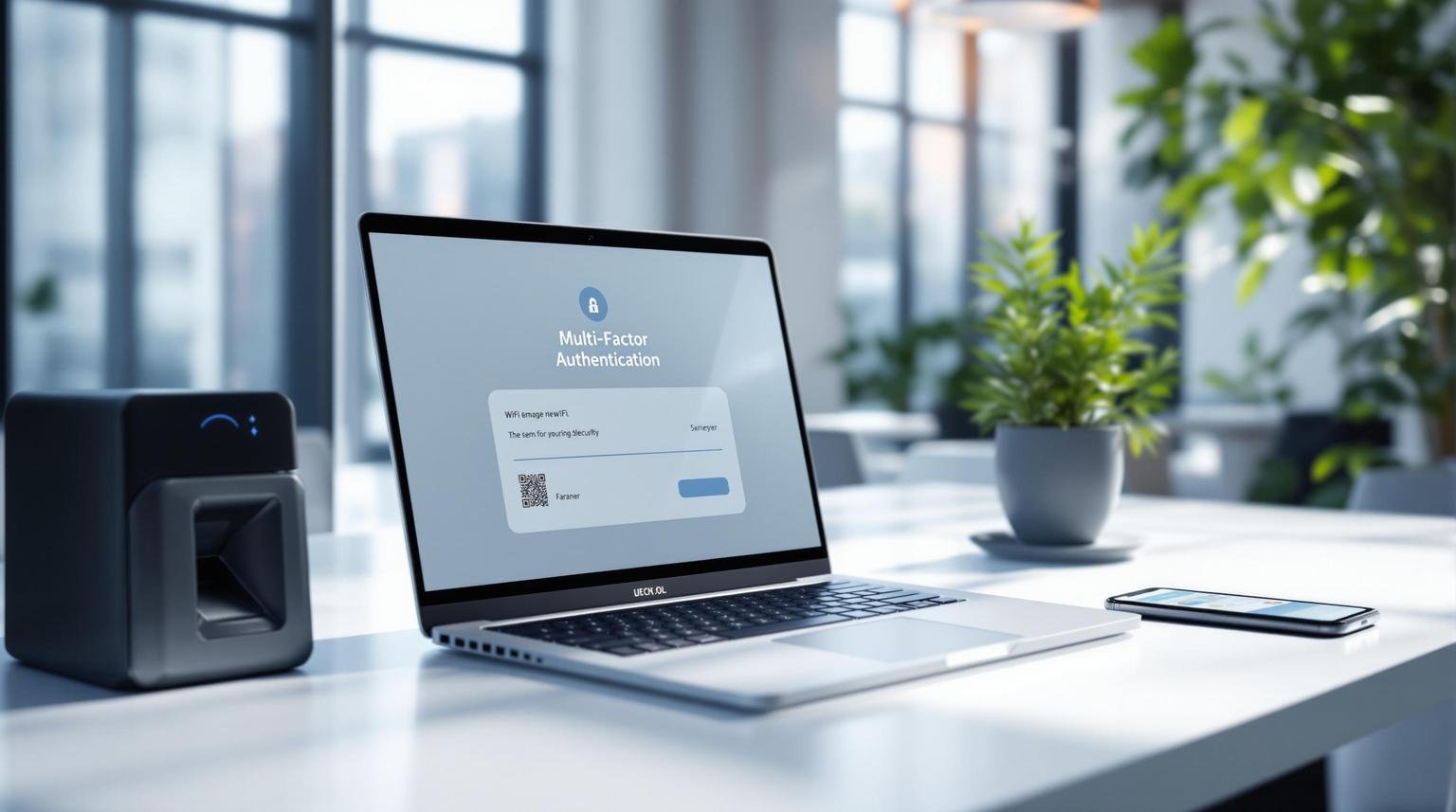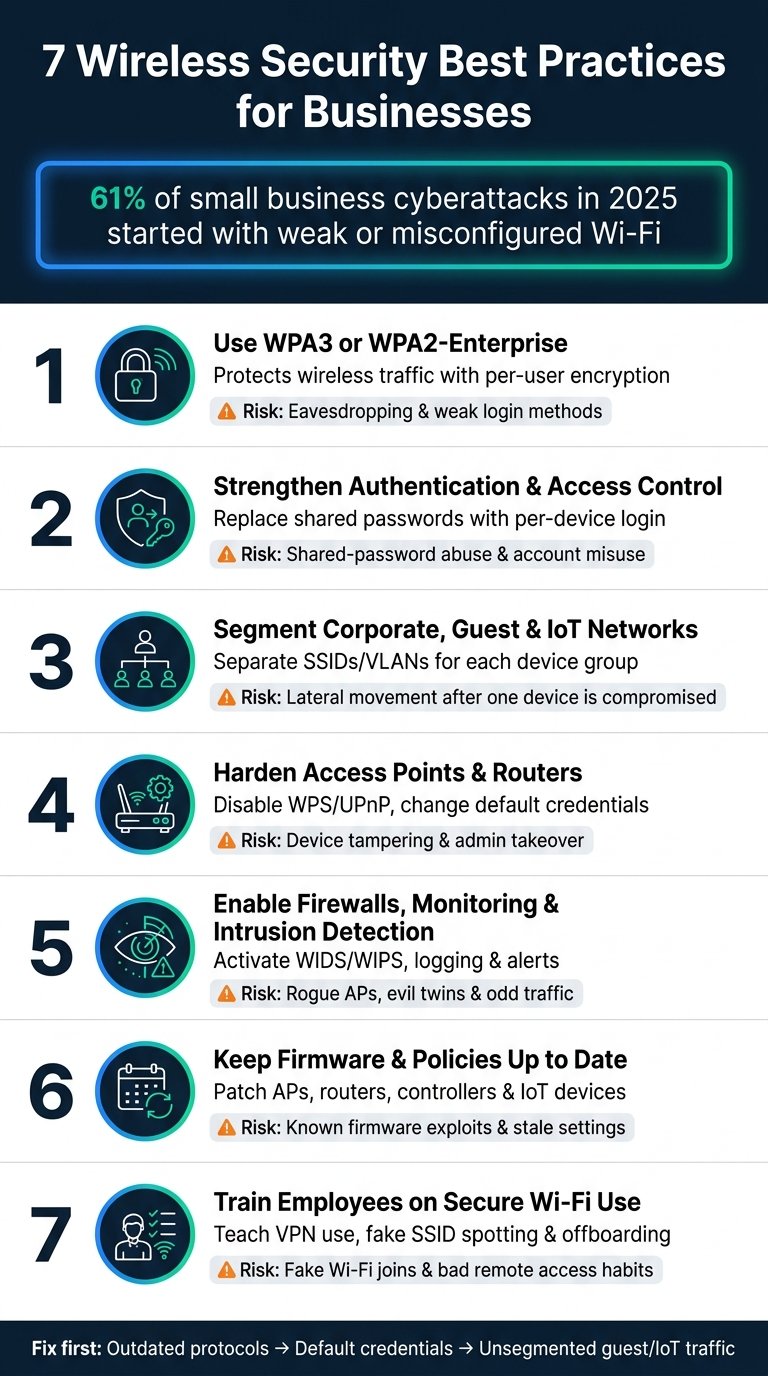

Here’s how to secure your WiFi network with Multi-Factor Authentication (MFA):
- Set up a RADIUS server
- Configure access points for RADIUS
- Use WPA2-Enterprise security
- Enable 802.1X authentication
- Implement MFA factors:
- Something you know (password)
- Something you have (phone)
- Something you are (fingerprint)
Why bother? MFA stops 99.9% of account hacks (Microsoft).
Key steps:
- Install Windows Server + Active Directory
- Set up Network Policy Server (NPS)
- Configure access points as RADIUS clients
- Enable WPA2-Enterprise on WiFi
- Test connections and check logs
Remember: MFA isn’t bulletproof. Train users, update systems, and stay vigilant.
Ready to lock down your WiFi? Let’s dive in.
MFA and WiFi Basics
MFA is changing the game for WiFi security. It’s like adding extra locks to your front door. Let’s break down how MFA works with WiFi and why it’s so effective.
Main MFA Parts
MFA for WiFi has three key players:
- Authentication Server: Think of this as the bouncer at a club. It’s usually a RADIUS server that checks if you’re on the guest list.
- Authenticator: This is like the doorman. It’s usually your WiFi access point, passing messages between you and the bouncer.
- Supplicant: That’s you (or your device) trying to get into the club (aka the network).
Here’s how it works: You try to connect to WiFi. Your device talks to the access point, which checks with the RADIUS server to make sure you’re allowed in.
Types of Authentication
MFA uses different ways to prove you’re you. It’s like showing multiple IDs at the club. There are three main types:
- Something You Know: A password or PIN
- Something You Have: A security token or your phone
- Something You Are: Your fingerprint or face
Different systems use these in different ways. Here’s a quick look at two popular methods:
| Protocol | What It Does | How Safe Is It? |
|---|---|---|
| PEAP | Uses a special pass to create a secret tunnel for your password | Pretty darn safe |
| EAP-TLS | Both you and the server show ID. It’s like you’re both bouncers | Super safe |
EAP-TLS is the safest, but it’s a bit more complicated to set up. As one security pro puts it:
“EAP-TLS is like Fort Knox for your WiFi. It uses the full power of TLS to keep the bad guys out.”
Security Improvements
Adding MFA to your WiFi is like upgrading from a simple lock to a high-tech security system. Here’s what you get:
- Smaller Target: Even if someone guesses your password, they’re not getting in without more info.
- Better ID Checks: MFA makes sure you’re really you, not just someone who found your password.
- Following the Rules: Some industries require MFA to meet regulations.
MFA is a game-changer. Microsoft says it stops 99.9% of automated attacks. That’s huge.
Before you jump into MFA, make sure you have:
- A RADIUS server that plays nice with MFA
- WiFi access points that support 802.1X
- A system to manage user identities
- MFA tokens or an app for that second factor
Put all these pieces together, and you’ve got a fortress around your WiFi. As Anna from Protectimus Ltd. says:
“MFA goes beyond just usernames and passwords. It’s like asking for multiple secret handshakes before letting anyone in.”
This layered approach makes it way harder for the bad guys to break in, keeping your data safe and sound.
Setup Steps
Let’s walk through setting up Multi-Factor Authentication (MFA) for your WiFi network. It’s like adding an extra lock to your digital front door.
Setting Up RADIUS Server
The RADIUS server is your network’s security guard. Here’s how to get it ready:
1. Install Windows Server
Start with Windows Server 2019. Your system should have:
- 1.4 GHz processor
- 2 GB RAM
- At least 32 GB disk space
2. Set Up Active Directory Domain Services (ADDS)
ADDS keeps track of who can access your network.
3. Install Network Policy Server (NPS)
NPS is Microsoft’s RADIUS server. It’s the backbone of your MFA setup.
4. Configure Certificates
Use Active Directory Certificate Services (ADCS) to set up certificates. They prove your server is legitimate.
5. Configure NPS for MFA
Download and install Microsoft’s NPS extension from the Microsoft Download Center. This adds cloud-based MFA to your setup.
“The NPS extension acts as an adapter between RADIUS and cloud-based Microsoft Entra multifactor authentication to provide a second factor of authentication for federated or synced users.” – Microsoft Documentation
Make sure your NPS server can reach these URLs on TCP port 443:
- https://login.microsoftonline.com
- https://strongauthenticationservice.auth.microsoft.com
Access Point Settings
Now, let’s set up your access points:
1. Configure Access Points as RADIUS Clients
Add each access point as a RADIUS client on your NPS server. You’ll need a shared secret for each one.
2. Set Up WPA2-Enterprise
This is top-notch WiFi security.
3. Enable 802.1X Authentication
This protocol lets your devices talk to the RADIUS server.
4. Configure Syslog Streaming
If you’re using a firewall like Barracuda CloudGen, set up syslog streaming on your access points.
Testing Your Setup
Before you go live, let’s make sure everything works:
1. Use Built-in Test Tools
Many systems have RADIUS test utilities. Use these to check if your access points can talk to the RADIUS server.
2. Try a Test Connection
Connect a device to your new secure network. You should need your usual credentials plus a second factor.
3. Check Logs
Look at your NPS server logs for successful authentications and any errors.
4. Verify MFA Prompts
Make sure users get MFA prompts. Microsoft notes:
“Users must have a TOTP authentication method registered to see the behavior of being prompted to sign in with a TOTP method instead of the Approve/Deny experience.”
Setup Tips and Guidelines
Let’s make your WiFi network as secure as Fort Knox with Multi-Factor Authentication (MFA). Here’s how to do it right:
Choosing Security Settings
Not all WiFi security is created equal. Here’s the lowdown:
- Go for WPA2-Personal with AES-CCMP. It’s like having a top-notch lock on your front door.
- If your devices can handle it, WPA3 is the new kid on the block. It’s the digital equivalent of a smart lock with fingerprint recognition.
- Ditch WEP and original WPA. Using these is like leaving your door wide open in a sketchy neighborhood.
“WPA2-Personal with AES is your best bet for solid security without the headaches.” – Super User
For the big players or control freaks:
- Enterprise Authentication: It’s like giving each employee their own personalized key. You’ll need a RADIUS server, though.
- Certificate-based authentication: Think of it as a digital ID card that’s nearly impossible to fake. Pair it with onboarding software for extra oomph.
Login Process Steps
Make logging in a breeze:
- Get users enrolled in MFA before they try to log in. No one likes surprises.
- Spell it out. Give step-by-step guides for different devices. Throw in some video tutorials for the visual learners.
- Always have a Plan B. If push notifications fail, let users generate a one-time passcode.
- Set your RADIUS clients right. Duo says 60 seconds timeout and 3 retries should do the trick.
Fixing Common Problems
Even the best-laid plans can go awry. Here’s how to tackle the usual suspects:
- Authentication errors: Check your settings. Make sure your devices and router are speaking the same language.
- Password problems: Tell users to double-check their typing. One wrong letter can ruin everything.
- Signal interference: If the connection’s acting up, try moving your router away from other gadgets.
- App notifications: No authentication prompts? Make sure push notifications are on for both the device and the app.
- MAC address filtering: Using this? Don’t forget to add new devices to the VIP list.
Remember, good MFA is like a well-oiled machine – secure, but smooth. As Anna from Protectimus Ltd. puts it:
“Mixing multiple authentication factors with RADIUS is like adding extra layers to your security onion.”
Keeping Your System Running
You’ve set up Multi-Factor Authentication (MFA) for your WiFi. Great! But your job isn’t done. Let’s talk about how to keep your digital fortress strong.
Security Checks
Think of regular security checks as health check-ups for your MFA system. Here’s how to keep your security tight:
- Watch User Activity: Keep an eye on who’s doing what. Spot any weird login patterns?
- Test Your Defenses: Try to break into your own system (ethically). If you can do it, so can the bad guys.
- Check Your Logs: Your RADIUS server is like a security camera. Look at its footage often.
- Update Your Policies: As your business grows, your security should too. Give your policies a yearly once-over.
“Authentication isn’t a set-it-and-forget-it deal. It needs constant attention and regular check-ups.” – NordLayer Team
Managing Users
Think of user management like being a bouncer at a fancy club. You need to know who’s on the list. Here’s how:
- Clean House: Got any ex-employees still on your system? Show them the digital door.
- Check Permissions: Make sure everyone has just the right level of access. Not too much, not too little.
-
Teach Your Team: Your users need to know the security ropes. As one expert puts it:
“Tech can lock down your data, but your people need to know how to keep it safe too.”
- Handle MFA Hiccups: Users struggling with MFA? Be ready to help them out.
Remember, each user can only have MFA on 10 devices max. Keep that in mind when you’re managing accounts.
System Updates
Updating your system is like getting your flu shot. It keeps you safe from new threats. Here’s how to stay on top of it:
- Regular Check-ups: Look for updates often. Monthly is good, weekly is better.
- Test First: Don’t just hit “update” and cross your fingers. Try it out somewhere safe first.
- Plan for Downtime: Updates might mean some offline time. Schedule these when it won’t bug people.
- Watch for Patches: Sometimes, you’ll get urgent security fixes. Be ready to apply these ASAP.
“As the bad guys come up with new tricks, make sure your MFA game stays strong.” – Security Expert
Summary
MFA is a game-changer for WiFi security. It’s like adding extra locks to your digital door, making it way harder for hackers to break in. Let’s break down the key points of using MFA with your WiFi:
Why MFA Matters
MFA isn’t just fancy tech – it’s a must-have defense. Microsoft found it blocks over 99.9% of account attacks. With cyber threats on the rise, you need this extra protection.
The MFA Trio
MFA uses three types of proof:
- Something you know (like a password)
- Something you have (like a phone)
- Something you are (like a fingerprint)
This combo makes it super tough for hackers to get in, even if they crack one part.
Setting Up MFA for WiFi
Here’s how to add MFA to your WiFi:
- Set up a RADIUS server (your network’s bouncer)
- Configure your access points to talk to RADIUS
- Use WPA2-Enterprise (it’s the best WiFi security out there)
Keep It Strong
To maintain your MFA-protected WiFi:
- Do regular security checks
- Keep your user list up-to-date
- Stay on top of updates
As Radhika Vyas, a tech writer, puts it:
“A solid RADIUS server setup means quick and safe network ID.”
Don’t Forget the People
Even the best tech can’t protect you if your team doesn’t know how to use it. Train your users on MFA best practices. As one expert said:
“Tech can lock down your data, but your people need to know how to keep it safe too.”
FAQs
Is RADIUS multi-factor authentication?
RADIUS isn’t multi-factor authentication by itself. But it’s a key player in MFA setups.
Think of RADIUS as your network’s bouncer. It decides who gets in and who doesn’t. When you pair it with MFA, it becomes a super-bouncer.
Here’s the basic flow:
- You type in your username and password.
- If that checks out, RADIUS can kick off a second authentication step.
Anna from Protectimus Ltd. puts it this way:
“RADIUS authentication can also be used as an effective MFA technique. When it is used for MFA, the first step is to enter the username and password.”
But there’s more. Network admins can set up a RADIUS challenge. It’s like the bouncer asking for a secret handshake after checking your ID. This could be:
- A one-time code
- A secret key
- A biometric check
NordVPN backs this up:
“RADIUS authentication can also be used as an effective MFA technique.”
So, RADIUS isn’t MFA on its own. But it’s a solid foundation for building a multi-layered security system. It’s like having a high-tech alarm system for your digital house.
More on this topic
Browse all 39 articles on IT, Cloud & Integrations, or jump straight to our buying guide: Best Collaboration Tools for Small Teams.