Integrating your project management software with QuickBooks can transform the way you manage your business finances and projects. Here’s a quick guide to what you need to know:
- Efficiency Boost: Automatically sync data between your project management tool and QuickBooks to avoid duplicate entries.
- Unified View: Access project budgets, expenses, invoices, and financial reports all in one place.
- Simplified Billing: Generate and send invoices directly from your project management software.
- Accurate Planning: Combine project and financial data for better forecasting and decision-making.
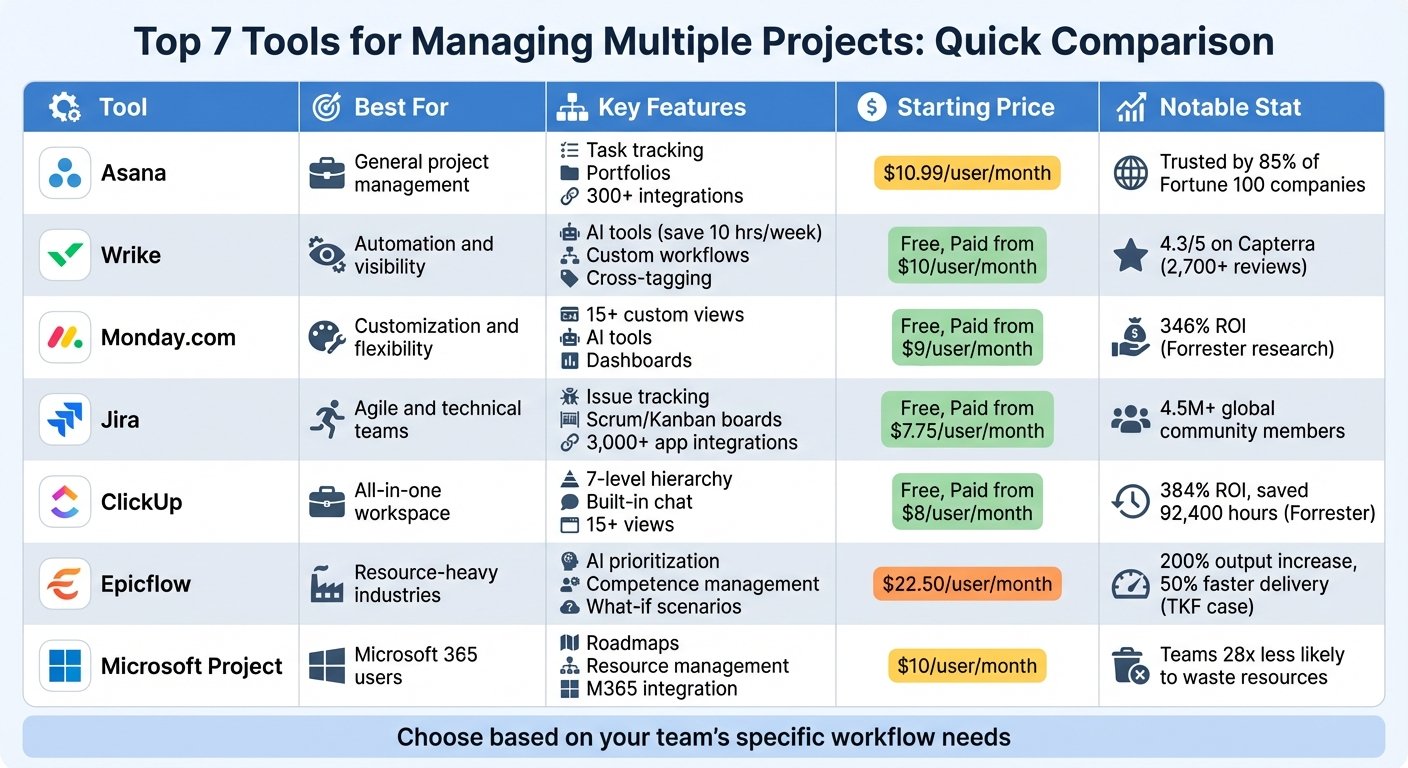
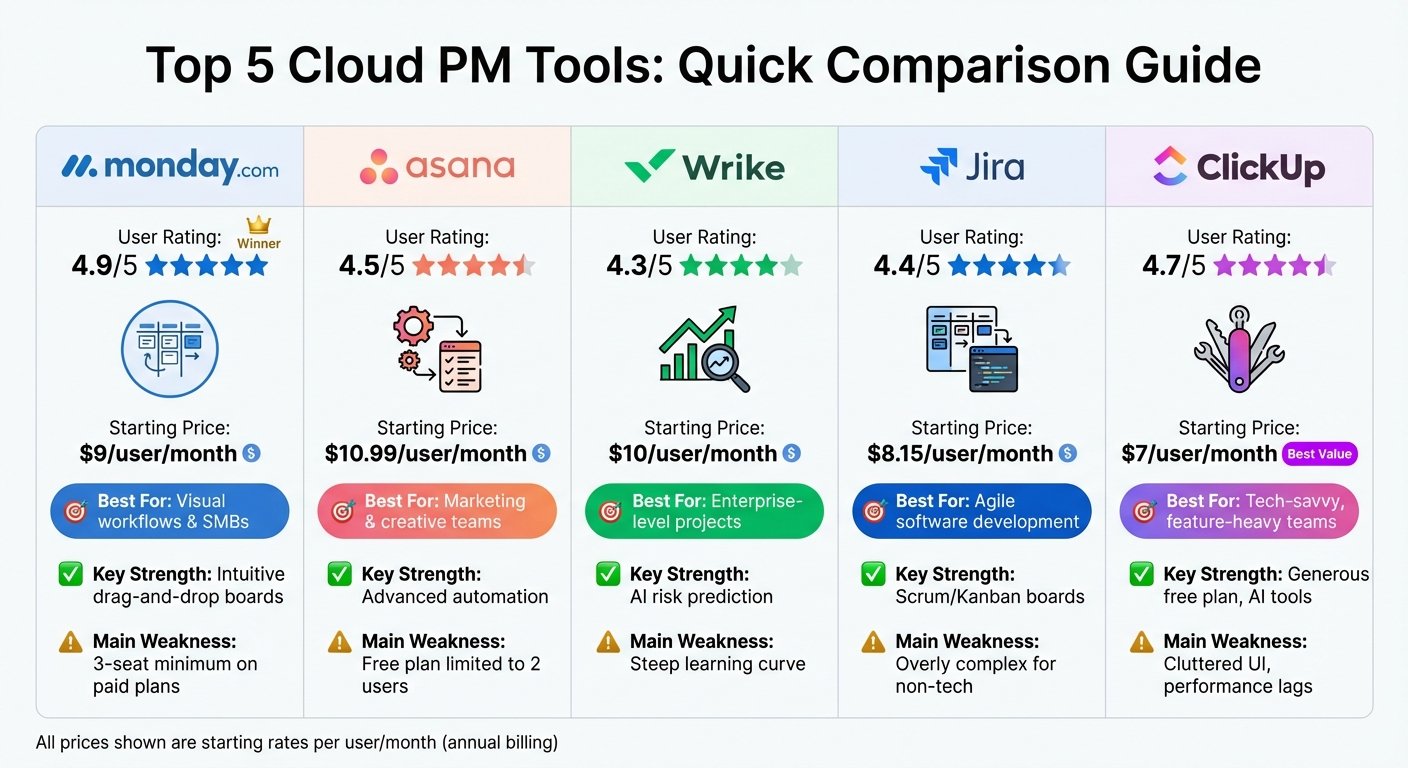
- Popular Integrations: Tools like monday.com, Wrike, Teamwork, and Float work well with QuickBooks.
This guide will walk you through the basics of QuickBooks and project management software, the benefits of integration, the steps to ensure a smooth integration process, and how to maximize the impact of this integration for your business. Whether you’re looking to save time, make smarter business decisions, or simply streamline your workflows, connecting your project management tool with QuickBooks is a step in the right direction.
What is QuickBooks?
QuickBooks is a tool that helps small and medium-sized businesses handle their money matters. It lets you:
- Keep track of what you earn and spend
- Manage bills and payments
- Create financial reports
- Check bank transactions
- Handle employee pay
Some key things QuickBooks does include:
- Sending bills to customers
- Keeping track of payments
- Recording expenses
- Managing tax documents
- Watching over cash flow
- Making profit and loss statements
QuickBooks makes it easier for business owners, freelancers, and small companies to manage their books. It can also work with other tools like those for managing employee pay and sales.
What is Project Management Software?
Project management software is a tool that helps teams plan, organize, and keep track of projects. Important features are:
- Assigning tasks with deadlines
- Figuring out who does what
- Keeping track of time spent
- Using Gantt charts and Kanban boards for planning
- Helping teams work together
- Making workflows that fit your project
- Sharing updates and reports
These tools help everyone see what’s happening in a project, including schedules, budgets, and how much work there is. This helps teams work better together.
Some of the main things these tools do include managing important project parts, like milestones, tasks, budgets, files, talking with your team, planning resources, and understanding project data. This helps projects finish on time and within budget.
Popular options like monday.com, Teamwork, and Wrike can easily connect with QuickBooks. This lets you see all your project and financial info in one place.
The Importance of Integration
Integrating your project management software with QuickBooks makes managing your business a lot smoother. Here’s how it helps:
Centralized Data and Enhanced Visibility
Keeping all your financial and project stuff in one place means you don’t have to jump between apps. Everything you need to see is right there. This helps you:
- Keep an eye on project budgets
- Check if projects are making money
- Catch problems early, like spending too much
- Make sure you’re using your resources wisely
With everything in one spot, it’s easier to see what’s going on with your projects and how they’re affecting your money.
Automated Workflows and Data Flows
When your project management tool talks to QuickBooks, you don’t have to enter the same info twice. Things like:
- Hours worked on a project go straight into QuickBooks for billing
- Details about invoices go back to your projects
- Budgets you set up sync between both systems
This saves you time and cuts down on mistakes from typing things in over and over. Plus, when you update something in one place, it updates everywhere.
Enhanced Reporting and Planning
With your project and money data together, you can make better business decisions. You can see things like:
- Which services bring in the most money
- What kind of projects your team does quickly
- How to set budgets for different clients
Better reports also help you plan for the future by looking at how you’ve done in the past.
In short, linking your project management with your accounting tool is key for keeping things clear, saving time, and planning smart. It’s a great way to keep track of your business’s money while making sure projects run smoothly.
Preparing for Integration
Before you start connecting your project management software with QuickBooks, there are a few things you need to do to make sure everything goes smoothly. Here’s a simple guide:
Checking Compatibility
First off, not every project management tool can talk to QuickBooks. You need to make sure the ones you’re using can work together. For instance, monday.com and Wrike can connect with both QuickBooks Online and Desktop, but some tools like Asana only work with Online. Always double-check with the software providers first.
Understanding Needed Settings
Sometimes, you need to tweak a few settings to get the integration working. This might include:
- Turning on API access in your project management app
- Allowing third-party apps in QuickBooks
- Using a web connector or giving accountant access if you’re using QuickBooks Desktop
Look up the help guides or ask customer support to know exactly what you need to do.
Meeting Prerequisites
Before you link everything up, make sure you’re ready:
- Have active subscriptions for both QuickBooks and your project management tool
- Make sure customer names and other important info match in both systems
- Bring your chart of accounts over to your project management software
- Try a test run with some fake data to catch any glitches
Getting these things in order helps avoid headaches later.
Determining Workflows
Think about how you want the two systems to work together. Maybe you want to automatically share client and project details? Or send invoices directly from one to the other? Plan out what should connect, how often it should update, and who needs to see it. This planning step makes sure the integration does what you need it to.
Informing Your Team
Don’t forget to tell your team what’s happening. Let them know:
- What’s going to change
- How to use the new setup
- Who to ask if they have questions
- When everything will be up and running
Giving everyone a heads-up means they won’t be caught off guard, and your work won’t miss a beat.
By tackling these steps, you’re setting yourself up for a successful integration of QuickBooks and your project management software. It’s all about making sure you have all the right info in one place and making your work life a bit easier.
Step-by-Step Guide to Integration
1. Choosing the Right Project Management Software
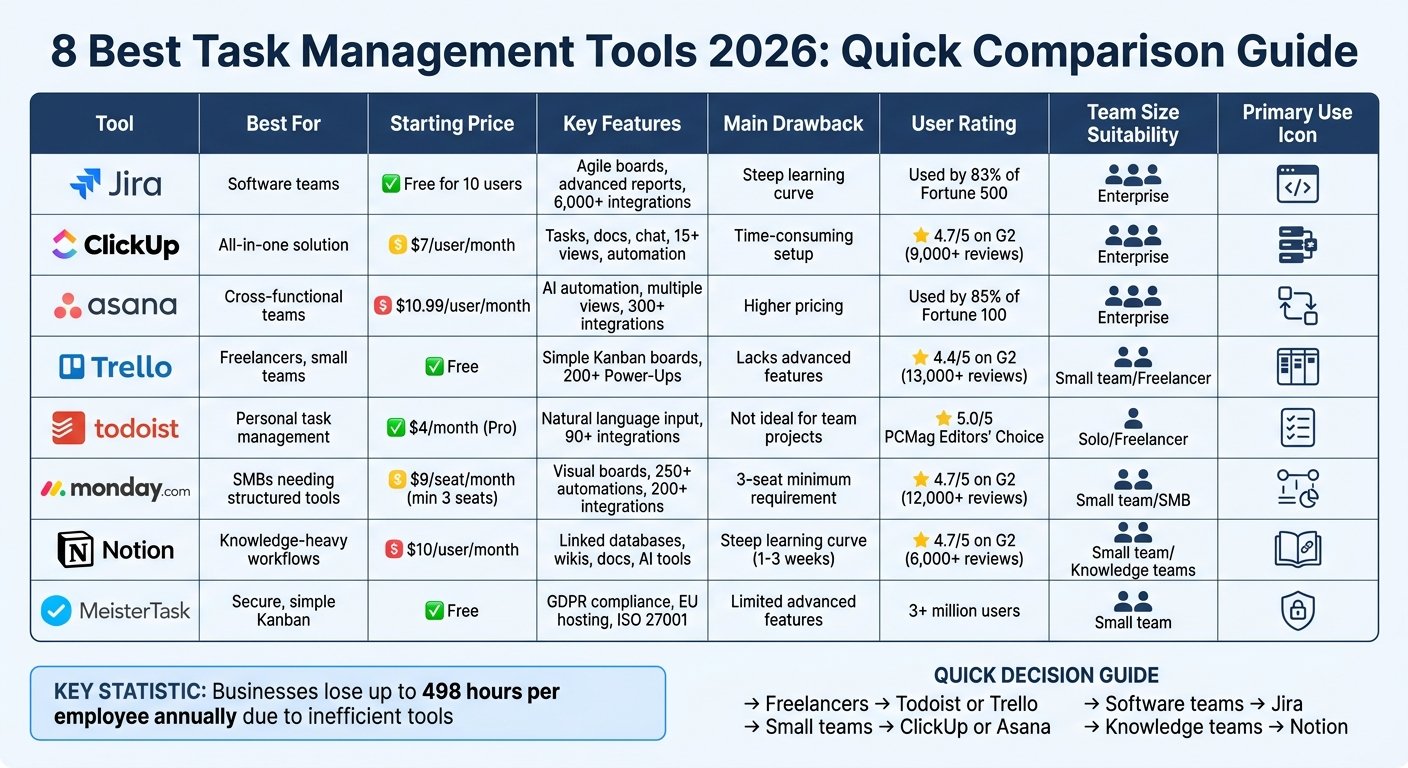
When you’re picking a project management tool to work with QuickBooks, think about what matters most like:
Features
- Keeping track of time and reports
- Managing budgets and costs
- Sending invoices
- Customizing fields and how things flow
- Apps for your phone
- Connecting with other apps through API or Zapier
Pricing
Look at different plans based on:
- How many people can use it
- How much storage you get
- Extra features you can unlock
Try them out with free trials if you can.
Reviews
Check what other users say about ease of use and about the QuickBooks connection specifically — a tool can be well liked overall and still have a fragile sync. Aggregate star ratings on review sites move around and are easy to misread, so read the one- and two-star reviews mentioning QuickBooks rather than the headline score.
Here’s a quick look at some top choices. Prices below are the entry and top self-serve tiers, taken from each vendor’s own pricing page in August 2026; higher tiers are quote-only. Software pricing changes often, so check before you budget.
| Software | Key Features | Pricing | Minimums |
|---|---|---|---|
| monday.com | Timesheets, budgets, Gantt charts, Zapier | $9 – $19 per seat per month, billed annually (Work Management: Basic to Pro; Enterprise is custom) | 1 seat |
| Wrike | Timelines, managing workloads, forms, APIs | $10 – $25 per user per month, billed annually (Team to Business; Pinnacle and Apex are custom) | 2 users on Team, 5 on Business |
| Teamwork | Billing for time, expenses, Gantt charts, Zapier | $9.99 – $24.99 per user per month, billed yearly (Basics to Accelerate; Optimize and Enterprise are custom) | 5 users on Accelerate |
2. Setting Up QuickBooks for Integration
To get QuickBooks ready to work with your project tool, do this:
- Turn on access for other apps in your QuickBooks settings.
- Make sure your info like customer and project names match in both systems.
- Give the right people access so they can see the financial details they need.
- Link your bank or credit accounts to bring in transactions automatically.
- Look for guides in the QuickBooks App Store on how to connect other tools.
3. Integrating Project Software with QuickBooks

Here’s how to link your project app and QuickBooks:
- Find the integration option in your project app and allow it to connect.
- Choose QuickBooks from the list and link your accounts with a secure sign-in.
- Match up info like customer names and project codes between the two.
- Set up automatic sharing of things like hours worked or project costs.
- Try it out with some fake data to make sure everything works well.
- Get your team started with instructions on how to use the new setup.
Best Practices for Integration
Linking your project management tools with QuickBooks can make things run smoother, but you need to set it up carefully. Here are some tips to make sure everything goes well:
Test First
Before you start using the integration with real data, try it out with some fake projects and tasks. You want to check that:
- Information goes where it’s supposed to
- Everything works like it should
- There aren’t any mistakes or missing information
Testing with fake data first means you can find and fix problems without messing up anything important.
Back Up Your Data
Just to be safe, make a copy of your important information in both systems. This way, if something goes wrong, you won’t lose anything critical.
Give Your Team a Heads Up
Let your team know about the new setup before it starts. Tell them:
- What’s changing and when
- How to use the new features
- Who to ask if they have questions
This helps everyone get ready and avoids confusion.
Monitor Ongoing Performance
Even after everything is set up, keep an eye on how it’s doing. Make sure that:
- Data is syncing correctly
- Everything is up to date
- There are no errors or missing information
It’s easier to fix small issues before they turn into big problems.
Allow Time for Adjustment
It might take a while for everyone to get used to the new system. Be patient and offer extra help or training if needed.
Maintain Both Systems
Keep both QuickBooks and your project software updated. This helps avoid any problems with them working together.
Document Workarounds
If you find fixes for any issues, write them down. This makes it easier for everyone to solve the same problems in the future.
Know Who to Contact
Make sure everyone knows how to get help if they need it. Provide information on:
- Who to talk to first
- How to report problems
- Where to find help guides
- What to do if an issue isn’t fixed right away
Having a clear way to get help keeps small problems from getting worse.
Following these steps can help make sure your QuickBooks and project management software work well together. It takes some effort, but it’s worth it to keep everything running smoothly.
Evaluating the Impact
This section used to quote figures attributed to Deloitte, Mavenlink, Accelo and CoConstruct, along with three customer testimonials. All of it has been removed. None of the studies could be traced to anything those firms published, and the quotes named no business anyone could check. On a site that tells you when not to buy something, borrowed numbers nobody can verify are worse than no numbers at all.
What can honestly be said about the value of this integration is mechanical, and it is more useful anyway.
Where the time actually goes
The saving is not in the accounting. It is in the gap between the two systems, and that gap is made of four things:
- Re-keying. Someone reads billable hours out of one system and types them into an invoice in the other. Every re-key is a chance to transpose a digit.
- Reconciliation. When the two systems disagree, somebody has to work out which one is right. This takes far longer than the original entry, and it happens at month end under time pressure.
- Chasing. Timesheets nobody filled in stay invisible until billing day. A connected system surfaces the gap earlier, but only if someone is looking at it.
- Correcting. An invoice that goes out wrong costs a credit note, an awkward conversation, and a delay in getting paid.
Which of those four dominates decides whether the integration is worth anything to you. If your team bills by the hour and invoices monthly, most of the benefit lands in the first week of the month, every month. If you invoice fixed fees at fixed milestones, there is much less copying to remove, and the integration is really about cost visibility rather than billing speed.
When it is not worth doing
- Low invoice volume. Below roughly a dozen invoices a month, setup and maintenance cost more than the copying they replace.
- Mismatched customer records. If your project tool and QuickBooks disagree about who a client is — different trading names, different legal entities, one record per site — the sync will create duplicates in your ledger. Untangling that afterwards is worse than never syncing at all. Reconcile the customer list first.
- QuickBooks Desktop. Desktop syncs generally run through the Web Connector on a schedule rather than live, and they stop when the file moves or the machine is off. QuickBooks Online integrations are materially easier to keep working.
- Heavy customisation. Custom fields, a non-standard chart of accounts and unusual tax treatment are where prebuilt connectors run out. Confirm the connector maps your actual accounts before you commit to an annual plan.
What breaks after go-live
Integrations rarely fail loudly. They fail by quietly stopping: an authorisation token expires, a field gets renamed, someone edits a customer name in one system only. The failure shows up weeks later as an invoice nobody sent. Decide before go-live who checks the sync log and how often, and hand-reconcile one month a quarter after launch to prove the two systems still agree.
Get a number that means something
Before you connect anything, time it. For one billing cycle, record how long it takes to get from “the month ended” to “invoices are out”, how many corrections you issue, and how many billable hours never make it onto an invoice. Count the same three things two cycles after go-live. It takes about an hour to collect and it is the only comparison specific to your business.
Key Takeaways
- The saving comes from removing re-keying and reconciliation, not from the accounting itself getting faster.
- It pays off most for hourly billing on a monthly cycle, and least for fixed-fee milestone work.
- Matching customer records across both systems before the first sync is the step that decides whether this works.
- QuickBooks Online integrations are easier to keep running than QuickBooks Desktop ones.
- Measure your own billing cycle before and after. Nobody else’s number tells you anything about yours.
Whether the setup effort is worth it depends on how much of your month currently goes into moving numbers between two screens.
Conclusion
Linking your project management tool with QuickBooks can really help your small business. It puts all your money details and project info in one place. This makes it easier to see what’s going on and manage everything better.
Here are the main good things about making this connection:
- You save time because you don’t have to enter the same info twice or do things by hand.
- Your budget plans get better because you can see project costs as they happen.
- Everyone gets more done because work flows smoother and people can work together easier.
- You can make smarter choices with detailed reports and updates.
- You might make more money by using resources and billing better.
How much difference it makes depends on how you bill. Firms that charge by the hour and invoice monthly tend to notice it in the first billing cycle. Firms on fixed fees notice it mainly as better cost visibility rather than as time saved, which is still worth having but is a different reason to buy.
Every business is different, but linking QuickBooks with project management software usually brings good results. It might take a bit of work to get started, but it’s worth it for how much easier it makes things. Small business owners should definitely think about trying it.
With some planning and practice, you can make sure your systems talk to each other well. Pick the right software, get everything ready, decide how to match up info, and teach your team how to use the new system. Keep checking in to make things even better and save more time and money down the road.
Related Questions
Can you do project management in QuickBooks?
Yes, QuickBooks Online lets you keep track of your projects by showing you how much money you’re making or losing on each one. You can set up projects, add transactions to them, keep an eye on the hours spent, and check reports to see how your projects are doing.
Does Microsoft Project work with QuickBooks?
Yes, you can connect Microsoft Project to QuickBooks through safe third-party services. This lets you share important info like project budgets and costs between the two, helping you see the full picture of your project’s financial health.
Does QuickBooks have a CRM tool?
QuickBooks itself doesn’t come with a CRM, but it can work with many well-known CRM systems such as Salesforce, Zoho CRM, and Insightly. Linking your CRM with QuickBooks puts all your customer and financial info in one place, making it easier to make smart business choices.
Does QuickBooks have task management?
QuickBooks has a feature called Task Manager that helps you manage work tasks. You can set up tasks, assign them to team members, and track progress. It’s a handy way to keep tabs on financial tasks that need to be done, all within QuickBooks.
More on this topic
Browse all 39 articles on IT, Cloud & Integrations, or jump straight to our buying guide: Best Collaboration Tools for Small Teams.