Quick facts
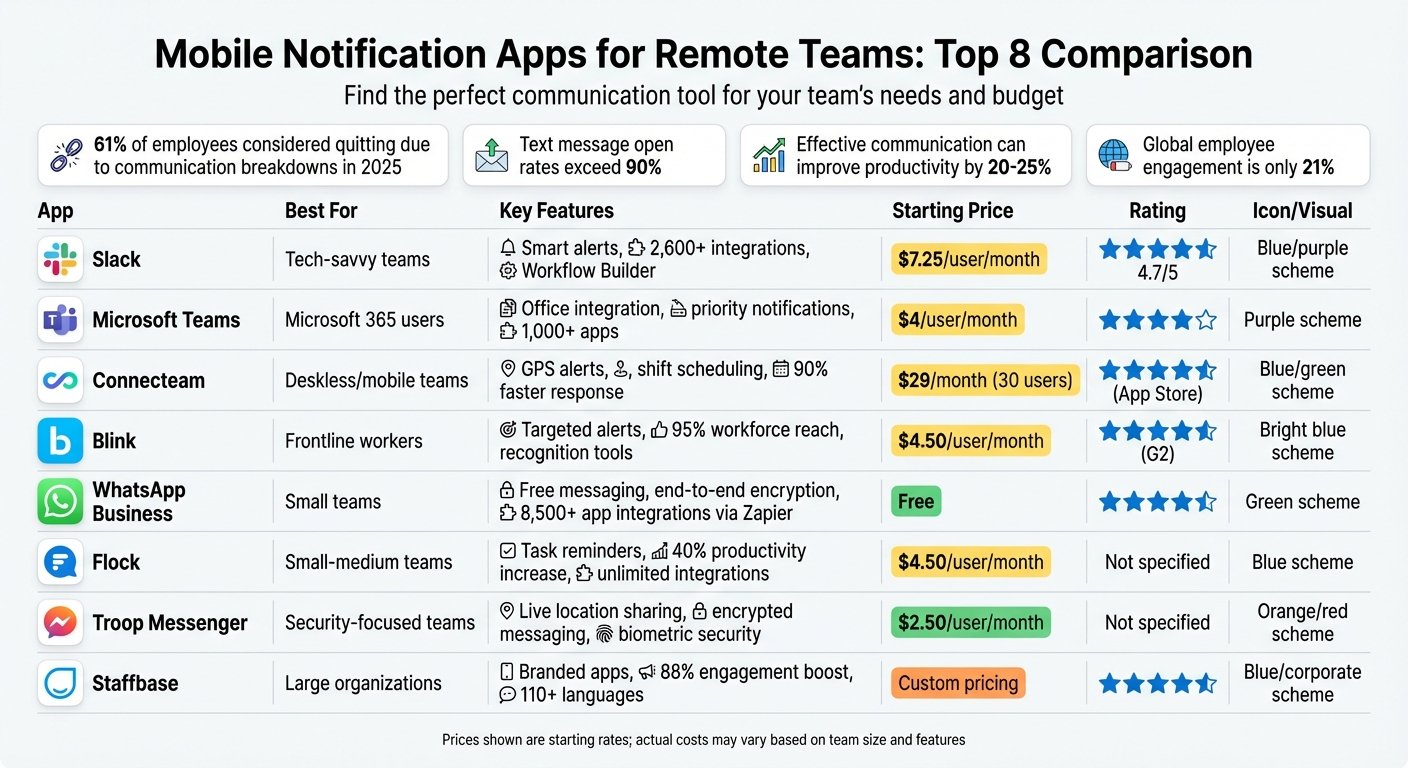
| Best for | Organisations already on Microsoft 365 that want chat, meetings and phone from one supplier. |
|---|---|
| Category | Communication and Meetings |
| Pricing from | USD 4.00 user/month, paid yearly (Microsoft Teams Essentials) |
| Free plan | Yes |
| Free trial | 1 month |
| Team size | 2-10, 11-50, 51-200, 200+ |
| Last verified | 18 August 2026 — how we verify |
Quick verdict
Consider it if: Windows, Outlook and Excel are the daily tools and you want one bill, one admin console and Office files editable in the chat app.
Look elsewhere if: You run on Google Workspace, or you are a small informal team: the client is heavy and the structure is more than ten people need.
Compiled from the vendor’s own documentation and pricing pages, checked on the date above. We have not tested this product hands-on. How we evaluate software.
Compare Microsoft Teams with Slack and Zoom · Not sure what you need?
Microsoft Teams is the chat, meetings and calling hub of Microsoft 365, combining group messaging, video conferencing, shared files and a phone system in one app. Conversations happen in one-to-one chats or in channels attached to a team, and every team quietly comes with a SharePoint site behind it where the files live. For companies already paying for Microsoft 365, Teams is included rather than bought, which is a large part of why it ends up as the default place work gets discussed.
What you can actually do with it
Teams tries to be the single window your staff keep open all day. In practice these are the parts that matter:
- Chat and organise by channel. Direct messages and group chats for quick things, channels per project or department for conversations you want other people to be able to find later.
- Run meetings with recording and transcripts. Scheduled or instant video calls with screen sharing, breakout rooms, background blur, live captions, recording and automatic transcription.
- Work on files together. Word, Excel and PowerPoint documents open and co-edit inside Teams, stored in the team’s SharePoint library rather than attached to messages.
- Bring in outside people. Guest and external access lets clients, contractors and partners join specific teams or chats without a licence from you.
- Use it as your phone system. Teams Phone adds real phone numbers, call queues, auto-attendants and PSTN calling, replacing a traditional desk-phone setup.
- Add apps and automation. Pin tools such as Planner, Forms, Power BI and third-party apps into channel tabs, and route notifications and approvals through Power Automate.
- Ask Copilot for the summary. Where licensed, Copilot recaps a meeting you missed, pulls out action items and catches you up on a long channel thread.
Who it fits best
Teams is the obvious choice for any organisation already on Microsoft 365, from a handful of staff to thousands, and especially where Windows laptops, Outlook and Excel are the daily tools. It works well for structured organisations with departments, distributed frontline teams, and any business that needs meetings, chat and a phone system from one supplier with one bill and one admin console.
It fits less naturally in small, informal teams who want something light and fast: the app is heavy, and the concept of teams within channels within tabs is more structure than a ten-person company usually needs. It is also a poor fit if your business runs on Google Workspace, since the file collaboration story then works against you.
Things worth knowing before you commit
- Sprawl is the standard failure mode. By default most users can create teams, and without naming rules, expiry policies and owners you end up with hundreds of half-dead teams, duplicated files and access nobody has reviewed.
- Files can be confusing. Documents live in SharePoint behind the scenes, so people lose track of whether something is in a chat, a channel, OneDrive or a SharePoint site, and permissions differ in each.
- The client is resource-hungry. Teams is noticeably demanding on older machines, and notification defaults are aggressive enough that most people need to tune them to get anything done.
- Not everything is included. Phone system calling, large-scale webinars, advanced meeting features under Teams Premium and Copilot are separate licences on top of a standard Microsoft 365 plan.
- Governance needs an owner. Retention, guest access reviews and archiving are configurable but sit across several admin centres, so someone has to be responsible for them.
Alternatives to compare it against
Slack is the direct rival on chat and is generally faster and friendlier to use, with a stronger app ecosystem, but you pay for it separately and its calling is weaker. Google Chat and Meet are the equivalent bundle if your business runs on Google Workspace. Zoom is the better standalone answer when external meeting quality matters most, and dedicated phone providers such as RingCentral compete directly with Teams Phone. Teams wins mainly on being already paid for, and on the depth of its Office and identity integration.
Licence bundles, add-on requirements and Copilot inclusion change regularly. Check Microsoft’s own pricing pages for current plan details before you commit.
Further reading
- Microsoft Teams @Mentions: 5 Tips for Effective Use — practical fixes for the aggressive notification defaults described above.
- Slack vs. Teams: Analytics Features Compared — head-to-head with the main rival named in the alternatives section.
- Best Team Collaboration Tools for Remote Work — where Teams sits among the options for distributed staff.
- Top 8 Document Collaboration Tools for Teams — context for the SharePoint-backed file co-editing Teams relies on.
- Ultimate Guide to Cloud Collaboration Tools — background on governing sprawl across cloud collaboration platforms.
Have you used Teams?
One sentence is enough. Would you pick it again, and why or why not? We publish the critical reviews too — that is the point.