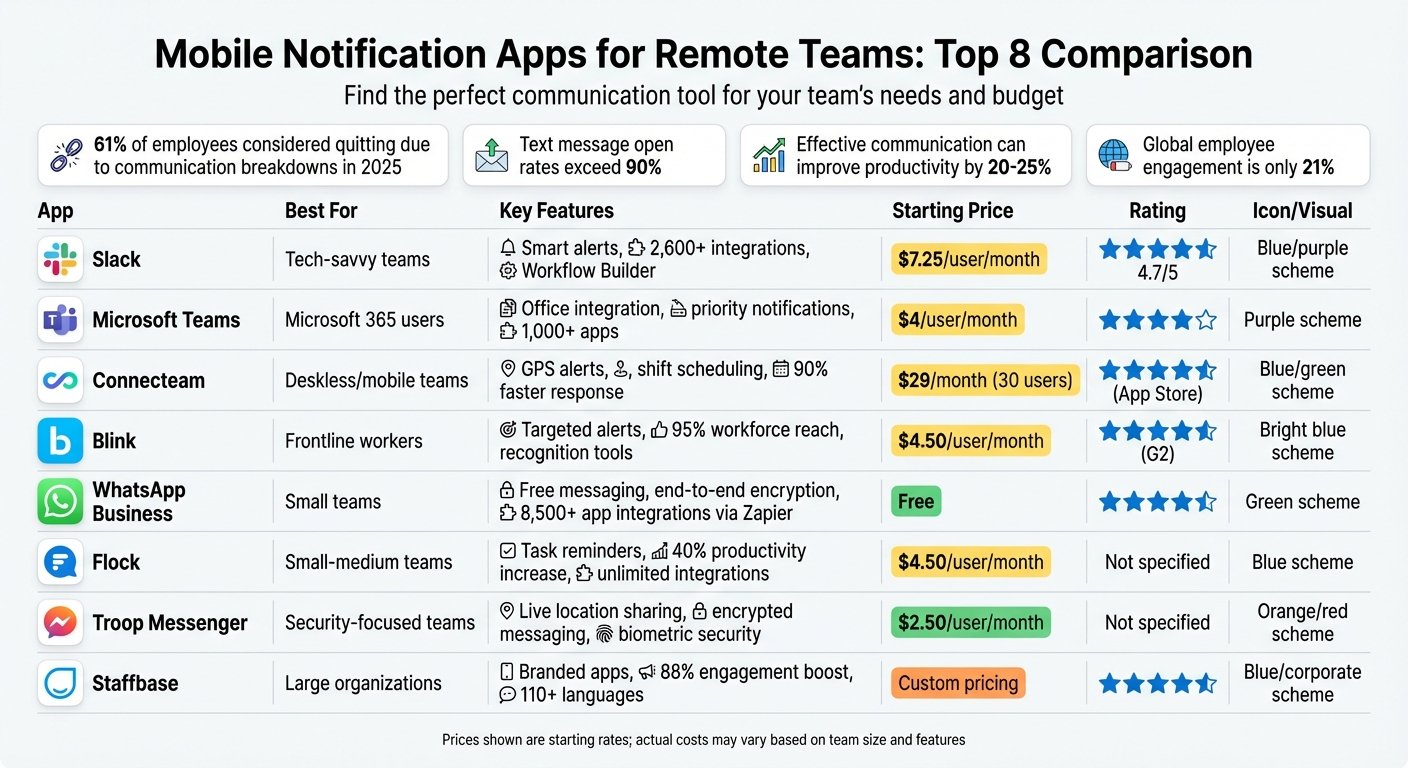
@Mentions in Microsoft Teams allow you to directly notify specific team members, channels, or the entire team about important messages or conversations. This feature helps get attention, prioritize communication, and streamline collaboration.
Key Benefits of @Mentions
| Benefit | Description |
|---|---|
| Get Attention | Tag individuals or groups to ensure your message is noticed |
| Prioritize Communication | Mention relevant team members for important messages or tasks to ensure timely responses |
| Streamline Collaboration | Mention specific channels or teams to keep conversations focused and organized |
When to Use @Mentions
| Scenario | Examples |
|---|---|
| Critical Messages | – Assigning tasks or action items – Sharing urgent updates or deadlines
– Requesting input or feedback |
| Prompt Responses | – Resolving issues or blockers – Coordinating time-sensitive activities
– Seeking approvals or decisions |
| Group Activities | – Kickoff meetings or project planning – Assigning tasks or responsibilities
– Sharing progress updates or milestones – Discussing challenges or seeking input |
Managing Notifications
| Strategy | Description |
|---|---|
| Prioritize important @mentions | Focus on @mentions from team leaders, managers, or stakeholders involved in your critical projects |
| Set specific times for notifications | Review notifications at specific times during the day, rather than being constantly distracted |
| Use “Do not disturb” or “Quiet hours” | Mute notifications during focused work periods or after-hours |
| Use appropriate communication channels | Encourage team members to use the appropriate channel (chat, channel, or @mention) based on the urgency and audience of the message |
Advanced @Mention Tips
-
Using @Everyone
- Reserve for important matters only
- Provide context for the message
- Follow up and be prepared to clarify
-
Integrating with Other Tools
- Power Automate: Trigger actions based on @mentions
- Outlook: Sync your calendar to receive @mention notifications for meetings
- Third-Party Apps: Integrate with project management tools like Trello, Asana, or Jira
-
Complex Project Tagging
Tagging Strategy Example Role-Based Tags @Developers, @Designers, @QA Project-Specific Tags @ProjectX, @PhaseY Nested Tags @ProjectX-Developers, @PhaseY-QA
1. How to Use @Mentions in Microsoft Teams
1.1 Mentioning Team Members
To get someone’s attention in a chat or channel, you can mention them:
1. Type @ followed by the first few letters of their name. 2. Select their name from the list that appears. 3. Their name will be highlighted in your message. 4. Send the message. They’ll get a notification.
When you mention someone, they’ll see a notification in their Teams activity feed and get an alert on their desktop or mobile app. This way, they won’t miss important messages or tasks assigned to them.
1.2 Mentioning Channels
To notify everyone in a channel:
1. In the channel conversation, type @ followed by the channel name. 2. Select the channel name from the list. 3. The channel name will be highlighted in your message. 4. Send the message, and all channel members will get a notification.
Mentioning channels is useful for making announcements or starting conversations that involve the entire channel. It ensures everyone is aware of the message and can participate if needed.
1.3 Mentioning Teams
To notify all members of a team:
1. In any channel within the team, type @team. 2. The team name will be automatically highlighted in your message. 3. Send the message, and all team members will get a notification.
Be mindful when mentioning an entire team, as it can lead to notification overload. Use this feature for critical team-wide announcements or urgent matters that require everyone’s attention.
2. When to Use @Mentions
@Mentions in Microsoft Teams are handy for ensuring important messages and tasks don’t get overlooked. Here are some key scenarios where using @mentions can help:
2.1 Critical Messages
Use @mentions for:
- Assigning tasks or action items: Mention team members to assign them tasks, ensuring they don’t miss it.
- Sharing urgent updates or deadlines: Notify relevant people about critical updates or approaching deadlines.
- Requesting input or feedback: Mention individuals to get their input or feedback on crucial matters.
2.2 Prompt Responses
@Mention team members when you need a timely response, such as:
- Resolving issues or blockers: Notify people to help resolve problems or remove obstacles quickly.
- Coordinating time-sensitive activities: Mention those involved in activities with tight timelines.
- Seeking approvals or decisions: Tag decision-makers to get approvals or decisions promptly.
2.3 Group Activities
@Mentions are useful for coordinating group activities or projects involving multiple team members:
| Scenario | Example |
|---|---|
| Kickoff meetings or project planning | Mention all involved to ensure everyone is aware and aligned. |
| Assigning tasks or responsibilities | Notify individuals about their specific tasks or roles. |
| Sharing progress updates or milestones | Keep the team updated on project progress or key milestones. |
| Discussing challenges or seeking input | Mention relevant people to discuss challenges or get their input. |
Using @mentions in these scenarios helps keep everyone informed and facilitates better collaboration throughout the project lifecycle.
3. Custom Tags and Group Mentions
3.1 Creating Custom Tags
Teams allows you to create custom tags to organize team members into groups based on roles, projects, skills, locations, or any criteria relevant to your organization. Here’s how:
- In Teams, select the team you want to create tags for.
- Click the “…” (More options) button next to the team name and choose “Manage tags.”
- In the “Manage tags” window, click “Create tag” and enter a name for the new tag.
- Select the team members you want to assign to this tag.
- Click “Create” to save the new custom tag.
You can create as many custom tags as needed. For example, tags like “Developers,” “Project Managers,” “Marketing Team,” or “Remote Workers” help quickly identify and communicate with specific groups.
3.2 Mentioning Groups with Tags
Once you’ve created custom tags, you can use them to mention entire groups in conversations, ensuring no one is left out:
- In a channel conversation or chat, type “@” followed by the tag name you want to mention.
- Select the tag from the list of suggestions that appears.
- The tag will be added to your message, and all team members assigned to that tag will be notified.
Mentioning groups with tags is a quick way to communicate with specific subsets of your team, streamlining collaboration.
3.3 Group Mention Scenarios
Group mentions with custom tags are useful in various scenarios, such as:
| Scenario | Example |
|---|---|
| Assigning tasks | Mention the “Developers” tag to assign a new feature or bug fix. |
| Requesting input | Mention the “Marketing Team” tag to get feedback on a campaign idea. |
| Sharing updates | Mention the “Project Managers” tag to provide a progress update. |
| Coordinating events | Mention the “Remote Workers” tag to schedule a virtual team-building activity. |
4. Managing Notifications
4.1 Adjusting Notification Settings
To avoid getting too many @mention notifications in Microsoft Teams, you need to customize your notification settings:
- Open Teams and click on your profile picture > Settings > Notifications.
- Under Chat, adjust the settings for @mentions, Replies, and Likes and reactions. You can choose to show notifications as Banner and feed, Only show in feed, or turn them Off.
- For Channel mentions, select Banner and feed, Only show in feed, or Off.
- Review the Teams and Channels list, and hide or mute notifications for teams or channels you don’t need to monitor closely.
By adjusting these settings, you can prioritize important @mentions and reduce distractions from less critical notifications.
4.2 Avoiding Overuse
While @mentions are useful for getting attention, overusing them can lead to notification fatigue and lower productivity. Here are some tips to avoid overusing @mentions:
- Reserve @mentions for truly important or time-sensitive messages that require immediate attention.
- Instead of @mentioning individuals, consider @mentioning a relevant channel or custom tag when the message applies to a broader group.
- Encourage team members to check conversation threads regularly, reducing the need for excessive @mentions.
- Provide clear guidelines on when and how to use @mentions within your team or organization.
4.3 Finding the Right Balance
Striking the right balance between staying informed and managing notifications is key. Here are some strategies to consider:
| Strategy | Description |
|---|---|
| Prioritize important @mentions | Focus on @mentions from team leaders, managers, or stakeholders involved in your critical projects. |
| Set specific times for notifications | Review notifications at specific times during the day, rather than being constantly distracted. |
| Use “Do not disturb” or “Quiet hours” | Mute notifications during focused work periods or after-hours. |
| Use appropriate communication channels | Encourage team members to use the appropriate channel (chat, channel, or @mention) based on the urgency and audience of the message. |
5. Advanced @Mention Tips
5.1 Using @Everyone
The @Everyone mention lets you instantly notify all participants in a private or group chat. However, use it wisely:
1. Reserve for Important Matters: Only use @Everyone for crucial announcements or urgent matters that require everyone’s immediate attention. Overusing it can lead to notification fatigue.
2. Provide Context: When using @Everyone, clearly state the purpose of your message. This helps recipients understand the importance and relevance.
3. Follow Up: After using @Everyone, monitor the chat for responses and follow-up questions. Be prepared to provide additional clarification.
5.2 Integrating with Other Tools
Teams integrates with various tools, enhancing the power of @mentions:
- Power Automate: Trigger actions based on @mentions in Teams, like assigning tasks or updating project management tools.
- Outlook: Sync your Outlook calendar with Teams to receive @mention notifications for meetings and events.
- Third-Party Apps: Integrate Teams with project management tools like Trello, Asana, or Jira. Use @mentions to create tasks, update statuses, or notify team members.
5.3 Complex Project Tagging
For large projects with multiple teams and roles, advanced tagging can streamline communication:
1. Role-Based Tags: Create tags for different roles (e.g., @Developers, @Designers, @QA) to notify specific groups.
2. Project-Specific Tags: Set up tags for each project or workstream (e.g., @ProjectX, @PhaseY) to compartmentalize communication.
3. Nested Tags: Combine role-based and project-specific tags (e.g., @ProjectX-Developers, @PhaseY-QA) for granular targeting.
4. Tag Management: Regularly review and update your tag list to ensure it remains accurate as projects evolve.
| Tagging Strategy | Example |
|---|---|
| Role-Based Tags | @Developers, @Designers, @QA |
| Project-Specific Tags | @ProjectX, @PhaseY |
| Nested Tags | @ProjectX-Developers, @PhaseY-QA |
Conclusion
Using @mentions effectively in Microsoft Teams can greatly improve team communication and productivity. By strategically mentioning individuals, channels, or teams, you can ensure important messages reach the right people quickly. This helps keep conversations focused and makes it easier to find and follow up on relevant information.
Use @mentions wisely for crucial announcements, urgent matters, or when immediate attention is required. Create custom tags for roles, projects, or workstreams to streamline communication in complex scenarios. Integrate Teams with other tools to extend the functionality of @mentions and automate workflows.
Finding the right balance is key. Adjust notification settings and avoid excessive @mentions to prevent notification overload. By applying these tips and best practices, you can leverage the full potential of @mentions, fostering seamless collaboration and driving your team’s success.
When to Use @Mentions
| Scenario | Examples |
|---|---|
| Critical Messages | – Assigning tasks or action items – Sharing urgent updates or deadlines
– Requesting input or feedback |
| Prompt Responses | – Resolving issues or blockers – Coordinating time-sensitive activities
– Seeking approvals or decisions |
| Group Activities | – Kickoff meetings or project planning – Assigning tasks or responsibilities
– Sharing progress updates or milestones – Discussing challenges or seeking input |
Managing Notifications
| Strategy | Description |
|---|---|
| Prioritize important @mentions | Focus on @mentions from team leaders, managers, or stakeholders involved in your critical projects. |
| Set specific times for notifications | Review notifications at specific times during the day, rather than being constantly distracted. |
| Use “Do not disturb” or “Quiet hours” | Mute notifications during focused work periods or after-hours. |
| Use appropriate communication channels | Encourage team members to use the appropriate channel (chat, channel, or @mention) based on the urgency and audience of the message. |
Advanced @Mention Tips
1. Using @Everyone
- Reserve for important matters only.
- Provide context for the message.
- Follow up and be prepared to clarify.
2. Integrating with Other Tools
- Power Automate: Trigger actions based on @mentions.
- Outlook: Sync your calendar to receive @mention notifications for meetings.
- Third-Party Apps: Integrate with project management tools like Trello, Asana, or Jira.
3. Complex Project Tagging
| Tagging Strategy | Example |
|---|---|
| Role-Based Tags | @Developers, @Designers, @QA |
| Project-Specific Tags | @ProjectX, @PhaseY |
| Nested Tags | @ProjectX-Developers, @PhaseY-QA |
FAQs
How do I get someone’s attention in Teams?
To get someone’s attention in a channel conversation or chat, type “@” followed by their name. Teams will show a list of matching members. Select the person you want to notify. They will receive a notification, ensuring your message gets noticed.
How do I notify everyone in a Teams chat?
To notify everyone in a chat (not a channel), use the “@everyone” mention. Type “@everyone” in the chat message box, and all chat members will receive a notification. However, use this sparingly to avoid overwhelming others with too many notifications.
| Mention Type | Usage |
|---|---|
| @[Name] | Notifies a specific person in a chat or channel |
| @everyone | Notifies all members of a chat (not a channel) |
Tips for Using @Mentions
- Reserve @mentions for important or time-sensitive messages that require immediate attention.
- Instead of mentioning individuals, consider mentioning a relevant channel or group when the message applies to a broader audience.
- Encourage team members to regularly check conversation threads to reduce the need for excessive @mentions.
- Provide clear guidelines on when and how to use @mentions within your team or organization.
More on this topic
Browse all 40 articles on Project & Team Management, or jump straight to our buying guide: Best Project Management Tools for Small Teams.