
Disclosure: This page contains commercial links. BizBot may earn a commission from qualifying purchases. Paid placements do not buy a better ranking. Read our affiliate disclosure.
The best backup software for Windows should do more than copy a few folders to an external drive. A useful backup application should make regular backups easy to automate, provide a practical recovery process, and give you enough flexibility to protect anything from a handful of important files to an entire Windows installation. Backups can also form an important part of a broader digital emergency kit for small business
That does not mean everyone needs the most advanced backup suite available. A home user protecting photos and documents has very different requirements from a small business backing up workstations, while someone replacing an SSD may care more about disk cloning than cloud storage.
This guide compares seven Windows backup options with different strengths, including free tools, traditional disk-imaging software, and broader backup and recovery platforms. The goal is to help you choose based on what you actually need to protect rather than simply picking the application with the longest feature list.
Best Backup Software for Windows at a Glance
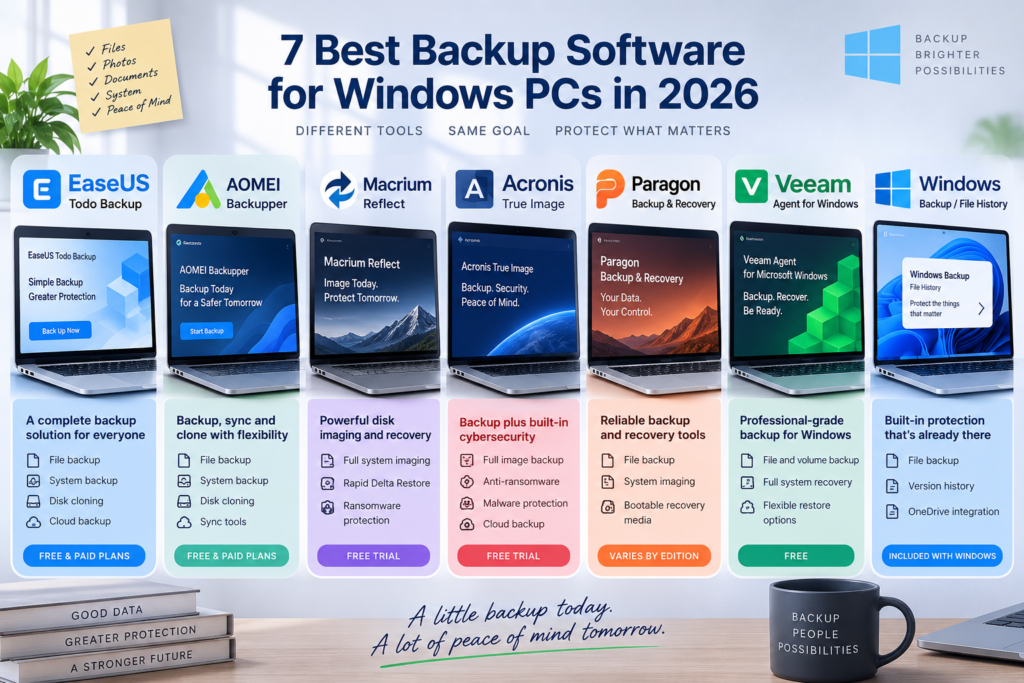
| Backup Software | Good Fit For | File Backup | System Imaging | Disk Cloning | Free Option |
|---|---|---|---|---|---|
| EaseUS Todo Backup | Everyday backup and recovery | Yes | Yes | Yes | Yes |
| AOMEI Backupper | Backup plus synchronization and cloning | Yes | Yes | Yes | Yes |
| Macrium Reflect | System imaging and recovery | Yes | Yes | Yes | Trial |
| Acronis True Image | Backup combined with security features | Yes | Yes | Yes | Trial |
| Paragon Backup & Recovery | Traditional Windows backup and recovery | Yes | Yes | Varies by product | Available options vary |
| Veeam Agent for Microsoft Windows | More technical Windows backup needs | Yes | Yes | Not its main focus | Yes |
| Windows Backup / File History | Basic built-in Windows protection | Yes | Limited compared with dedicated imaging tools | No | Included with Windows |
The table only tells part of the story. Several of these applications can perform similar core tasks, but they approach backup differently. Some emphasize simplicity, while others provide deeper control over imaging, recovery, synchronization, security, or business environments.
1. EaseUS Todo Backup
EaseUS Todo Backup is a practical starting point for users who want one application to handle common Windows backup jobs without making the process unnecessarily complicated.
It supports file, system, disk, and partition backups, along with full, incremental, and differential backup methods. Backups can also be scheduled, which removes much of the reliance on remembering to copy important files manually. EaseUS additionally supports disk and partition cloning, making it useful when replacing or upgrading a drive.
Another useful aspect is destination flexibility. Backups can be kept on local or external storage, while cloud backup is also supported. This makes it possible to build a backup routine that does not depend entirely on a second drive sitting next to the computer.
The interface and feature set make the software particularly relevant to home users and small businesses that want scheduled protection without turning backup management into an IT project. More advanced users may find competing products offer controls that better match specialized recovery environments, but those extra options are not necessary for everyone.
Good fit for: Users who want straightforward file, system, and disk backup with scheduling, recovery, cloud options, and cloning in the same application.
Try EaseUS Todo Backup to automate backups and keep important Windows files and system data easier to recover.
2. AOMEI Backupper
AOMEI Backupper covers many of the same fundamentals as EaseUS but places considerable emphasis on giving users several backup and storage-management options within one application.
It can back up files, folders, partitions, disks, and Windows system drives. It also supports disk imaging and cloning for moving an operating system to another HDD or SSD, along with the creation of bootable rescue media for situations where Windows cannot start normally.
Scheduling is available for recurring backups, while full, incremental, and differential backup methods provide different ways to manage how subsequent copies are created.
AOMEI can therefore be a useful choice for someone who wants to do more than periodically protect a documents folder. Its combination of backup, recovery, synchronization, and migration tools gives users room to build more customized workflows.
That flexibility can also mean spending a little more time deciding which options are relevant. Someone who wants a simple automated backup may not need everything available, while a user who regularly manages disks or maintains several backup tasks may appreciate the additional control.
Good fit for: Windows users who want backup, synchronization, recovery, and drive-migration tools within the same general environment.
3. Macrium Reflect
Macrium Reflect has a strong focus on disk imaging and system recovery, making it particularly relevant when being able to restore an entire Windows installation is a priority.
Macrium’s current Reflect X Home supports scheduled backups and includes technologies such as Rapid Delta Restore, resumable imaging, and Macrium Image Guardian. Image Guardian is designed to protect backup files against unauthorized modification, including ransomware-related changes.
This makes Reflect particularly interesting for users who think about backup in terms of recovering a computer, rather than simply recovering individual documents.
For example, restoring a few accidentally deleted files is one type of backup problem. Recovering from a failed system drive, broken Windows installation, or major system problem is another. Disk imaging becomes considerably more valuable in the second situation because it can preserve far more of the existing system configuration.
Macrium Reflect may be more than necessary for someone whose only goal is keeping an extra copy of photos and documents. For users who place a high value on system imaging and recovery, however, its more specialized approach makes sense.
Good fit for: Users who prioritize full-system imaging, dependable recovery, and protection of backup images.
4. Acronis True Image
Acronis True Image takes a broader approach by combining traditional backup capabilities with cybersecurity features.
Its backup tools support full image backups, individual file and folder recovery, disk cloning, and bootable recovery media. Acronis also supports real-time disk cloning for moving Windows, applications, files, and settings to another drive.
The 2026 release extends beyond conventional backup with features including Windows patch management, anti-ransomware protection, malware scanning, and AI-assisted threat detection.
That combination makes Acronis somewhat different from a backup application focused almost entirely on copying and restoring data. For users who want backup and additional security capabilities managed through one product, that broader approach may be attractive.
It can also be unnecessary if you already have security tools you are satisfied with and simply want dedicated backup software. Combining several functions into one application is convenient only when those functions solve problems you actually have.
Good fit for: Users who want Windows backup and recovery combined with additional cybersecurity features.
5. Paragon Backup & Recovery
Paragon Backup & Recovery is aimed at users who want traditional Windows backup and recovery tools without necessarily combining them with a large collection of unrelated features.
The software can create backups of files, folders, partitions, and larger portions of a Windows system. It also supports recovery options that can help restore data when files are lost or a system encounters a more serious problem.
One useful aspect of Paragon’s approach is its emphasis on creating recovery environments. When Windows cannot start normally, having bootable recovery media can provide another way to access a backup and begin restoring the computer.
Paragon also offers separate disk-management and migration products, so it is important not to assume that every Paragon feature is included in Backup & Recovery itself. Users primarily interested in cloning or advanced partition management should check the capabilities of the specific product they intend to use.
For straightforward backup and recovery, Paragon remains an option worth considering, particularly for users who prefer conventional local backup workflows.
Good fit for: Users looking for traditional Windows backup, imaging, and recovery tools.
6. Veeam Agent for Microsoft Windows
Veeam Agent for Microsoft Windows approaches backup from a somewhat different direction. Veeam is widely associated with business and IT backup environments, but its Windows agent can also protect individual Windows computers.
The software can create backups of an entire computer, specific volumes, or selected files and folders. Recovery options range from restoring individual files to recovering a complete Windows system.
This flexibility can make Veeam useful for technically confident users and small businesses that want more control over how Windows machines are protected.
Veeam also provides recovery media that can be used when the original Windows installation cannot start. That makes it suitable for scenarios where the goal is not merely retrieving a lost document but recovering from a failed drive or damaged operating system.
The trade-off is that Veeam may feel more technical than necessary for someone who simply wants a basic home backup application. Its strengths become more relevant when backup reliability, recovery options, and integration with a broader IT environment are priorities.
Good fit for: Technically confident users, IT environments, and businesses that want flexible Windows backup and recovery.
7. Windows Backup and File History
You may not need to install additional software if your backup requirements are relatively simple.
Windows includes built-in tools that can protect some of your files and settings. Windows Backup can help preserve selected folders, settings, credentials, and other information through a Microsoft account, while File History can maintain copies of files on another drive.
These tools are useful because they are already integrated with Windows. Someone mainly concerned about personal documents may find that built-in protection combined with cloud synchronization and an external drive covers much of what they need.
The limitations become clearer when compared with dedicated backup applications. Windows’ built-in tools are not designed to provide the same collection of disk imaging, cloning, scheduling, migration, and recovery features available from specialized backup software.
That does not make them poor choices. It simply means they serve a different type of user.
If your backup requirements are straightforward, starting with the tools already available in Windows can help you understand what additional features, if any, you actually need.
Good fit for: Windows users with basic backup requirements who prefer to use built-in tools before installing additional software.
How to Choose the Best Backup Software for Windows
Choosing the best backup software for Windows starts with deciding what you are trying to recover.
If losing a few documents or photos is your main concern, file-level backups may be enough. If rebuilding the entire computer would take days, system imaging becomes much more important because it can preserve Windows along with applications, settings, and other data.
Consider where the backup will be stored as well. An external HDD or SSD is convenient, but keeping every copy beside the computer can leave the original data and backup exposed to the same theft, physical damage, or other local problem.
For particularly important data, having more than one backup destination provides another layer of protection. That might mean combining a local backup with another copy stored somewhere separate from the computer, including a suitable cloud storage service for small businesses
Automation is equally important. Backup software that runs according to a schedule is generally more dependable than a system that relies on someone remembering to copy files manually.
Finally, think about recovery before choosing the software. The goal is not simply to create backup files. It is to be able to restore those files—or the entire computer—without unnecessary difficulty when something actually goes wrong.
Which Windows Backup Software Fits Different Needs?
There is no single backup application that makes the most sense for every Windows user.
EaseUS Todo Backup offers a relatively approachable combination of file backup, system protection, scheduling, recovery, cloud options, and cloning.
AOMEI Backupper provides a broad collection of backup, synchronization, and migration tools for users who want more control over how their storage is managed.
Macrium Reflect is particularly relevant when system imaging and recovery are priorities, while Acronis True Image combines backup with additional cybersecurity capabilities.
Paragon Backup & Recovery takes a more traditional approach to Windows backup and recovery, while Veeam Agent for Microsoft Windows can make sense for more technical users and business environments.
For simpler requirements, Windows Backup and File History may provide enough protection without installing another application.
The right choice therefore depends less on finding the application with the most features and more on matching those features to the type of data and recovery scenario that matters to you.
FAQs
What is the best backup software for Windows in 2026?
The best option depends on what you need to protect. EaseUS Todo Backup and AOMEI Backupper cover a broad range of everyday backup tasks, Macrium Reflect focuses strongly on system imaging and recovery, while Veeam can suit more technical environments. Windows’ built-in tools may be sufficient for simpler backup needs.
Do I need backup software if I use OneDrive?
Cloud synchronization and backup are related but not identical. OneDrive can keep copies of selected files in the cloud, but dedicated backup software can provide additional options such as system images, disk backups, scheduled backup sets, and broader recovery capabilities.
Is free Windows backup software good enough?
It can be. Free software may be sufficient if you mainly need basic file or system backups. Paid software becomes more relevant when you need features such as advanced scheduling, cloning, additional recovery options, or other specialized capabilities.
Should I back up my entire Windows PC or just important files?
If your main concern is protecting documents, photos, and other irreplaceable data, file backups may be sufficient. A full system backup becomes more useful when you want the option to restore Windows, applications, settings, and files after a serious drive or operating-system failure.
Is an external hard drive enough for Windows backups?
An external drive is a useful backup destination, but relying on a single backup can still leave data vulnerable. Important files are better protected when another copy exists separately from the computer and its primary backup drive.
How often should I back up my Windows PC?
The appropriate schedule depends on how frequently your files change. Someone working with important files every day may need daily automated backups, while a lightly used home computer may not require the same frequency. The important point is to make the schedule regular enough that losing everything since the last backup would not create a serious problem.
Final Thoughts
The best backup software for Windows is the one that matches how you use your PC and what you need to recover if something goes wrong.
For some users, protecting important files with automatic backups is enough. Others may need full system images, disk cloning, bootable recovery tools, or additional cloud storage options. The seven tools in this guide cover those different needs, from the built-in simplicity of Windows Backup to more complete backup and recovery software.
Whichever option you choose, consistency matters. A backup that runs automatically and is regularly updated is far more useful than one created months ago and forgotten.
Start with the files and systems you cannot afford to lose, choose a backup method that fits your routine, and make sure at least one copy is stored separately from your PC. Businesses should also consider how backups fit into a broader business software exit plan, particularly when important data is stored inside third-party platforms.