Disclosure: This page contains commercial links. BizBot may earn a commission from qualifying purchases. Paid placements do not buy a better ranking. Read our affiliate disclosure.
A 3-2-1 backup plan for small businesses is a practical way to protect important files, financial records, customer information, and everyday business documents from unexpected data loss. Rather than relying on a single external hard drive or cloud storage account, the strategy involves keeping multiple copies of essential information in different storage locations.
For small-business owners, data loss is more than a technical inconvenience. Imagine preparing payroll only to discover that the computer containing your latest accounting records will no longer start. Or consider a small online retailer that accidentally deletes a folder containing supplier agreements and product information. Even if the files can eventually be recovered, the interruption can affect employees, customers, and daily operations.
Many businesses already take some precautions. They save documents to cloud storage, copy files to external drives, or rely on the backup features included with their software. These are useful practices, but they may leave gaps if the same incident affects multiple copies.
The 3-2-1 backup rule offers a straightforward framework for reducing those risks. It doesn’t require a dedicated IT department or expensive enterprise equipment. With a little planning, small businesses can combine affordable storage, automated backups, and regular recovery testing to create a more dependable system.
What Is a 3-2-1 Backup Plan for Small Businesses?
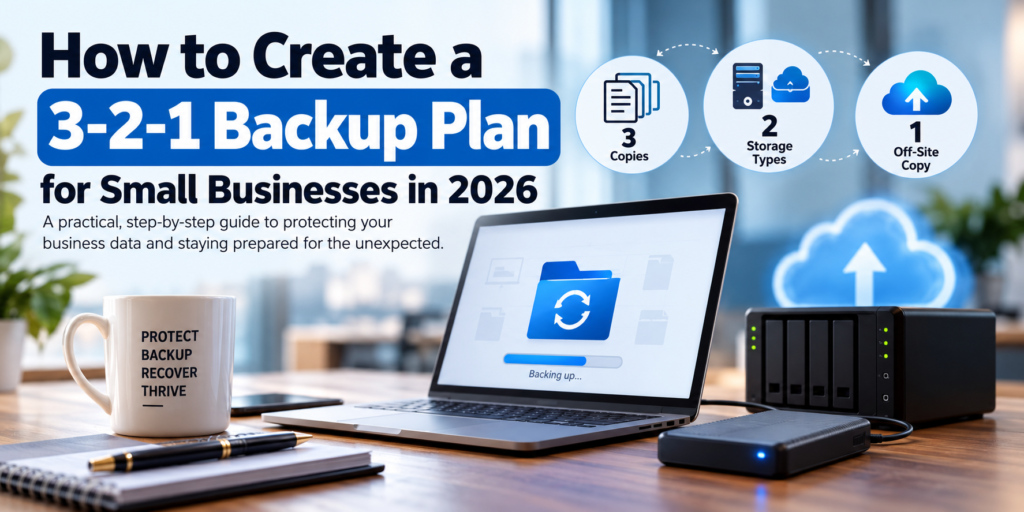
The 3-2-1 backup rule is a data protection strategy based on maintaining three copies of important information, using two different types of storage, and keeping at least one copy off-site.
| Rule | What it means | Small-business example |
|---|---|---|
| 3 copies | Keep the original data and two backup copies | Working files on a computer, a local backup, and a cloud backup |
| 2 storage types | Use different storage technologies or systems | Internal computer storage and an external hard drive |
| 1 off-site copy | Keep at least one backup away from the main business location | An encrypted cloud backup |
The idea is simple: if one device fails or one location becomes inaccessible, the business still has another way to recover its information.
Consider a small accounting office that stores client documents, spreadsheets, and financial records on its main computer. Every evening, the office automatically backs up those files to an external drive. A separate cloud backup service also maintains protected copies outside the office.
If the computer fails, the external drive can provide a relatively quick way to restore the files. If a fire or theft affects the entire office, the cloud backup offers another recovery option.
This approach is consistent with the data protection principles outlined in the Cybersecurity and Infrastructure Security Agency’s guidance on data backup options, which explains the importance of maintaining separate backup copies.
However, having three copies does not automatically guarantee successful recovery. Backups must also be updated regularly, protected against unauthorized access, and tested to confirm that important files can actually be restored.
Why a 3-2-1 Backup Plan for Small Businesses Matters
Small businesses depend on digital information for almost every part of their operations. Accounting software keeps financial records organized, customer management systems track relationships, and shared folders allow employees to collaborate on projects.
When that information becomes unavailable, even temporarily, the effects can extend beyond the cost of replacing a computer.
Hardware Failures Can Interrupt Daily Operations
Computers and storage devices do not last forever. A laptop can stop working unexpectedly, an external drive can develop errors, or a power-related incident can damage office equipment.
For a business with only a few employees, losing access to one computer may be enough to delay important work. If that device contains the latest invoices, customer records, or project documents, employees may have difficulty continuing their tasks.
Having a recent backup allows the business to focus on restoring information rather than attempting to recover everything from damaged hardware.
Ransomware Can Affect More Than the Main Computer
Ransomware is another reason businesses should avoid keeping all their backup copies connected to the same systems.
An attack may encrypt files on an infected computer and, depending on the permissions and network configuration, affect shared storage or connected backup drives.
For example, a business might regularly copy files to a network drive and assume those copies are safe. However, if the infected computer has permission to modify files on that drive, the backup may also be at risk.
Maintaining an offline or immutable backup can provide additional protection. An offline copy is disconnected when not in use, while an immutable copy is designed to prevent modification or deletion during a defined retention period.
Accidental Deletion Is Easy to Overlook
Not every data loss incident involves a cyberattack or damaged equipment. Sometimes, an employee simply deletes the wrong folder, overwrites an important spreadsheet, or makes changes that are difficult to reverse.
Cloud synchronization can make these situations more complicated. When a file is deleted or changed in a synchronized folder, that action may also be reflected on other connected devices.
Although many cloud storage services provide version history and deleted-file recovery, those features may have limits. Maintaining an independent backup gives businesses another recovery option when ordinary synchronization or file recovery is insufficient.
Downtime Can Be More Expensive Than the Backup Itself
The financial impact of data loss is not always limited to replacing equipment or paying for recovery services.
A business that cannot access customer orders may miss deliveries. An accounting firm may be unable to complete time-sensitive reports, while a service provider could lose access to schedules and client agreements.
These disruptions illustrate why backups should be part of a broader business continuity plan. Preparing essential documents, recovery contacts, and alternative working arrangements through a digital emergency kit for small businesses can help reduce confusion when an unexpected incident occurs.
The objective is not to eliminate every possible interruption. It is to make sure the business has a realistic way to recover important information and resume operations without starting from scratch.
Step 1: Identify the Business Data You Need to Protect
Before choosing backup software or purchasing additional storage, take a closer look at the information your business uses every day. You may discover that important records are spread across several computers, shared folders, cloud accounts, and business applications.
For example, a small consulting company might store contracts in Google Drive, maintain invoices through accounting software, and keep project documents on employee laptops. Backing up only the office computer would leave much of that information outside the backup plan.
The first step is to identify which files and systems would cause the greatest disruption if they suddenly became unavailable.
Start With Your Most Important Files
You don’t necessarily need to back up every temporary download or outdated document. Instead, focus on information that would be difficult, expensive, or impossible to recreate.
| Business data | Common examples | Why it needs protection |
|---|---|---|
| Financial records | Invoices, payroll reports, accounting files | Supports financial operations and recordkeeping |
| Customer information | Contact records, agreements, service histories | Helps maintain customer relationships |
| Operational documents | Schedules, inventory records, procedures | Supports everyday business activities |
| Project files | Proposals, designs, deliverables | Preserves ongoing work |
| Website information | Website files, databases, digital assets | Supports online business operations |
| Employee records | Personnel documents, administrative records | Supports internal administration |
The priority will vary depending on the business. An online retailer may consider order records and inventory information essential, while a professional services firm may depend more heavily on contracts, client files, and project documents.
Once you’ve identified the most important information, note where it is stored and who is responsible for maintaining it. This helps prevent situations where a backup system protects the main office computer but overlooks critical files stored elsewhere.
Decide How Much Data Loss Your Business Can Tolerate
Not all business information needs to be backed up at the same frequency.
A company processing customer transactions throughout the day may need backups every few hours or even more frequently. A small consulting firm that updates most documents once or twice a week may have different requirements.
Think about what would happen if your latest backup were from yesterday. Would losing one day’s changes create a serious problem, or could employees reasonably recreate that work?
This is closely related to the Recovery Point Objective (RPO), which describes how much recent data a business can afford to lose. Another useful concept is the Recovery Time Objective (RTO), which describes how quickly information or systems need to become available again.
You don’t need to create a complicated technical assessment. For most small businesses, it is enough to identify which information must be recovered quickly, which files can wait, and how frequently each category should be protected.
These decisions will guide the choice of storage, software, and backup schedules in the remaining steps.
Step 2: Choose the Right Storage Options for Your Backups
Once you’ve identified the information your business needs to protect, the next decision is where to keep your backup copies. This is where the 3-2-1 rule becomes practical. Instead of relying on one device or storage service, you create a combination that provides convenient access to files while protecting them against more serious incidents.
For a small business, the most straightforward arrangement usually involves a local backup and an off-site backup. The local copy makes it easier to recover files after an everyday problem, such as a computer failure or accidental deletion. The off-site copy provides another option if the office itself is affected by fire, theft, flooding, or another disruption.
There is no single storage combination that works for every business. A freelance consultant working from one laptop may need only an external drive and a secure cloud backup service, while a company with several employees may benefit from centralized network storage.
External Hard Drives and SSDs
External drives are often the most affordable starting point for small businesses. They are easy to connect, widely available, and capable of storing substantial amounts of data without requiring specialized equipment.
For example, a small bookkeeping firm could use an external drive to maintain local copies of its accounting files, spreadsheets, and client documents. If the main computer fails, the business may be able to restore its files from the drive rather than downloading everything from the cloud.
Traditional hard disk drives generally offer more storage capacity for the price, while solid-state drives provide faster transfer speeds and have no moving mechanical parts. Both can be useful for backups, although neither should be considered immune to failure.
The main limitation is that an external drive can be damaged, misplaced, or affected by malware when connected to a computer. Businesses using external storage should consider rotating drives or disconnecting a backup drive when it is not actively needed.
Network-Attached Storage (NAS)
For businesses with several computers, network-attached storage can make backup management more convenient. A NAS is a storage device connected to the local network, allowing multiple computers to send their backups to a central location.
Imagine a small design agency where employees work on different computers. Instead of asking everyone to connect an external drive, the agency could configure automated backups to a shared NAS.
This arrangement can make it easier to organize backups and monitor which computers are protected. Depending on the device and software, NAS systems may also support snapshots, user permissions, and other recovery features.
However, a NAS is not automatically a complete backup solution. Even if it uses multiple drives for redundancy, it can still be affected by ransomware, accidental deletion, theft, or physical damage. The business should maintain another independent copy outside the office.
Cloud Backup Services
Cloud backup is particularly useful for the off-site portion of a 3-2-1 strategy because it stores protected copies of information away from the business premises.
For a small company without a second office or dedicated IT infrastructure, this can be more practical than maintaining another physical storage device at a separate location.
Cloud backup services vary in their capabilities. Some focus on individual files, while others support entire computers, servers, or business applications. When comparing services, businesses should look at backup scheduling, encryption, retention policies, restoration options, and the total cost of storage.
Internet speed also matters. Restoring a few documents may be quick, but downloading hundreds of gigabytes after a major computer failure could take considerably longer.
It is important to distinguish cloud backup from ordinary file synchronization. A synchronized folder keeps information consistent across devices, but unwanted changes or deletions may also be synchronized. A dedicated backup service generally provides more deliberate control over recovery points and retention.
Which Storage Combination Makes Sense?
| Business setup | Local backup option | Off-site backup option |
|---|---|---|
| Freelancer or home-based business | External HDD or SSD | Encrypted cloud backup |
| Small office with 2–5 computers | External drive or entry-level NAS | Cloud backup |
| Growing business with multiple workstations | NAS or dedicated backup storage | Cloud backup with suitable retention controls |
| Business handling critical or frequently changing data | Managed local backup storage | Protected off-site backup with stronger recovery controls |
The objective is not to purchase the most sophisticated equipment available. It is to choose storage that the business can afford, maintain, and use confidently when recovery becomes necessary.
Step 3: Set Up and Automate Your 3-2-1 Backups
After selecting your storage options, the next step is connecting them into a backup routine that works without constant manual intervention.
A backup plan that depends entirely on someone remembering to copy files every Friday may work for a few weeks, but it becomes unreliable when workloads increase or employees are absent. Automation makes the process more consistent and reduces the likelihood of important files being overlooked.
Start With a Simple Three-Copy Setup
Consider a consulting business with five employees. Its important information includes customer contracts, invoices, project documents, and administrative records.
The company keeps its working files on office computers and a shared file server. It then creates a local backup on an external drive or NAS and maintains a separate encrypted cloud backup.
| Copy | Storage location | Purpose |
|---|---|---|
| Original data | Office computers or file server | Everyday business operations |
| First backup | External drive or NAS | Convenient local recovery |
| Second backup | Secure cloud backup | Recovery after an office-wide incident |
This arrangement follows the basic 3-2-1 principle: three copies, appropriately different storage systems, and at least one off-site copy.
If an employee accidentally deletes a project folder, the business may be able to restore it quickly from the local backup. If the office experiences a serious incident, the cloud backup provides an alternative recovery source.
The copies should also be sufficiently independent. If the same compromised account can delete both backup sets, the business could still lose its recovery options despite having multiple storage locations.
Choose a Backup Schedule That Matches Your Work
One of the most common mistakes is setting up backups once and assuming they will remain useful indefinitely.
A backup from last month might contain older records, but it will not protect the invoices, customer updates, and project changes made since then.
Businesses should therefore schedule backups according to how frequently their information changes and how much recent work they could afford to lose.
| Type of data | Example backup frequency | Consideration |
|---|---|---|
| Active accounting and transaction records | Every few hours or more frequently | Frequent updates may require shorter recovery intervals |
| Customer and project documents | Daily or more frequently | Protects ongoing work |
| Shared office files | Daily | Covers regular document changes |
| Website files and databases | Daily or after significant updates | Helps restore website operations |
| Archived documents | Weekly or monthly | Information changes less frequently |
These are illustrative schedules rather than universal recommendations. A business processing transactions continuously may require much shorter intervals, while a small consulting firm might find daily backups sufficient for most documents.
Understand Full and Incremental Backups
Most backup software offers different ways to save information. Two of the most common are full and incremental backups.
A full backup creates a complete copy of the selected files or systems. This provides a comprehensive recovery point but can require considerable storage space and time.
An incremental backup saves changes made since the previous backup in the sequence. Because it generally copies less information, it can be faster and more storage-efficient.
For example, a business could schedule a full backup every Sunday and incremental backups during the week. If a computer fails on Thursday, the backup software can use the full backup and the necessary incremental copies to restore the latest available recovery point.
This approach can be efficient, but it also means that required backup files must remain intact. A damaged or missing part of the backup sequence may interfere with restoration, which is why monitoring and recovery testing remain important.
Use Backup Software to Reduce Manual Work
For a business with only a few computers, built-in operating system backup tools may be sufficient. However, dedicated backup software can be useful when the company needs automated scheduling, system image backups, multiple storage destinations, or more flexible recovery options.
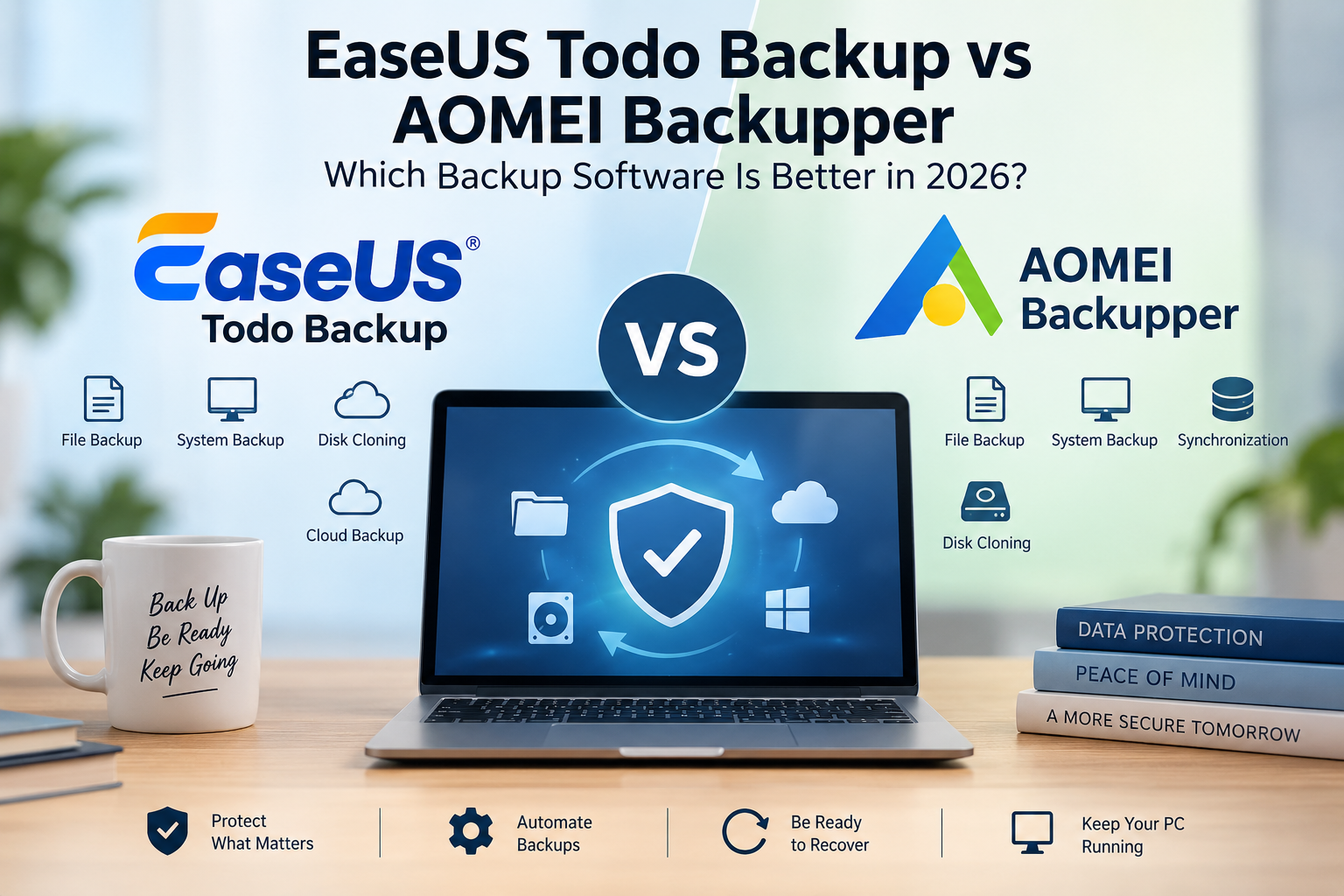
For businesses looking for these capabilities, EaseUS Todo Backup is one option worth considering. It supports automated backups, system image creation, and file recovery, which can be particularly useful when restoring a computer after hardware failure.
The right choice ultimately depends on what the business needs to protect. A company primarily working with documents may have relatively simple requirements, while another may need to restore complete Windows installations and applications. Businesses comparing their options can explore the scheduling, storage, and recovery features discussed in this EaseUS Todo Backup vs AOMEI Backupper comparison.
Whatever software is selected, someone should periodically review backup notifications and confirm that scheduled jobs are completing successfully. Automation reduces manual effort, but it does not eliminate the need for oversight.
Step 4: Secure Your Backups Against Ransomware and Unauthorized Access
Creating multiple backup copies is important, but businesses also need to make sure those copies cannot all be compromised by the same incident.
Consider a small company that backs up its computers to a NAS and a cloud account. If both backup systems use the same administrator credentials as the company’s everyday computers, a compromised account could potentially expose several recovery copies at once.
A stronger approach combines independent storage with sensible security controls. This doesn’t necessarily require expensive cybersecurity tools, but it does require some attention to how backups are accessed and managed.
Keep at Least One Backup Isolated
One practical way to protect backups is to keep a copy that cannot be easily changed or deleted from an everyday business computer.
For businesses using external drives, this might mean rotating two drives and keeping one disconnected after a backup is completed. For businesses relying on cloud services, it may mean choosing a provider that supports immutable storage or protected retention settings.
These precautions are particularly relevant to ransomware. Attackers may attempt to delete or encrypt accessible backups to make recovery more difficult. CISA’s ransomware prevention and recovery guidance recommends maintaining offline, encrypted backups and regularly testing their integrity.
Protect Sensitive Files With Encryption
Backups often contain more sensitive information than businesses realize. Financial reports, customer agreements, employee records, and confidential documents may all be included in the same backup.
Encryption helps protect that information if a storage device is lost or someone gains unauthorized access to the backup files.
Businesses should consider encryption for both local and cloud backups, particularly when handling personal or financial information. Just as importantly, encryption keys and recovery credentials should be stored securely. If the only person who knows the recovery password leaves the company, restoring important data could become unnecessarily difficult.
Limit Who Can Access Backup Systems
Not every employee needs permission to change backup schedules, access stored recovery copies, or delete backup files.
Restricting these privileges helps reduce accidental changes and limits the damage that could result from a compromised account. Where supported, businesses should enable multifactor authentication and use separate administrator credentials for backup management.
Cloud applications deserve attention as well. Customer records stored in a CRM or financial information maintained through online accounting software may not be included in ordinary computer backups.
Businesses should check whether these platforms support data exports, independent backups, or suitable recovery features. Understanding how to retrieve important records also makes future software changes easier, which is why a business software exit plan can complement a broader backup strategy.
The objective is to make sure that important business information remains accessible even when a particular device, account, or application becomes unavailable.
Step 5: Test and Maintain Your 3-2-1 Backup Plan for Small Businesses
Setting up automated backups is an important achievement, but the process shouldn’t end once the software starts running. A backup system can appear to be working properly for months, only for a business to discover during an emergency that certain files were excluded, a storage drive has developed errors, or nobody knows the correct restoration procedure.
For small businesses without dedicated IT staff, this can be particularly frustrating. The owner may assume that important information is protected because backup notifications arrive regularly, but a successful backup message doesn’t necessarily guarantee that the files can be restored.
The most practical way to avoid this situation is to make recovery testing part of normal business operations. It doesn’t have to be complicated or time-consuming, especially when the company is protecting only a few computers and a manageable collection of files.
Start With a Simple File Restoration Test
Choose a few non-sensitive files from different locations, such as a spreadsheet, a document, and a folder containing several files. Restore them to a separate location rather than overwriting the originals, then open the recovered files to confirm that their contents are intact.
This exercise can reveal problems that might otherwise go unnoticed. For example, an employee may have moved an important folder without updating the backup configuration, or the backup software may have stopped including a particular directory after a system change.
Businesses that use system image backups should also understand how to restore an entire computer. Recovering a Windows installation, applications, and settings can involve additional requirements, such as recovery media or compatible replacement hardware.
A quarterly file restoration test can be a reasonable starting point for a small office, although businesses with more demanding recovery requirements may need to test more frequently. More comprehensive recovery exercises should also be considered after major software, hardware, or infrastructure changes.
Check Both Local and Cloud Recovery
Local and cloud backups offer different advantages, so testing both is worthwhile.
A local backup may allow a business to restore files quickly without relying heavily on its internet connection. However, the storage device itself could become damaged or develop errors.
Cloud backups provide protection against incidents affecting the office, but restoring a large amount of information may take considerable time.
Imagine a business with 500 GB of important data stored in the cloud. Recovering a few documents might be straightforward, but downloading the entire backup after a computer failure could take hours or longer, depending on internet speed and the provider’s recovery process.
Testing gives the business a more realistic understanding of how long restoration may take. It also helps identify which files and applications should be recovered first so employees can resume essential work while less urgent information is being restored.
Review Your Backup Plan as the Business Changes
A backup system that worked well when a company had two employees may no longer be sufficient after the business expands to ten employees and adopts several cloud applications.
New computers, additional software, larger databases, and changes in working arrangements can all create gaps in an existing backup plan. A company might start using a new CRM, for example, without realizing that its customer information is no longer covered by the backup procedures established several years earlier.
Reviewing the plan every few months helps identify these changes. During that review, check whether all important files and applications are included, whether backup jobs are completing successfully, and whether available storage remains sufficient.
It is also worth documenting who is responsible for monitoring backups and initiating recovery. If only one employee understands the process, the business may struggle to restore information when that person is unavailable.
How Much Does a 3-2-1 Backup Plan Cost?
One reason small businesses postpone backup planning is the assumption that reliable data protection requires expensive equipment and complicated IT systems. In reality, a basic setup can often be built using familiar tools, although the total cost depends on the amount of data, the number of devices, and the recovery features required.
A freelancer protecting a laptop and a few hundred gigabytes of documents may need only an external drive and a cloud backup subscription. A growing business with multiple workstations, shared databases, and specialized applications may require centralized storage and more advanced backup software.
The goal is to spend enough to protect important information without purchasing equipment or features the business is unlikely to use.
Understanding the Main Costs
| Component | Purpose | Cost considerations |
|---|---|---|
| External HDD or SSD | Local file and computer backups | Storage capacity, reliability, and replacement |
| NAS device | Centralized backup storage | Hardware, drives, electricity, and maintenance |
| Cloud backup | Off-site data protection | Storage allowance, retention, and recovery charges |
| Backup software | Scheduling and restoration | Licensing, supported devices, and required features |
| Recovery testing | Confirms backups can be restored | Staff time and occasional technical assistance |
For a very small business, an external drive combined with a suitable cloud backup service may be enough to establish a basic 3-2-1 arrangement. The company can then introduce more advanced storage or software as its needs become clearer.
Storage capacity deserves particular attention. If a business currently has 200 GB of important files, purchasing exactly 200 GB of backup space may not be sufficient. Multiple recovery points, full backups, incremental changes, and future data growth can all increase storage requirements.
Cloud services also have different pricing structures. Some charge a fixed subscription for a particular amount of storage, while others bill according to usage. Depending on the provider, restoring large amounts of data or retaining older versions may involve additional costs.
When comparing options, businesses should consider the total cost of maintaining and recovering their information rather than focusing only on the initial subscription or equipment price.
When Is Dedicated Backup Software Worth It?
Built-in operating system tools may be sufficient for businesses that primarily need to protect documents and a small number of computers. However, dedicated backup software can become useful when a company needs system image backups, more flexible scheduling, incremental backup management, or additional recovery features.
For example, a small office with several Windows computers may want the ability to restore an entire workstation after a hardware failure rather than reinstalling the operating system, applications, and settings individually.
The best choice depends on how the business operates. A company working mainly with cloud documents may have relatively simple requirements, while another business running specialized desktop applications may need more comprehensive protection.
Whatever tools are selected, they should make backups easier to manage and restore. Adding unnecessary complexity can create maintenance problems that outweigh the benefits.
Common Mistakes to Avoid With a 3-2-1 Backup Plan
Even businesses that maintain multiple backup copies can overlook details that weaken their protection. The most common problems are usually not caused by a lack of sophisticated technology, but by assumptions about how existing systems work.
Treating Cloud Synchronization as a Complete Backup
Cloud storage makes it easy to access documents from different devices, but synchronization and backup are not necessarily the same thing.
When an employee deletes or overwrites a synchronized file, that change may also appear on other connected devices. Version history and deleted-file recovery can help, but these features may have retention limits.
Businesses should understand what their cloud service actually protects and whether independent backups are needed for important information.
Keeping All Backup Copies in One Location
A business might have several external drives and still face significant data loss if every drive is stored in the same office.
Fire, flooding, theft, or another physical incident could affect all the copies at once. Maintaining at least one backup off-site reduces dependence on a single location.
For many small businesses, secure cloud backup is the most convenient option, although a properly maintained backup at another location can also work.
Assuming Automated Backups Never Fail
Automation makes backups more consistent, but scheduled jobs can fail because of insufficient storage, disconnected devices, expired credentials, or software configuration changes.
If nobody reviews the notifications or checks the backup history, these problems may continue unnoticed.
Assigning responsibility for routine monitoring helps ensure that backup failures are investigated before they become serious recovery problems.
Forgetting About Cloud Applications
A company may protect its office computers while overlooking customer records, accounting data, and other information stored in online applications.
Businesses should review the export and recovery features offered by their essential software providers. Where necessary, they can include independent data exports or specialized application backups in their broader protection strategy.
This is particularly important for systems that contain information the business cannot easily recreate.
A Simple 3-2-1 Backup Checklist for Small Businesses
A backup plan becomes easier to maintain when its essential requirements are documented. This checklist provides a practical way to review whether the most important protections are in place.
| Backup requirement | Check |
|---|---|
| Identify critical business files and applications | ☐ |
| Maintain the original data and two backup copies | ☐ |
| Use appropriately different storage systems | ☐ |
| Keep at least one backup off-site | ☐ |
| Configure automatic backup schedules | ☐ |
| Protect sensitive backups with encryption and access controls | ☐ |
| Maintain an offline or immutable copy where practical | ☐ |
| Monitor backup jobs and storage capacity | ☐ |
| Test file restoration regularly | ☐ |
| Document recovery procedures and responsibilities | ☐ |
The checklist can serve as a starting point for a simple internal backup policy. Even if only one person manages the company’s technology, documenting the process makes it easier to maintain consistency and respond to unexpected problems.
Frequently Asked Questions
Is the 3-2-1 Backup Rule Still Relevant in 2026?
Yes. The 3-2-1 rule remains a useful foundation because it reduces dependence on a single storage device or location. However, modern threats such as ransomware make it important to strengthen the strategy with isolated or immutable backups, appropriate security controls, and regular recovery testing.
Some organizations use an expanded approach called 3-2-1-1-0, which adds one offline or immutable copy and a goal of zero unverified backup errors.
Can a Small Business Follow the 3-2-1 Rule Without a Server?
Yes. A small business with one or two computers can maintain its original files on those devices, create local backups using an external drive, and store another independent copy through a secure cloud backup service.
A dedicated server is not required, although larger businesses may benefit from centralized backup storage as their needs grow.
How Often Should Small Businesses Back Up Their Files?
The appropriate frequency depends on how often information changes and how much recent work the business can afford to lose.
Companies processing frequent transactions may need backups several times per day or more often, while businesses primarily working with documents may find daily backups sufficient for many files.
The schedule should reflect actual recovery requirements rather than simply choosing the most convenient time.
Is an External Hard Drive Enough for Business Backups?
An external drive is useful for local recovery, but it should not be the only place where important information is protected.
External drives can fail, become damaged, or be affected by malware when connected to a computer. Combining local storage with an independent off-site backup provides protection against a wider range of incidents.
Does the 3-2-1 Backup Rule Protect Against Ransomware?
The 3-2-1 rule can improve a business’s ability to recover after a ransomware incident, but it does not prevent ransomware infections.
If attackers can access and delete every backup copy, recovery may still be difficult. Maintaining offline or immutable backups, using separate credentials, limiting access, and testing restoration procedures can reduce these risks.
Final Thoughts
Creating a 3-2-1 backup plan for small businesses doesn’t have to involve complicated technology or a large IT budget. What matters is making sure essential information is protected in more than one place and can be recovered when something goes wrong.
For a small business, losing access to customer records, accounting files, or project documents can interrupt daily operations and create expenses that extend well beyond replacing a damaged computer. A dependable backup strategy helps reduce those risks by maintaining multiple copies, separating storage locations, and establishing a clear recovery process.
The five-step approach provides a manageable starting point: identify critical information, choose suitable storage, automate backups, secure the copies, and test recovery regularly. As the business grows, the same principles can be adapted to protect additional computers, applications, and data.
Above all, backups should be treated as an ongoing part of business operations rather than a task completed once and forgotten. A system that is regularly monitored, updated, and tested gives a business a much better chance of recovering quickly when an unexpected disruption occurs.