Disclosure: This page contains commercial links. BizBot may earn a commission from qualifying purchases. Paid placements do not buy a better ranking. Read our affiliate disclosure.
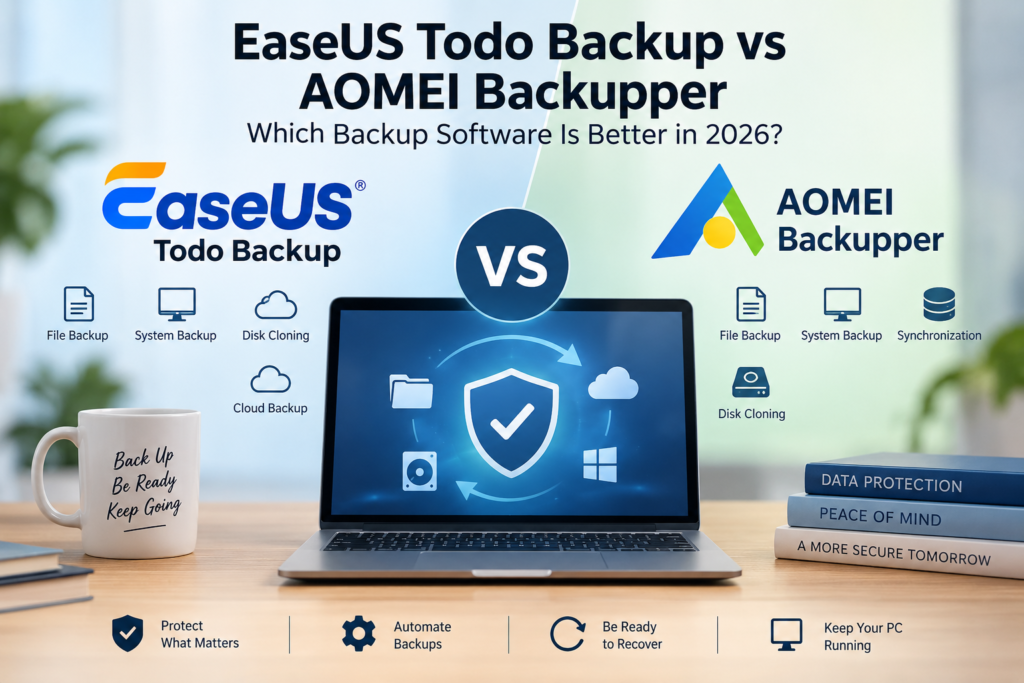
EaseUS Todo Backup vs AOMEI Backupper is a useful comparison for anyone looking for Windows backup software that goes beyond simply copying important files to another folder. Both applications can protect files, disks, partitions, and Windows installations, while also offering tools that can help when upgrading a drive or recovering from a serious PC problem.
The differences become more important once you look at how you actually plan to use the software. Someone who mainly wants scheduled backups may have different priorities from a user who regularly clones drives, moves Windows to new hardware, or wants copies stored both locally and in the cloud.
That distinction matters because backup software is only useful if you can rely on it when something goes wrong. A backup that is difficult to configure, rarely runs, or cannot be restored when needed offers very little protection.
This EaseUS Todo Backup vs AOMEI Backupper comparison looks at backup options, recovery, disk cloning, automation, cloud support, ease of use, and pricing to help you decide which approach better fits your needs.
EaseUS Todo Backup vs AOMEI Backupper at a Glance
| Feature | EaseUS Todo Backup | AOMEI Backupper |
|---|---|---|
| File backup | Yes | Yes |
| System backup | Yes | Yes |
| Disk and partition backup | Yes | Yes |
| Scheduled backups | Yes | Yes |
| Incremental backups | Yes | Yes |
| Differential backups | Yes | Yes |
| Disk cloning | Yes, depending on edition | Yes, depending on edition |
| Cloud backup options | Yes | Available options vary by edition |
| Free version | Yes | Yes |
| Paid personal edition | Todo Backup Home | Backupper Professional |
| Main appeal | Accessible backup and recovery with local and cloud options | Broad Windows backup, synchronization, and cloning tools |
At first glance, there is considerable overlap. Both products are designed to protect Windows PCs without requiring users to build a complicated backup system from several separate utilities.
The more meaningful differences appear in the details: where backups can be stored, which cloning and recovery features are included in each edition, how easily recurring backup jobs can be managed, and what you actually receive for the price.
What Is EaseUS Todo Backup?
EaseUS Todo Backup is a Windows backup and recovery application designed to protect individual files as well as larger parts of a computer.
Instead of manually copying folders to an external drive whenever you remember, you can create backup tasks and run them automatically on a schedule. EaseUS supports file, system, disk, and partition backups, along with full, incremental, and differential backup methods. Its Home edition also includes cloning and additional recovery capabilities.
One useful distinction is that backups do not have to remain on the PC itself. EaseUS supports local and network destinations and can work with cloud services including OneDrive, Dropbox, Google Drive, Amazon S3, and others for supported backup types. EaseUS also offers its own cloud-storage option with certain plans.
That flexibility can be useful if you want more than one copy of important data. Keeping every backup on the same physical drive as the original files leaves both copies exposed to the same hardware failure, while permanently connected storage can introduce other risks.
This is also why a backup strategy should be considered separately from ordinary file storage. BizBot’s guide to creating a digital emergency kit for a small business explains why simply having a backup does not necessarily mean a business is prepared to recover from an emergency.
Try EaseUS Todo Backup to create automated backups and keep a recovery copy of your important files and Windows system.
What Is AOMEI Backupper?
AOMEI Backupper takes a similarly broad approach to Windows backup. Rather than focusing only on individual files, it is designed to handle file and folder backups as well as system, disk, and partition protection.
That makes it relevant to several different situations. You might use backup software to protect everyday documents, create an image of the Windows installation before making major changes, maintain scheduled backups to another drive, or prepare for replacing an aging SSD.
AOMEI also places considerable emphasis on synchronization and cloning alongside conventional backup and recovery. That can make it attractive to users who want one Windows utility for several related storage-management jobs rather than a tool used exclusively for backups.
As with EaseUS, however, it is important to compare editions rather than assuming every advertised feature is available in the free version. Features involving advanced cloning, synchronization, recovery, or automation can differ between free and paid editions.
This is one reason comparing backup applications purely by the number of features on their product pages can be misleading. What matters more is whether the features included in the edition you would actually use match your backup and recovery plan.
EaseUS Todo Backup vs AOMEI Backupper for Everyday Backups
For ordinary PC protection, both products cover the fundamentals.
If your main concern is losing documents, photos, spreadsheets, project files, or other important data, you can create recurring backup jobs instead of relying on manual copies. This is particularly useful for folders that change frequently because remembering to copy them yourself every week is rarely a dependable long-term strategy.
Full backups provide a complete copy of the selected data, while incremental and differential approaches can reduce the amount of data that needs to be copied during subsequent backup runs.
The terminology can sound more complicated than the practical decision really is. Most users do not need to manually create a new full backup every day. A sensible schedule can combine periodic full backups with smaller backups containing changes made since an earlier backup.
The destination matters just as much as the schedule. An external HDD or SSD is convenient and can make restoration relatively quick, but keeping the only backup permanently beside the computer does not protect against every possible failure or physical incident.
Cloud storage can provide another layer, although cloud storage and dedicated backup software serve somewhat different purposes. BizBot’s cloud storage guide for small businesses discusses this distinction when evaluating storage based on security, cost, accessibility, and recovery requirements.
For either EaseUS or AOMEI, the better setup is therefore not necessarily the one with the largest number of backup options. It is the one you can configure once, monitor easily, and successfully restore from when you actually need your files.
EaseUS Todo Backup vs AOMEI Backupper for System Backup and Recovery
Backing up individual files is useful, but a system backup provides a different level of protection. Instead of saving only documents and folders, a system image can preserve the Windows installation, system settings, applications, and other data needed to restore a computer after a serious failure.
Both EaseUS Todo Backup and AOMEI Backupper support Windows system backups. This can be useful before replacing storage hardware, making major system changes, or preparing for a situation where Windows becomes unbootable.
EaseUS Todo Backup provides a relatively straightforward workflow for creating system backups. Users can select the operating system as the backup source, choose a destination, and schedule future backups so the recovery copy remains reasonably current.
AOMEI Backupper provides similar system backup and recovery capabilities. It also includes options aimed at users who want greater control over how backups, restoration, and related storage tasks are handled.
For most users, the important question isn’t whether either program can create a system image—both can. What matters more is whether the recovery process fits the way you use your computer and whether you can access your backups when Windows itself is unavailable.
Whichever application you choose, recovery should be considered when setting up the backup rather than for the first time after something has already gone wrong.
EaseUS Todo Backup vs AOMEI Backupper for Disk Cloning
Disk cloning is useful when replacing or upgrading a storage drive.
Suppose your laptop has a 500 GB SSD and you want to replace it with a larger drive. Instead of reinstalling Windows, setting up applications again, and manually transferring files, cloning can copy the contents of the existing drive to the replacement.
Both EaseUS and AOMEI provide cloning capabilities, although the options available can vary between editions.
EaseUS Todo Backup supports disk and partition cloning for common migration scenarios. This can make it useful when moving an existing Windows installation and files to another drive rather than starting again with a clean installation.
AOMEI Backupper also provides disk and partition cloning capabilities and combines these with its broader backup and synchronization tools. This can be useful for people who expect to use the same application for both regular backups and occasional storage upgrades.
Cloning shouldn’t replace a normal backup strategy, however. A clone is particularly useful when migrating to another drive, while a regular backup provides more flexibility when you need to recover files after accidental deletion, corruption, or another unexpected problem.
EaseUS Todo Backup vs AOMEI Backupper for Automation
Backup software becomes much more useful when you don’t have to remember to run it.
Both programs allow recurring backup jobs to be scheduled. Instead of manually starting a backup every few days, you can configure the software to run according to a regular schedule.
This matters because even a carefully designed backup system provides limited protection if the most recent copy is several months old.
Incremental and differential backups can make recurring backups more practical by reducing the amount of data that needs to be copied after the initial backup.
EaseUS Todo Backup focuses on making common backup tasks relatively straightforward to schedule and maintain. This can suit users who primarily want their backups to run regularly without spending much time managing them.
AOMEI Backupper also supports scheduled backups and provides additional controls for users who want to adjust how their backup and synchronization tasks operate.
For a typical home or small-business PC, automation should ultimately make backups less noticeable. Once a reliable schedule is configured, the software should protect important data without becoming another regular task that has to be remembered.
EaseUS Todo Backup vs AOMEI Backupper for Ease of Use
Ease of use matters considerably with backup software because a complicated backup process is more likely to be ignored.
EaseUS Todo Backup organizes common tasks around recognizable needs such as backing up files, disks, partitions, or Windows itself. This can make it approachable for someone who wants reliable backups without spending much time learning technical terminology.
AOMEI Backupper is also accessible, while providing a broad collection of backup, synchronization, cloning, and related tools. Users who like having more options available may appreciate this flexibility.
Neither program requires professional IT knowledge for ordinary backup jobs. The difference is more about how much control you want when setting everything up.
A user who simply wants a scheduled backup running in the background may value a straightforward workflow. Someone who regularly upgrades drives, maintains several backup jobs, or uses different synchronization methods may prefer having more configuration options available.
The same principle applies when choosing other business software. More functionality isn’t automatically useful if it makes everyday workflows unnecessarily complicated. BizBot’s guide to integrating technology into a small business looks at the broader role software can play when it fits naturally into existing operations.
Which Approach Fits Different Backup Needs?
The similarities between these programs mean the choice often comes down to how you intend to use the software.
EaseUS Todo Backup may suit users who want a relatively straightforward way to combine file, system, and disk backups with recovery and cloning tools. Its approach can be appealing when the priority is setting up regular protection without spending too much time managing the software.
AOMEI Backupper may be more appealing to users who want a broader range of backup, synchronization, and storage-management options in the same application. Those additional controls can be useful when backup software is also being used for drive migration or more customized workflows.
Neither approach is automatically better for everyone. Someone protecting a single home PC has different requirements from a small business maintaining several important computers, just as a user replacing an SSD has different priorities from someone mainly concerned about accidentally deleted files.
The more useful comparison is therefore whether the software supports the backup routine you are realistically going to maintain—and whether you can recover your data easily when that backup is actually needed.
EaseUS Todo Backup vs AOMEI Backupper for Recovery
The real value of backup software becomes clear when something goes wrong. Creating backups is important, but those backups need to be practical to restore.
Both EaseUS Todo Backup and AOMEI Backupper allow users to restore files from previous backups. They can also restore larger backups, such as partitions or Windows system images, when more extensive recovery is required.
For a relatively simple problem, such as accidentally deleting an important folder, restoring selected files may be all that is necessary. A more serious problem, such as a failed Windows installation or damaged drive, may require restoring an entire system image.
Both applications also provide options for creating bootable recovery media. This is useful because a backup stored on another drive is of limited help if Windows will not start and you have no way to access the recovery tools.
The most important consideration is therefore not how many recovery features are listed, but whether you understand how to use them before an emergency occurs. Creating recovery media and knowing where your backups are stored can make the recovery process considerably easier.
EaseUS Todo Backup vs AOMEI Backupper for Small Businesses
Small businesses often have slightly different backup requirements from individual home users. A computer may contain accounting records, customer documents, contracts, project files, or other information that would be difficult to replace.
For a very small business with only a few PCs, either EaseUS Todo Backup or AOMEI Backupper can provide a practical way to automate local backups and create recovery copies of important systems.
The larger issue is how those backups fit into the company’s overall data-protection strategy.
Keeping every backup in the same office, for example, protects against some hardware failures but provides less protection against theft, fire, ransomware, or another event affecting the entire location. Maintaining an additional copy away from the primary computer can reduce that risk.
Businesses should also consider who is responsible for checking that backups are actually running. Automated software reduces manual work, but failed backup jobs can still go unnoticed if nobody reviews them.
This is particularly important when several business systems depend on one another. A backup of files may protect documents, but it does not necessarily preserve access to cloud applications, account credentials, software licenses, or other resources needed to resume operations.
Planning for those dependencies is part of broader business continuity. A business software exit plan can also help identify which data needs to remain accessible when a critical application or service is no longer available.
What to Consider Before Choosing Backup Software
The most useful backup application is not necessarily the one with the longest feature list. Start with what you actually need to protect.
If your main concern is personal documents and photos, straightforward file backups may be sufficient. If the computer contains important applications and configurations that would take days to rebuild, system-image backups become more valuable.
Storage should also be part of the decision. Think about where backups will be kept, how much space they will require, and whether at least one important copy should remain separate from the computer being protected.
Drive cloning deserves similar consideration. It can be extremely useful when replacing an SSD or migrating an existing Windows installation, but someone who rarely changes hardware may have little reason to prioritize advanced cloning features.
Finally, consider recovery. A backup strategy should answer a simple question: if this computer stopped working today, how would I get my important files and system back?
If that answer is unclear, adding more backup features is unlikely to solve the underlying problem.
EaseUS Todo Backup vs AOMEI Backupper: Which One Should You Choose?
The EaseUS Todo Backup vs AOMEI Backupper comparison is closer than it may initially appear. Both cover the core functions most Windows users expect from dedicated backup software, including file, system, disk, and partition backups, scheduling, recovery, and cloning capabilities.
EaseUS Todo Backup may suit users who prefer a relatively straightforward backup and recovery workflow, particularly when they want to manage common backup tasks without spending much time configuring the software.
AOMEI Backupper may suit users who place more emphasis on having backup, synchronization, cloning, and related storage-management options within the same application.
For simpler requirements, either product may offer more functionality than you actually need. In that situation, ease of setup and reliable scheduled backups are likely to matter more than advanced features.
For more demanding use, compare the specific capabilities included in the edition you intend to use rather than choosing based on the overall feature list.
FAQs
Is EaseUS Todo Backup better than AOMEI Backupper?
Neither is automatically better for every user. EaseUS Todo Backup emphasizes an accessible backup and recovery workflow, while AOMEI Backupper provides a broad collection of backup, synchronization, and cloning options. The more suitable choice depends on how you intend to protect and recover your computer.
Can EaseUS Todo Backup and AOMEI Backupper back up Windows?
Yes. Both applications support system backups that can be used as part of a Windows recovery strategy.
Can I use these programs to move Windows to a new SSD?
Both offer cloning capabilities that can help with disk or partition migration. The specific cloning options available can depend on the product edition and the type of migration being performed.
Do I still need an external drive?
Not necessarily, but an external drive is a practical backup destination for many users. The important point is to avoid keeping your only backup in a location that could be affected by the same problem as the original data.
Is disk cloning the same as making a backup?
No. Cloning is primarily useful for creating a copy of a drive or migrating data to another disk. Regular backup software can maintain multiple backup versions over time, which is more useful when you need to recover an older or accidentally deleted file.
Final Thoughts
Choosing between EaseUS Todo Backup vs AOMEI Backupper comes down to how you want your backup routine to work rather than which application has the longest list of features.
Both provide the essential tools needed to protect Windows files and systems, automate recurring backups, restore data, and handle common drive-migration tasks. EaseUS takes a relatively straightforward approach to everyday backup and recovery, while AOMEI provides a broad set of backup and storage-management options.
Whichever one you use, the software is only one part of a reliable backup strategy. Keep backups current, avoid relying on a single copy of important data, and make sure you know how to restore what you’ve saved.
A backup is most valuable when recovery is straightforward on the day you actually need it.