Disclosure: This page contains commercial links. BizBot may earn a commission from qualifying purchases. Paid placements do not buy a better ranking. Read our affiliate disclosure.
Managing email is one of the biggest productivity challenges. Most professionals lose hours a week to email, and a large share of what arrives never needed a reply. Distraction-free email tools simplify this process by focusing on clean interfaces, smart prioritization, and productivity features like AI-assisted drafting and task integration.
Key Takeaways:
- Why it matters: Every interruption costs focus, and most of what lands in an inbox is noise rather than work.
- What they do: These tools minimize clutter, prioritize important messages, and streamline workflows.
- Top tools: Superhuman, Spark, Shortwave, Mailbutler, and Hey stand out for their unique features and pricing.
Quick Comparison:
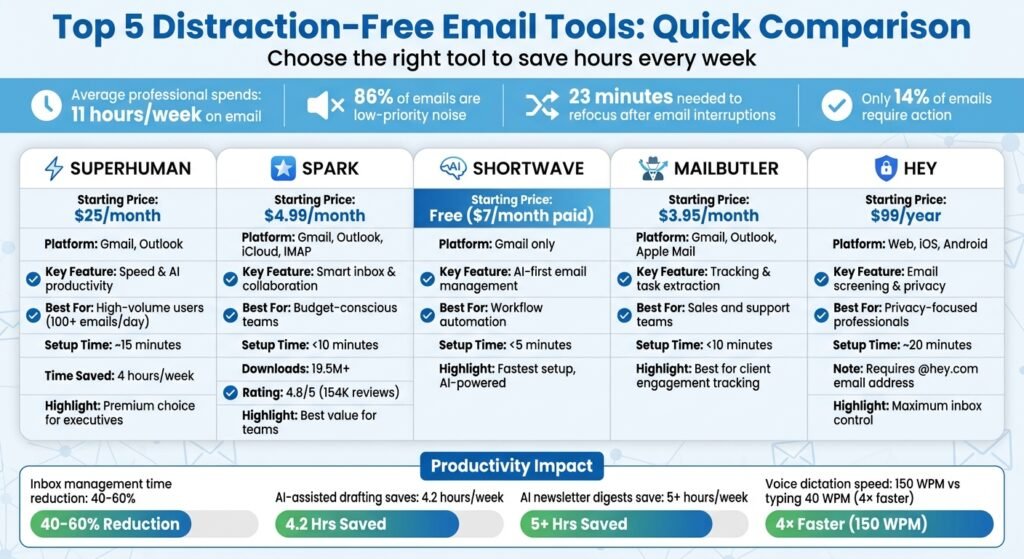
| Tool | Starting Price | Key Feature | Best For |
|---|---|---|---|
| Superhuman | $30/user/month (Starter; $300/year) | Speed & AI productivity | High-volume users |
| Spark | Free tier; Plus $10/user/month | Smart inbox & collaboration | Budget-conscious teams |
| Shortwave | $30/seat/month (Business) | AI-first email management | Workflow automation |
| Mailbutler | $4/user/month (Starter) | Tracking & task extraction | Sales and support teams |
| Hey | $99/year (personal) | Email screening & privacy | Privacy-focused professionals |
All prices above were checked against each vendor’s own pricing page in August 2026. Confirm them before you budget — email tools reprice often. Keep reading to learn how they work and how to choose the right one for your needs.
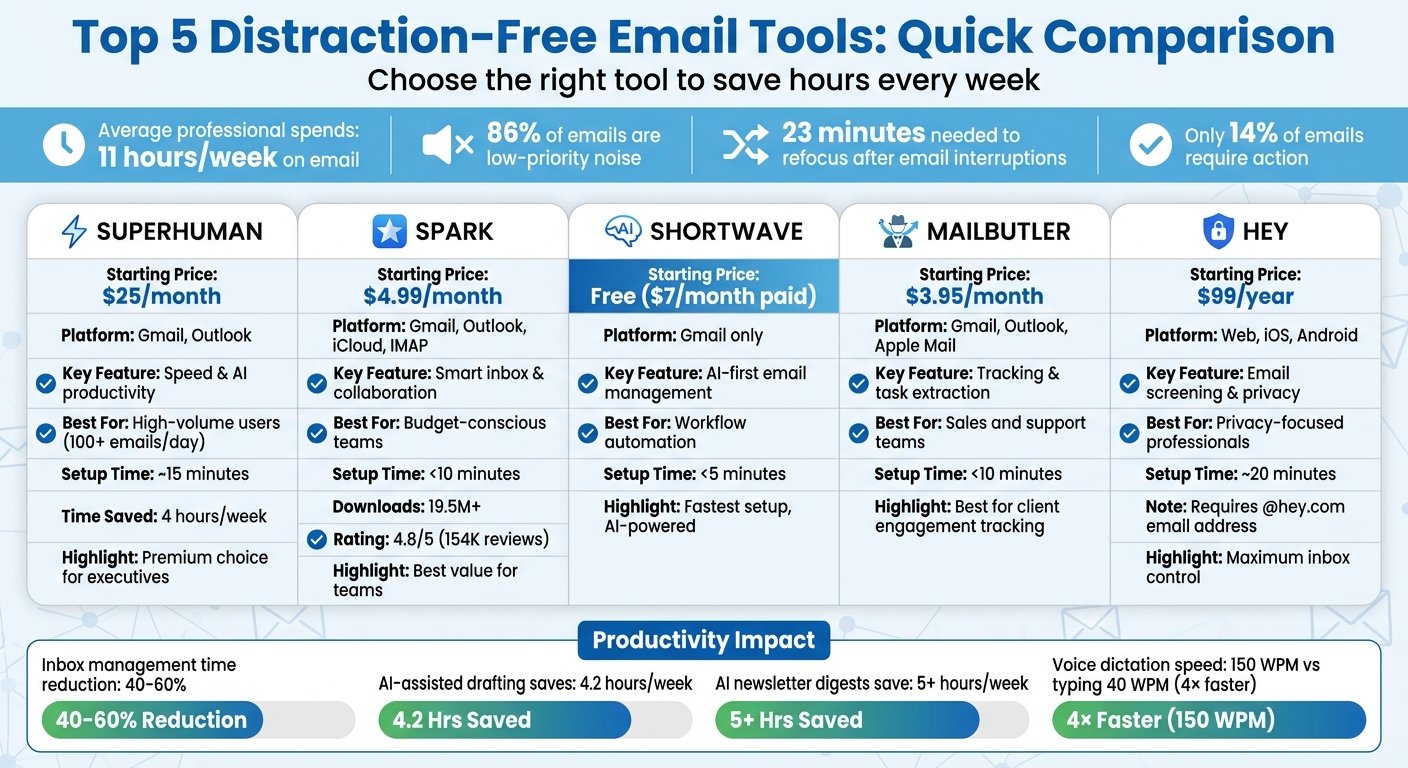
Distraction-Free Email Tools Comparison: Features, Pricing, and Best Use Cases
Top 5 Superhuman Alternatives | Best Email Management Software for 2025
Core Features of Distraction-Free Email Tools
Distraction-free email tools tackle productivity challenges head-on with features that simplify email management. They focus on clean interfaces, smart prioritization, and built-in tools to streamline your workflow.
Minimalist and Customizable Interfaces
A cluttered inbox can be mentally exhausting, but these tools offer a solution through clean, streamlined designs. Unlike traditional email clients filled with buttons and sidebars, distraction-free tools create a workspace that encourages focus.
Take Reader Mode, for instance – it uses distraction-free typography to make reading emails easier. Conversation threading is another helpful feature, collapsing lengthy email chains into a single, organized view. Some tools even introduce Home Screens, which act as a calming buffer before you dive into your inbox. Instead of being overwhelmed by a flood of unread messages, you’re greeted by a serene landing page where you can choose when to engage. Octavian Maxim, Head of Product and Growth at Testable, highlights this benefit:
“I love Spark. So much good stuff there, particularly liking all the ‘focus’ features and tools to help free up headspace (such as automatic reminders and set aside for later)”.
Keyboard-first navigation is another standout feature. Tools optimized for shortcuts (like CMD+K) let you manage emails swiftly without relying on a mouse. Add to that autocorrect, and unified inboxes that combine multiple accounts into one view, and you’ve got a system designed for efficiency.
Once the interface is streamlined, the next step is ensuring only the most important messages grab your attention.
Smart Inbox Prioritization
Managing email noise is a constant struggle, but smart prioritization changes the game by filtering what matters most. These tools go beyond basic inbox organization, focusing on actionable items.
AI-powered classification categorizes emails into groups like “Decide”, “Act”, “Respond”, and “Review”, helping you focus on what needs immediate attention. Unlike simple keyword filters, modern algorithms analyze context, threads, and deadlines to prioritize effectively. VIP and priority ranking features ensure critical emails – whether from key contacts or specific domains – get the spotlight.
Noise suppression is another key feature. Newsletters, notifications, and promotional email make up the bulk of most inboxes, and these tools automatically sort them into low-priority folders. Some even offer gatekeeper functions, allowing you to screen or block new senders before their messages reach your main inbox. For persistent spam, “blackhole” features quietly discard unwanted emails at the server level, keeping your inbox clean.
Built-In Productivity Features
Distraction-free email tools don’t stop at helping you manage emails – they also help you act on them efficiently. AI summarization condenses long threads into brief summaries or action-item lists, saving you from endless scrolling. How much time that actually saves depends on how much of your mail is long threads you did not need to read in full.
Automated drafting takes this further, generating replies and follow-ups tailored to your tone and past communications. Additional workflow controls, like “Snooze” for delaying emails, “Send Later” for scheduling, and “Reminders” for flagged threads, ensure you don’t miss a beat. Tools that integrate tasks and calendars simplify your day by pulling deadlines and events directly from emails.
Christian Kletzl, CEO, captures the essence of these tools:
“Superhuman for me is peace of mind. It turns my inbox into a task list. I have a million things to do, I need the things that I don’t have to do right now to be out of my mind”.
Vendors publish large time-savings figures for all of this. Treat them as marketing until you have run your own mail through a trial. The question is not whether your email client uses AI, but whether that AI does anything your old filters did not.
These features lay the groundwork for adopting best practices that maximize productivity.
Top Distraction-Free Email Tools for Businesses
Choosing the right email tool depends on your team’s size, workflow needs, and budget. Below, we break down five standout options, each offering unique features to streamline your email management.
Comparison Table of Leading Tools
| Tool | Starting Price | Platform Support | Key Strength | Setup Time | Best For |
|---|---|---|---|---|---|
| Superhuman | $30/user/month; $300/user/year | Gmail, Outlook | Speed & AI productivity | ~15 minutes | High-volume individual users (100+ emails/day) |
| Shortwave | $30/seat/month (Business); no free tier | Gmail only | AI-first search & bundling | <5 minutes | Teams needing workflow automation |
| Spark | Free; Plus $10/user/month ($120/user/year) | Gmail, Outlook, iCloud, IMAP | Smart inbox & collaboration | <10 minutes | Small to mid-sized teams on a budget |
| Mailbutler | $4/user/month (Starter) | Gmail, Outlook, Apple Mail | Tracking & task extraction | <10 minutes | Sales and support teams |
| Hey | $99/year (personal); $12/user/month for domains | Web, iOS, Android | Email screening & privacy | ~20 minutes | Privacy-focused professionals |
Superhuman Overview
Superhuman is designed for professionals who deal with a high volume of emails daily. Its Magic Inbox filters important emails from the noise, while keyboard shortcuts ensure quick navigation. Superhuman markets it as saving about four hours a week; that is the vendor’s own claim, not a measured result.
Superhuman’s AI features stand out. Instant Reply crafts responses that match your tone, and Ask AI allows natural language searches across your inbox and calendar. Dharmesh Shah, CTO and Founder of HubSpot, shares his thoughts:
“If you are a working professional that spends at least a couple of hours using email, you really need to use Superhuman”.
Pricing is per user: Starter is $30/month, or $300/year (about $25/month). Business is $40/month, or $396/year (about $33/month), and adds Auto Drafts, Ask AI and the HubSpot and Salesforce integrations. Enterprise is quote-only. Checked August 2026. It is expensive for an email client, and only worth it if you genuinely live in your inbox. Setup takes about 15 minutes, helping users achieve a more focused inbox experience.
Hey Overview
Hey takes a fresh approach to email, emphasizing control and screening. Its Screener blocks new senders until approved, allowing users to route emails into three categories: Imbox (important), Feed (casual), or Paper Trail (receipts).
Features like Instant Unsubscribe make it easy to leave mailing lists, and tools like Set Aside and Reply Later keep workflows tidy. However, Hey requires users to adopt a new email address ending in @hey.com, which may be a hurdle for businesses with established domains.
Personal accounts are $99/year, billed annually. There are two other options: HEY for Domains is $12 per user per month (the first user is $10) for custom-domain mail, and HEY for Families is $179/year for up to five people. Checked August 2026. Setup takes about 20 minutes as users train the Screener and organize contacts. For professionals who value complete control over their inbox and don’t mind switching email addresses, Hey offers a distraction-free solution.
Shortwave Overview
Shortwave integrates AI to simplify email and boost team collaboration, working exclusively with Gmail. Its AI Agent handles tasks like scheduling meetings, drafting emails, and searching archives using natural language. Meanwhile, Bundles automatically group newsletters and promotions, delivering them at set times to avoid interruptions.
Phillip Wang, CEO of Gather, describes the experience:
“Shortwave’s UX feels fast and joyful! It makes email less of a chore and lets me focus on my actual work”.
Additional features include Split Inboxes for separating VIPs, team messages, and notifications, as well as shared live threads for collaborative responses with private comments. Shortwave dropped its free tier. As of August 2026 the plans are Business at $30 per seat per month, Premier at $45 per seat per month, and Max at $120 per seat per month, with a 14-day trial. If you saw a $7 personal plan on an older shortlist, it is gone. Setup is quick, taking less than five minutes. For teams looking to automate workflows and minimize distractions, Shortwave delivers.
Mailbutler Overview
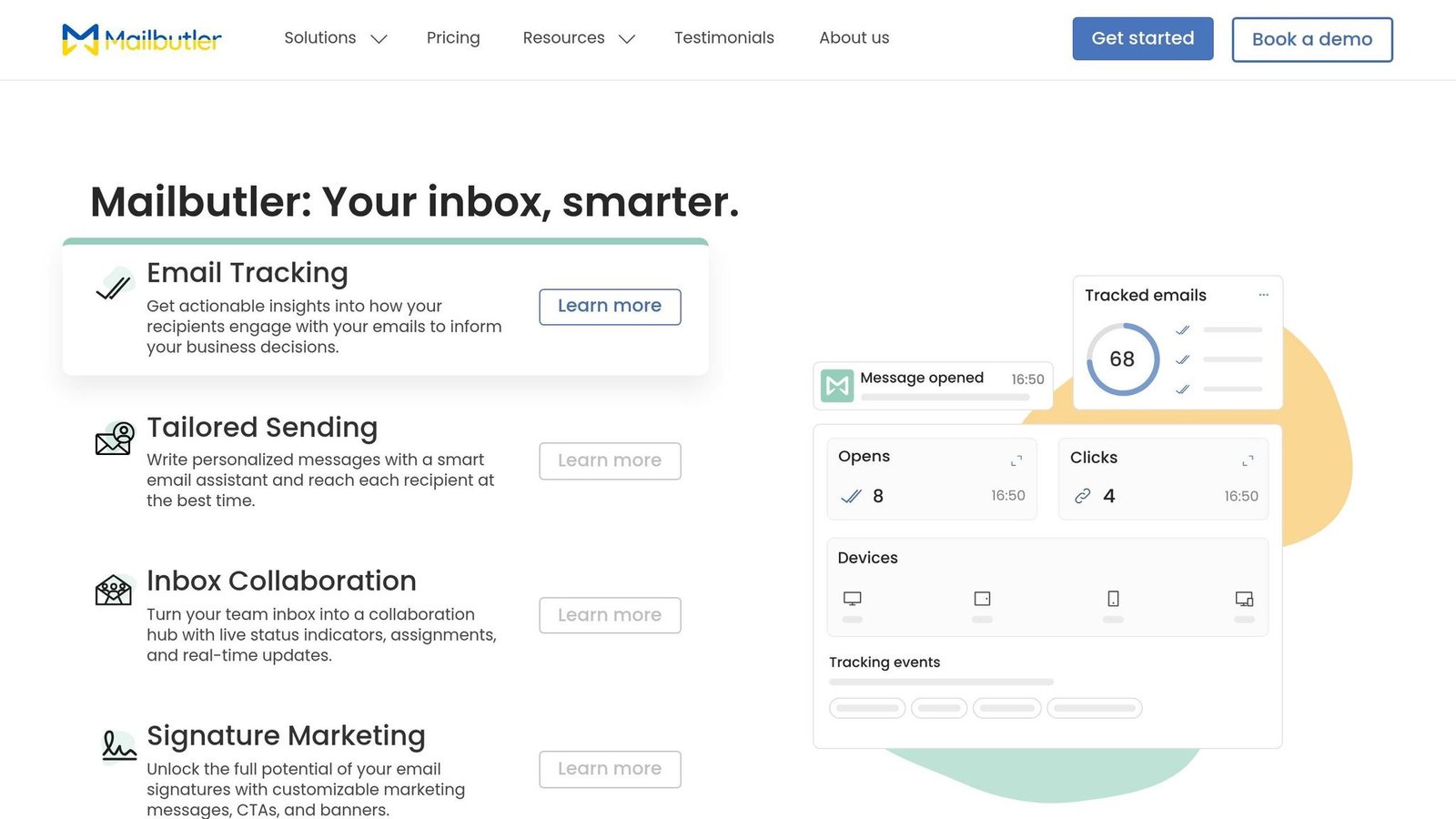
Mailbutler enhances your existing email client rather than replacing it. It specializes in tracking and task management, showing when emails are opened or links are clicked. Features like Smart Compose generate AI-powered replies, while Follow-up Reminders ensure no task is forgotten.
Mailbutler now publishes two priced plans: Starter at $4 per user per month and Professional at $7 per user per month, with Business on request. The older Smart tier is no longer listed. Checked August 2026. Sales and support teams benefit most from its tracking tools, which offer insights into client engagement. Shared templates and task extraction also feed project management tools like Asana and Jira. Setup takes about 10 minutes, making it a practical addition for teams aiming to streamline email workflows.
Spark Overview
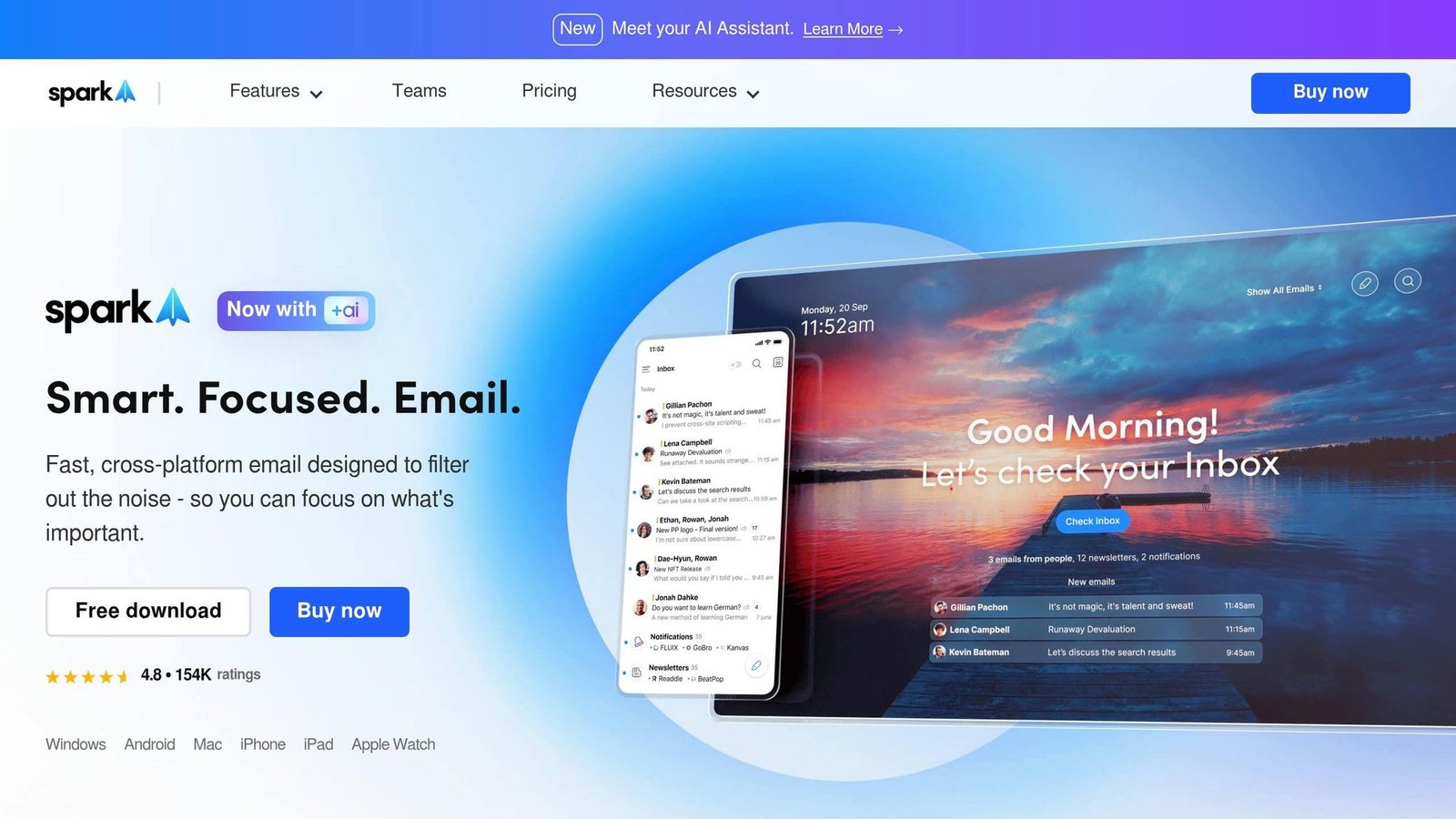
Spark combines powerful features with an accessible price point. Its Smart Inbox organizes emails into categories like Personal, Notifications, and Newsletters, while shared drafts allow teams to collaborate before sending.
Octavian Maxim, Head of Product and Growth at Testable, shares:
“I love Spark… particularly liking all the ‘focus’ features and tools to help free up headspace (such as automatic reminders and set aside for later)”.
Spark supports Gmail, Outlook, iCloud, and IMAP accounts in one unified inbox, with calendar integrations that pull deadlines directly from emails. There is a free tier. Plus is $10 per user per month, or $120 per user per year (about $8.25 a month). Pro is $20 per user per month, or $240 per user per year (about $16.58 a month). Enterprise is quote-only. Checked August 2026. Setup takes less than 10 minutes, and the free tier is enough to decide whether the Smart Inbox suits you.
Best Practices for Using Distraction-Free Email Tools
Having the right tool is just the beginning – changing how you approach email is what truly makes a difference. Email eats a large part of the working week for most people, and every interruption costs more time than the interruption itself. The tips below help you claw some of it back.
How to Achieve Inbox Zero
Inbox Zero isn’t about obsessing over an empty inbox. As Merlin Mann, who coined the term, puts it:
“The ‘zero’ in inbox zero does not refer to the number of messages in your inbox. Instead, [it is] ‘the amount of time an employee’s brain is in his inbox'”.
The idea is to process emails quickly and move on.
Start with the Two-Minute Rule: if responding to an email takes less than two minutes, handle it immediately. This prevents you from revisiting the same message over and over.
Another helpful strategy is batch processing. Instead of checking emails constantly, schedule specific times – like 9:00 AM, 1:00 PM, and 4:30 PM – to go through your inbox. Outside of those times, close your email so you are not paying the context-switching cost all day. If your inbox is overflowing, consider “email bankruptcy”: archive everything older than 30 days into a “Pre-Reset Archive” folder. This lets you start fresh without losing important data.
Keep your email folders simple. Use just four categories: @Action Required, @Waiting For, @Reference, and @Archive. Over-complicating your system can lead to wasted time. Dedicate 30 minutes to unsubscribing from newsletters you haven’t read in the last month. If you still want to skim them, an AI digest will cut the reading down to a few lines each.
| Strategy | What it changes | Difficulty | Best For |
|---|---|---|---|
| AI Newsletter Digests | Turns skim-reading into a summary | Easy | Newsletter subscribers |
| Two-Minute Rule | Stops you reopening the same mail | Easy | Quick decisions |
| Time Blocking | Protects uninterrupted work | Medium | Deep work focus |
| Folder Triage System | Makes “what is left” visible | Medium | Organization |
| Unsubscribe Ruthlessly | Cuts inbound volume at source | Easy | Subscription overload |
| Touch It Once | Removes repeat decisions | Medium | Decision fatigue |
Learning Keyboard Shortcuts
Streamlining your email workflow with keyboard shortcuts can save even more time. Using a mouse slows you down, while keyboard navigation lets you manage emails at “thought speed”. Focus on mastering core shortcuts like A (archive), S (snooze), R (reply), and / (search). Tools like NitroInbox take it further with vim-style navigation – use j and k to scroll and Enter to open emails – keeping you in the zone.
The productivity boost is real. Voice dictation is another option: Willow Voice claims roughly four times faster writing than typing, though that is the vendor’s figure and speech does not suit every reply. Even without dictation, mastering shortcuts can double your speed by cutting out the constant clicking. Spend just 15 minutes learning the command bar (Ctrl+K or Cmd+K), and you’ll notice a difference.
Pair these shortcuts with integrations for an even smoother workflow.
Connecting Email Tools with Business Operations
Wiring your email into the rest of your stack keeps work out of the inbox. Instead of treating email as your to-do list, link it to task management platforms like Todoist, Linear, or Notion. Many distraction-free email clients offer one-click integrations, making it easy to convert emails into actionable tasks.
For businesses juggling multiple software subscriptions, platforms like BizBot can help manage expenses by centralizing subscription oversight. This not only saves money but also ensures your email tools work well with the rest of your tech stack.
Use “Send Later” features to schedule emails during business hours, setting boundaries and avoiding the expectation of instant replies. And finally, turn off email notifications entirely. Instead, stick to your scheduled batch times to avoid constant interruptions that derail your focus.
How to Choose the Right Tool for Your Business
Start by pinpointing your biggest email management challenge. Are you drowning in emails, struggling to meet SLA targets, or constantly switching between apps? Your answer will help you prioritize the features that matter most.
If you’re a solo professional handling a large volume of emails, focus on tools that emphasize speed and AI-powered triage, such as Superhuman (priced at $30/month). On the other hand, teams managing shared inboxes like support@ should look for collaboration-focused tools like Missive (free plan, then Starter at $14 per user per month for up to five users) or Front (Starter at $25 per seat per month billed annually, up to ten seats). Choosing a tool that aligns with your specific needs ensures you’re solving the right problems.
Next, think about the potential return on investment (ROI). Consider both the subscription cost and the time saved. A $30/month tool that genuinely saves an hour a day is cheaper than a $10/month one nobody opens. The best tool is the one your team keeps using after the novelty wears off.
To maximize these gains, review your current stack for real integration with your CRM, calendar, and project management tools. For example, Microsoft 365 users should prioritize tools with strong M365 integration, while Google Workspace teams should look for compatibility with Drive, Meet, and Calendar. Take advantage of trial periods to test AI features with real emails before committing.
If your business operates in regulated industries like legal or finance, security is non-negotiable. Ask for formal documentation such as SOC 2 or CASA Tier 2 compliance and verify data residency policies. Also ensure the tool includes features like collision detection to prevent multiple team members from replying to the same thread.
Finally, streamline your software subscriptions by using tools like BizBot. BizBot helps centralize subscription management, reducing unnecessary expenses and keeping your operations efficient.
FAQs
Will these tools work with my Gmail or Outlook account?
Mostly, but check first. Superhuman, Spark and Mailbutler support both Gmail and Outlook. Shortwave is Gmail only. Hey requires its own address or a domain on its service.
How can I tell if an AI feature is worth paying for?
When considering whether an AI feature is worth the investment, think about how much it actually helps you. Does it save you time managing your inbox? Can it automate workflows in a way that genuinely makes your day easier? Look for clear advantages, like improved organization or faster response times. Steer clear of features that feel more like flashy marketing tricks than tools you’ll actually use.
What should I set up first to cut email distractions fast?
To cut down on email distractions, try batching your inbox management rather than checking messages as they come in. Use AI tools to filter newsletters, receipts, and notifications so they don’t clutter your main inbox. Set up a clear folder system and commit to specific time blocks for handling emails. These strategies can help you stay organized, reduce interruptions, and keep your focus intact.
More on this topic
Browse all 40 articles on Project & Team Management, or jump straight to our buying guide: Best Project Management Tools for Small Teams.