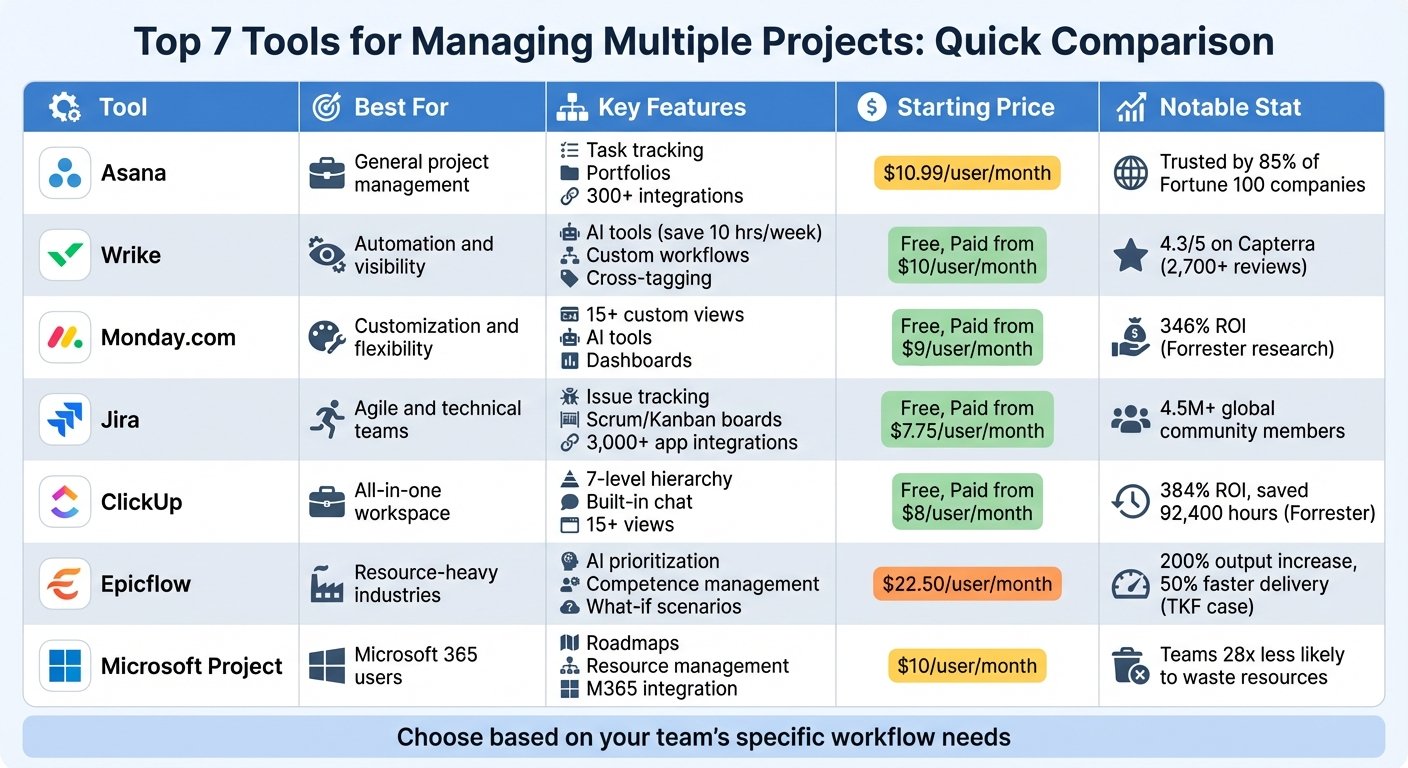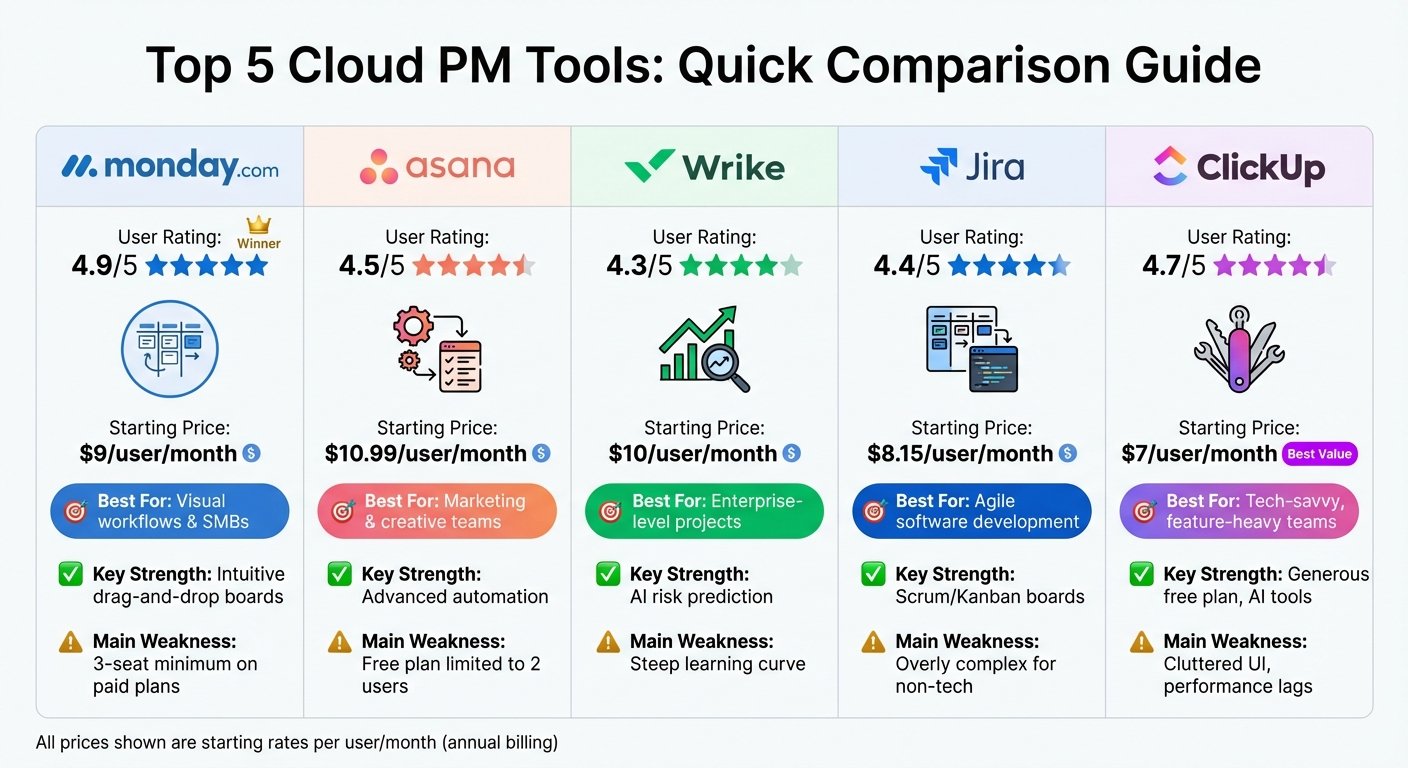
Looking for the best task management tools in 2026? Here’s what you need to know:
Managing tasks is no longer just about to-do lists. The right platform saves time and keeps work visible; the wrong one adds admin. Whether you are a freelancer juggling roles or a small team trying to stay on track, these tools organise work, fit alongside your other systems, and increasingly use AI to flag slipping deadlines.
All prices below were checked against the vendors’ own pricing pages in August 2026. Software pricing changes often, so confirm the current rate with the vendor before you budget.
Top Picks:
- Jira: Best for software teams using Agile frameworks, offering powerful customization and integrations.
- ClickUp: An all-in-one platform with a wide feature set at a competitive price.
- Asana: Ideal for aligning everyday tasks with broader goals, widely used by large enterprises.
- Trello: A simple, Kanban-style tool for freelancers and smaller teams.
- Todoist: Perfect for personal task management with natural language input.
- Monday.com: Strong visual boards for structured project tracking, great for SMBs.
- Notion: Combines tasks, wikis, and databases for centralized workflows.
- MeisterTask: A secure, easy-to-use Kanban tool for regulated industries.
Quick Takeaway:
- For freelancers, try Todoist or Trello for simplicity.
- Small teams can explore ClickUp for value or Asana for structure.
- Software teams should consider Jira for advanced workflows.
- Knowledge-heavy teams may benefit from Notion’s flexibility.
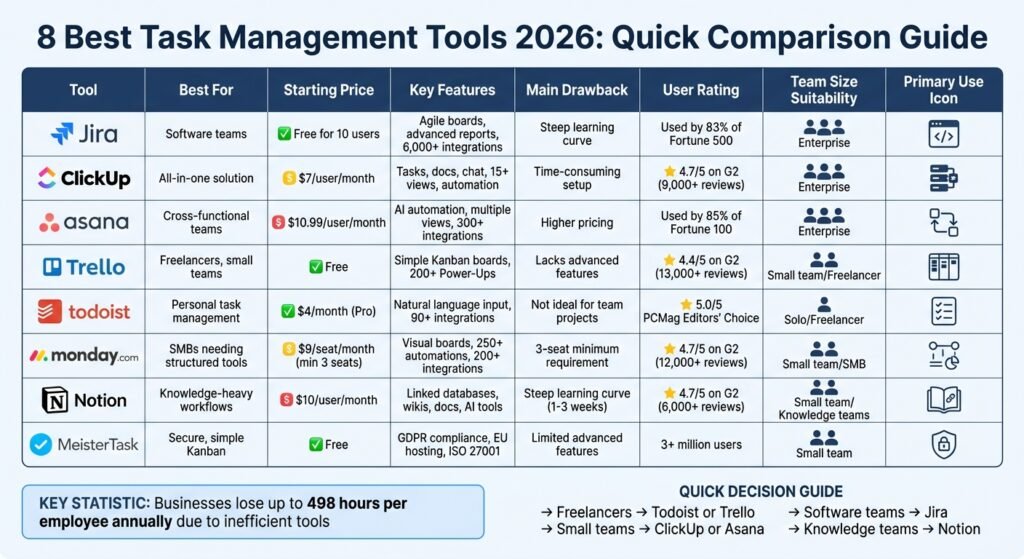
Quick Comparison Table
| Tool | Best For | Starting Price | Key Features | Drawbacks |
|---|---|---|---|---|
| Jira | Software teams | Free for 10 users | Agile boards, advanced reports | Steep learning curve |
| ClickUp | All-in-one solution | $7/user/month (annual billing) | Tasks, docs, chat, automation | Time-consuming setup |
| Asana | Cross-functional teams | $10.99/user/month (annual billing) | AI automation, multiple views | Pricier than competitors |
| Trello | Freelancers, small teams | Free | Simple Kanban boards | Lacks advanced features |
| Todoist | Personal task management | $5/month (Pro, annual billing) | Natural language input | Not ideal for team projects |
| Monday.com | SMBs needing structured tools | $9/seat/month (Basic, seat minimums apply) | Visual boards, automations | Higher costs for small teams |
| Notion | Knowledge-heavy workflows | $10/user/month (Plus, monthly billing) | Linked databases, wikis | Steep learning curve |
| MeisterTask | Secure, simple Kanban tasks | Free | GDPR compliance, integrations | Limited advanced features |
Explore free plans first to find the best fit for your needs. The right tool can save time, reduce errors, and improve team accountability.
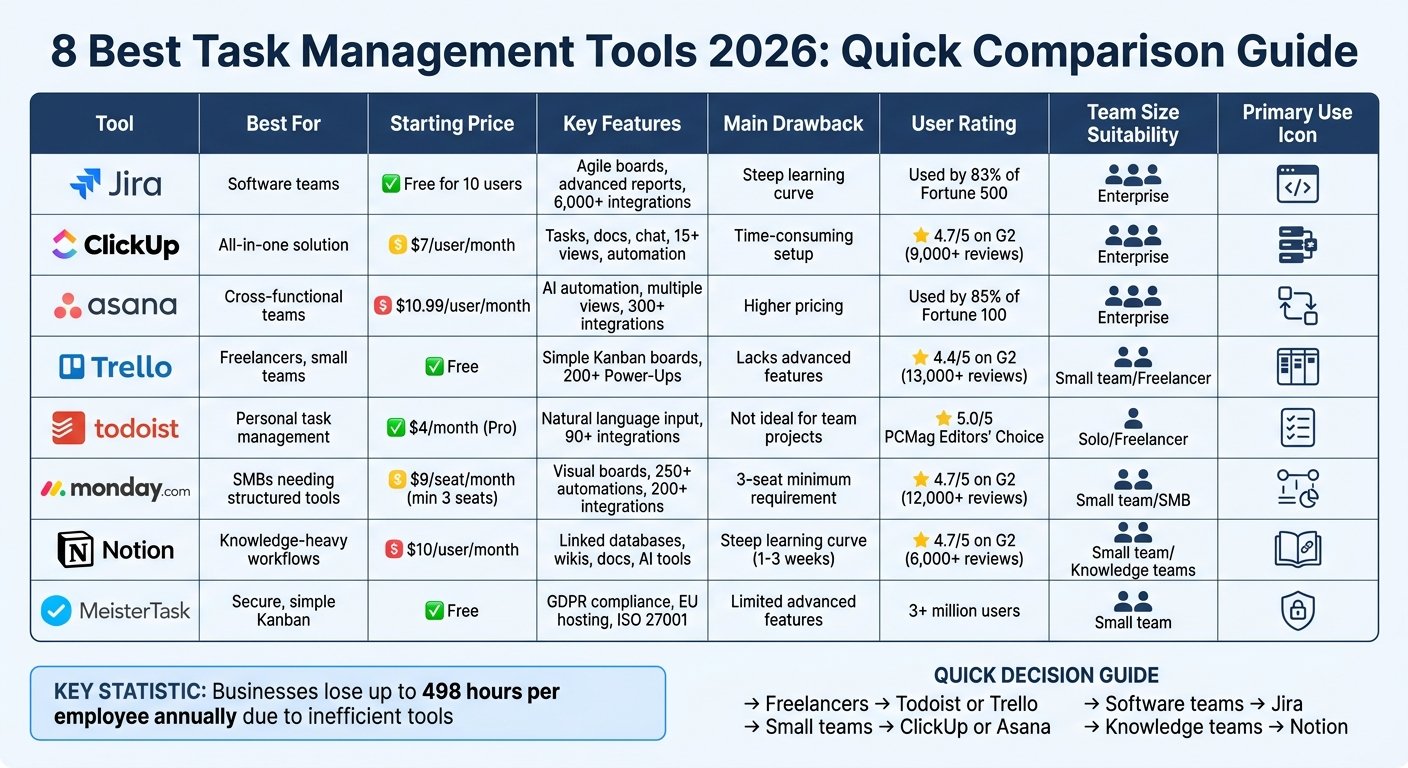
Task Management Tools Comparison 2026: Features, Pricing and Best Use Cases
1. Jira
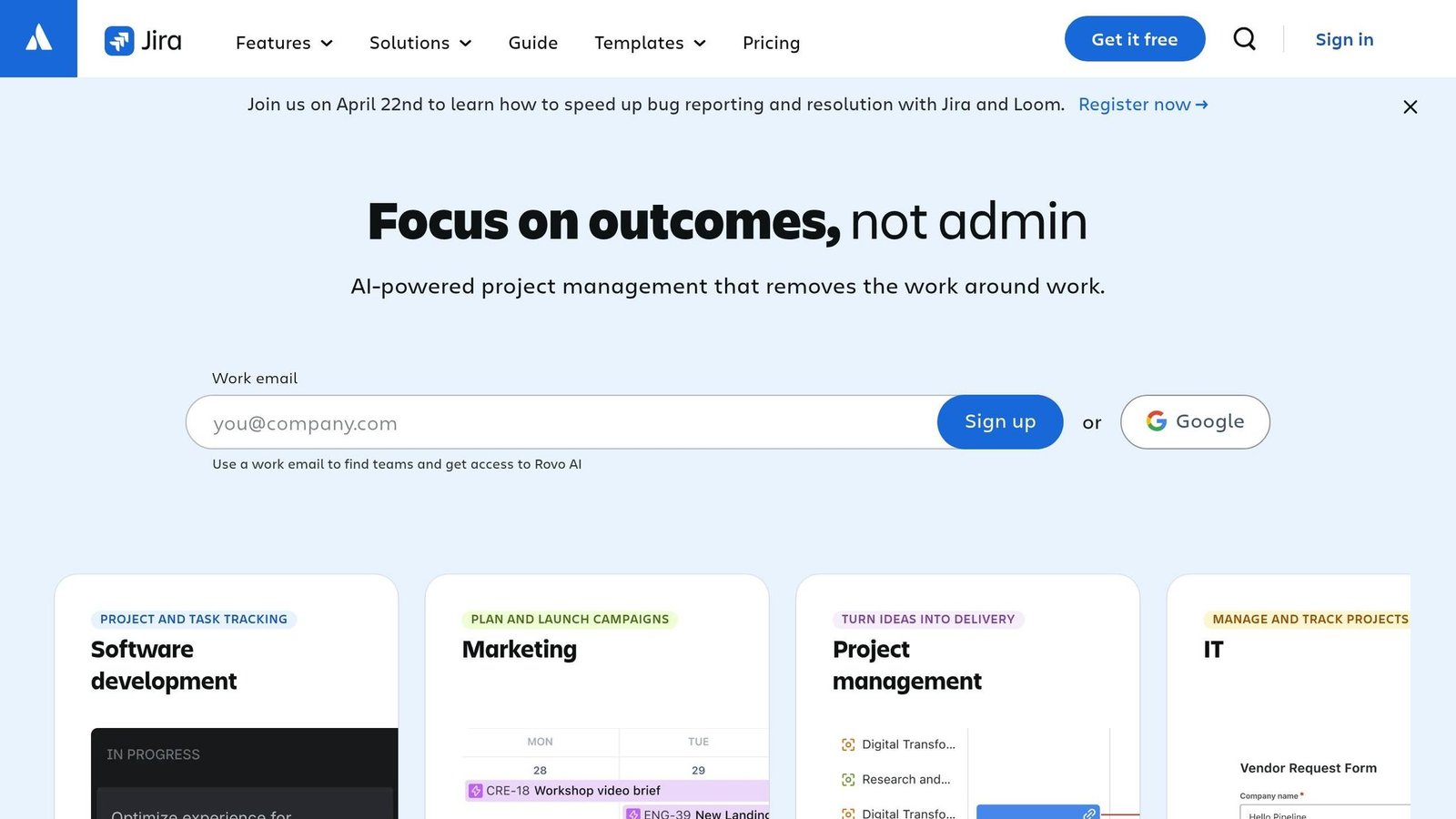
Jira is the default choice for a lot of software teams. Designed with agile frameworks like Scrum and Kanban in mind, Jira breaks down work into customizable “Issues”, allowing teams to add fields, attachments, and detailed descriptions. Its integration with Rovo AI simplifies project management by breaking tasks into actionable steps and identifying potential deadline risks.
Jira’s standout features include a no-code automation engine and a vast integration ecosystem. With over 6,000 apps available on the Atlassian Marketplace, it connects with tools like GitHub, Slack, and Figma. This flexibility makes it a scalable solution for businesses of all sizes, from small teams to enterprises with thousands of users.
However, Jira’s complexity can be daunting for non-technical teams like marketing or HR. The platform often requires 2–4 weeks of training for users to become proficient and may necessitate hiring a dedicated administrator, which can increase setup costs.
Starting Price (USD)
Atlassian offers Jira free for up to 10 users. Above that there are three paid tiers – Standard, Premium and Enterprise – all billed per user, with the rate sliding down as the user count rises. Atlassian does not render its per-user rates in a form we could read and verify, and third-party figures disagree, so we have not published them. Price your team on Atlassian’s own calculator before budgeting; storage and automation allowances differ by tier.
Key Features
Jira provides real-time dashboards that offer insights into sprint progress, resource allocation, and potential bottlenecks. Teams can choose from several views – List, Board, Timeline, Calendar, and Summary – to suit their workflow needs. The Atlassian Intelligence feature enhances productivity by generating JQL (Jira Query Language) queries from natural language input and summarizing long issue threads automatically. Additionally, native integrations with Confluence, Bitbucket, and Jira Service Management create a centralized workspace for documentation, code, and IT support.
Ideal Use Cases
Jira is best suited for software development teams handling complex, multi-phase agile workflows. It’s also a strong choice for organizations needing full IT service management, especially those already using other Atlassian tools. While technical teams can benefit from the free tier for essential features, non-technical departments might prefer simpler tools with a more visual interface.
Pros
- Customizable workflows allow teams to tailor task categories, statuses, and transitions to their specific needs.
- Scales effectively for businesses of all sizes, with a contractual uptime SLA on the higher paid tiers.
- Advanced reporting tools, such as burndown charts and velocity tracking, help teams refine sprint planning.
As Joe Cotant, Senior Technical Program Manager, stated, “Jira makes life easier. We can spend time on adding value, not busywork”.
Cons
- The platform’s learning curve can be challenging for new users, and the interface may feel cluttered due to default notification settings.
- Simple formatting tasks require markdown knowledge, as there’s no modern WYSIWYG editor.
- Marketplace apps for common gaps – time tracking is the usual one – are separate per-user subscriptions on top of the Jira licence.
- Automation runs are capped on the Free plan, which is the limit most small teams hit first.
2. ClickUp
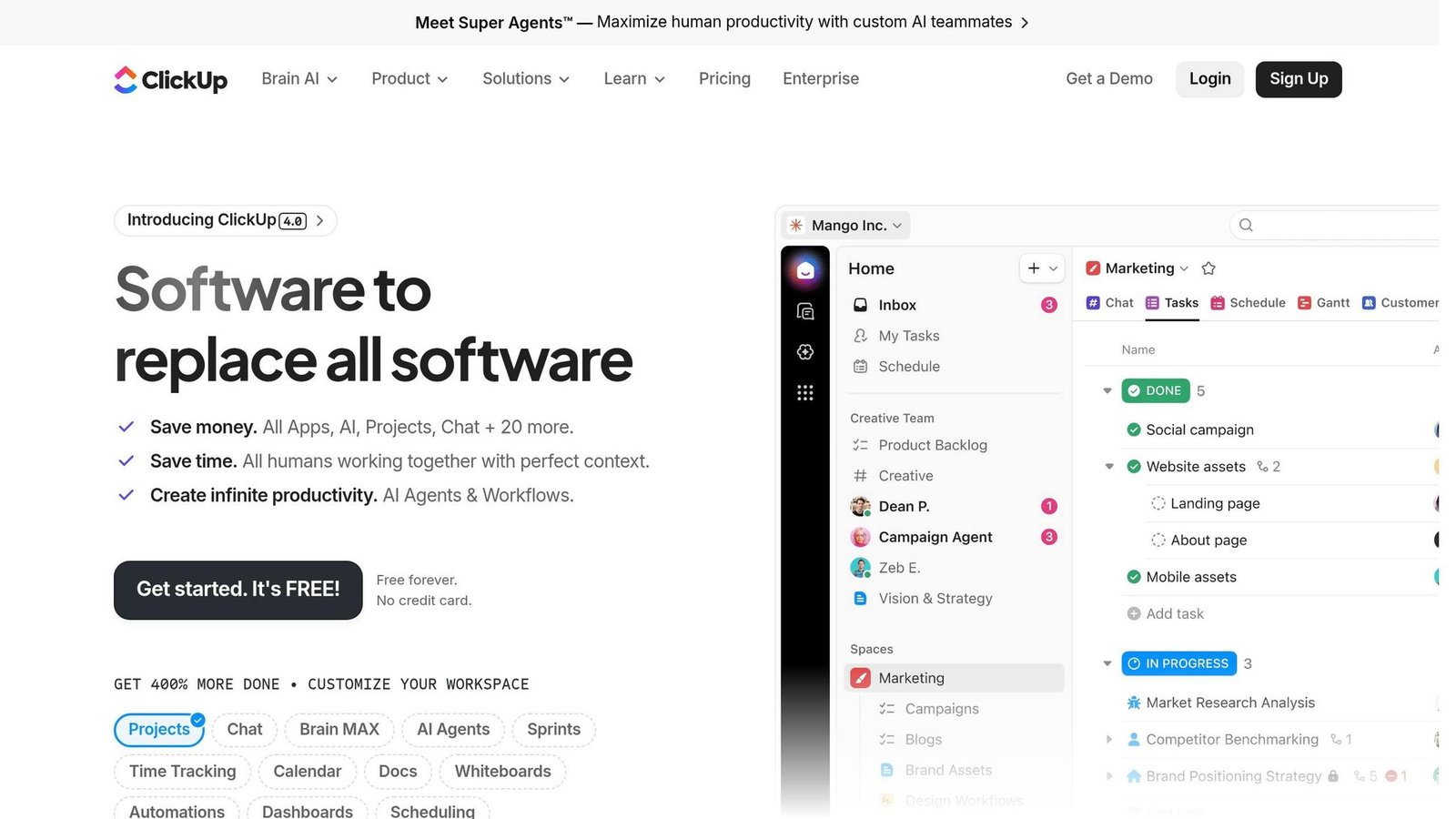
ClickUp takes a different approach from Jira by combining a wide range of features into one platform, simplifying team workflows in the process.
This platform brings tasks, documents, goals, whiteboards, and chat into one place. That breadth is the reason to look at it and also the reason setup takes longer than its rivals.
One of ClickUp’s most appealing aspects is its cost-effectiveness. The Unlimited plan, priced at $7 per user per month (when billed annually), is cheaper than most entry-level plans from competitors of similar scope. It includes native time tracking, unlimited storage, Gantt charts, and more than 15 project views. For teams seeking advanced capabilities, the ClickUp Brain AI add-on – available for $9 per user per month – offers features like automated project summaries and instant answers.
That said, setting up ClickUp can take some time. Teams usually need about 1–2 weeks to fully configure their workspace. Additionally, performance issues may arise in workspaces with over 300 active tasks, and the mobile app is weaker than the desktop version.
Starting Price (USD)
ClickUp provides a Free Forever plan that includes unlimited tasks and members, along with 60MB of storage. For those needing more, the Unlimited plan starts at $7 per user per month (billed annually) or $10 per user per month (billed monthly). This plan comes with unlimited storage, Gantt charts, and native time tracking. The Business plan, at $12 per user per month (billed annually), adds features like Google SSO, advanced dashboards, and up to 5,000 monthly automations. Pricing for the Enterprise plan is available upon request.
Key Features
ClickUp offers over 15 project views, such as List, Board, Gantt, Calendar, and Timeline, allowing teams to choose the layout that best matches their workflow. Its no-code automation builder helps streamline repetitive tasks like status updates and notifications. ClickUp Chat also stands out by letting users turn messages into actionable tasks with just one click. The platform integrates with over 1,000 apps, including Slack, Gmail, Zoom, and HubSpot, and comes with more than 1,000 pre-made templates tailored to various industries. These features make it a flexible tool for teams with diverse needs.
Ideal Use Cases
ClickUp is a great choice for startups, agencies, and small-to-mid-sized teams (5–50 members) aiming to consolidate multiple tools into one platform. Freelancers and agencies that bill hourly will particularly benefit from its project time management tools with built-in tracking. While experienced project managers will appreciate its deep customization options, new users should plan for a gradual onboarding process to get the most out of the platform.
Pros
- Wide feature set per seat: docs, goals, whiteboards and time tracking are included rather than sold as add-ons, which is where the price comparison usually turns in ClickUp’s favour.
- Usable free plan: Free Forever costs $0 per user and allows unlimited members and tasks, but caps storage at 60 MB and limits Spaces, Lists and Whiteboards – enough to trial the tool, not to run on.
- Unified workspace: By combining docs, tasks, and chat, ClickUp reduces the need to juggle multiple tools.
- Highly rated: With a 4.7/5 rating on G2 (from over 9,000 reviews) and Capterra (from over 4,000 reviews), ClickUp leads in more than 15 competitive categories.
Cons
- Overwhelming interface: The interface can feel cluttered due to its many nested settings, so assigning an admin to handle the initial setup is advisable.
- Learning curve: Teams typically need 1–2 weeks to fully adapt to the platform.
- Performance and mobile issues: Workspaces with more than 300 active tasks may experience lag, and the mobile app doesn’t match the desktop version in terms of speed and features.
3. Asana
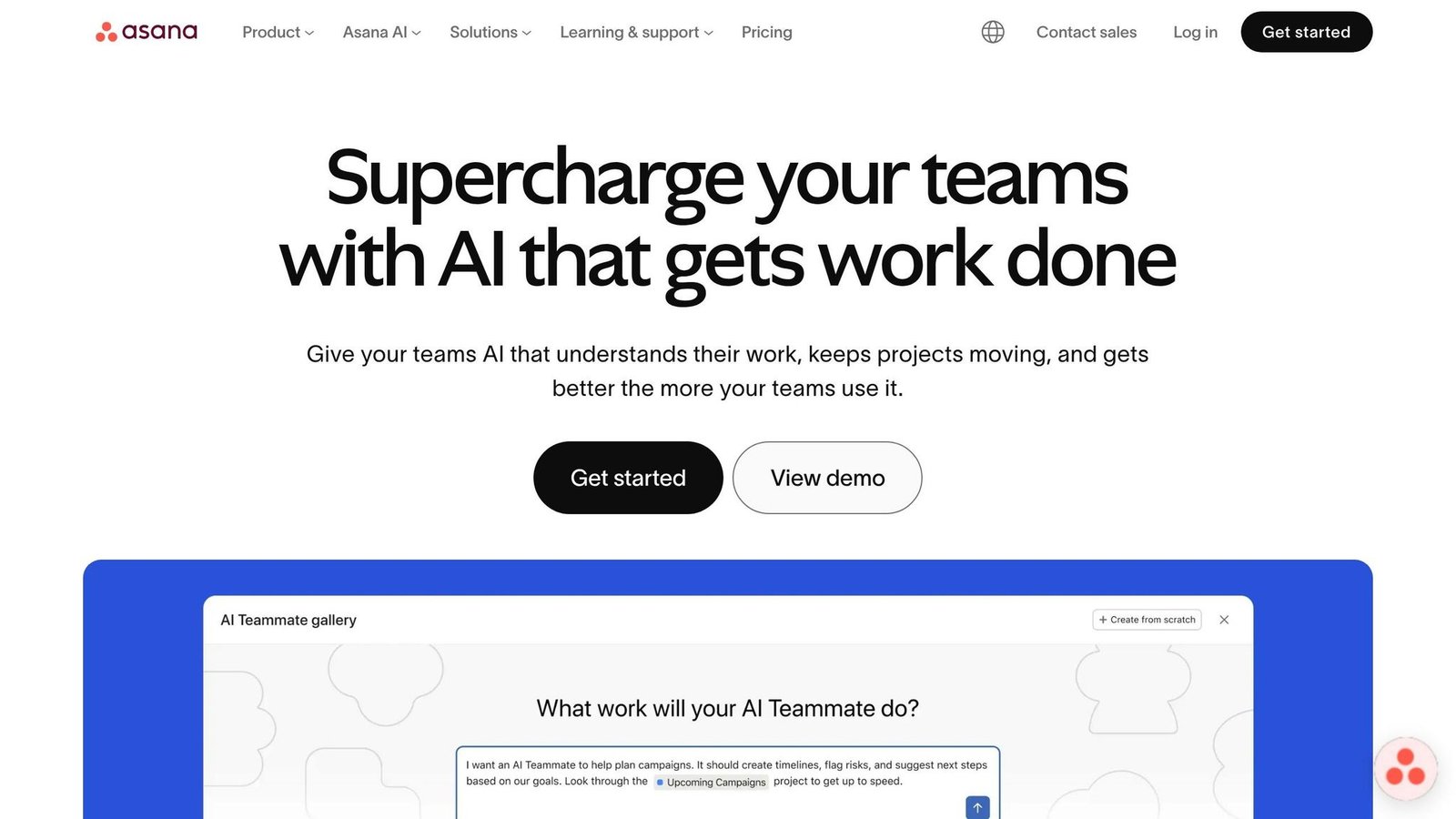
Following Jira and ClickUp, Asana stands out by aligning everyday tasks with broader business goals, offering a structured approach for teams at scale.
Asana says it is used by 85% of the Fortune 100, and it scales to very large deployments. It is built for teams that need structure and clear ownership. Its distinguishing feature is AI-assisted automation: Smart Status and Risk Detection flag projects that look likely to slip, and AI Project Status drafts the status update a manager would otherwise write by hand. Asana’s own time-saving figures for those features are marketing claims, not measured results, so we have not repeated them.
As Corri Skinner, Executive Director of Client Success at VoxMedia, shared, “Asana made a major impact on Vox Creative. I don’t know how we would do it if it weren’t all in a centralized place. We wouldn’t have gotten to this place in our business without it, quite honestly”.
Asana also offers flexibility through multiple project views, including List, Board, Calendar, Timeline, and Gantt. With over 300 integrations – ranging from Slack to Google Workspace and Microsoft 365 – it consolidates workflows into one central hub.
Starting Price (USD)
Asana’s pricing starts with a free Personal plan, limited to two users. For growing teams, the Starter plan costs $10.99 per user per month (billed annually) or $13.49 per month (billed monthly). This plan includes Timeline and Gantt views, unlimited automations, and AI Studio Basic with 50,000 credits. The Advanced plan, at $24.99 per user per month (billed annually), adds portfolio management, workload tracking, and full AI capabilities. Enterprise pricing is available for larger teams needing advanced security.
Key Features
Asana’s Workflow Builder simplifies automating repetitive tasks without requiring coding skills. Each task is assigned to a single person with a due date, ensuring accountability and minimizing missed deadlines. Pre-built templates for tasks like onboarding and content calendars make setup quicker, while customizable views let teams work in the format they prefer. The mobile app, consistently praised for its functionality, allows users to update tasks and approve work on the go. These features make Asana adaptable to various team needs.
Ideal Use Cases
Asana shines for mid-sized teams managing complex, cross-functional projects like marketing campaigns or product launches. The Starter plan is great for smaller teams (5–20 members) needing task dependencies and milestone tracking. Meanwhile, the Advanced plan suits larger organizations juggling multiple projects and requiring workload management. Ten seats on Starter works out at $109.90 a month billed annually.
Pros
- Scalable and reliable: Asana states that 85% of the Fortune 100 use it, and it handles very large deployments.
- Top-rated mobile app: The app is frequently praised for its speed and usability.
- Extensive integrations: With over 300 native integrations, Asana creates a centralized system for managing workflows.
- High user ratings: PCMag rated it 4.5/5 as “Outstanding”, and G2 users gave it 4.4/5 from more than 13,000 reviews.
Cons
- Limited free plan: The two-user cap on the free tier can be restrictive for small teams.
- Higher costs: The Starter plan, at $10.99 per user per month, is pricier than similar offerings from competitors like ClickUp.
- AI features locked behind premium plans: Full AI capabilities are only available in the Advanced plan, which costs $24.99 per user per month.
- Missing built-in tools: Asana lacks native time tracking and CRM features, requiring third-party integrations.
- Learning curve: Non-technical users may find the interface more challenging compared to simpler tools like Trello.
4. Trello
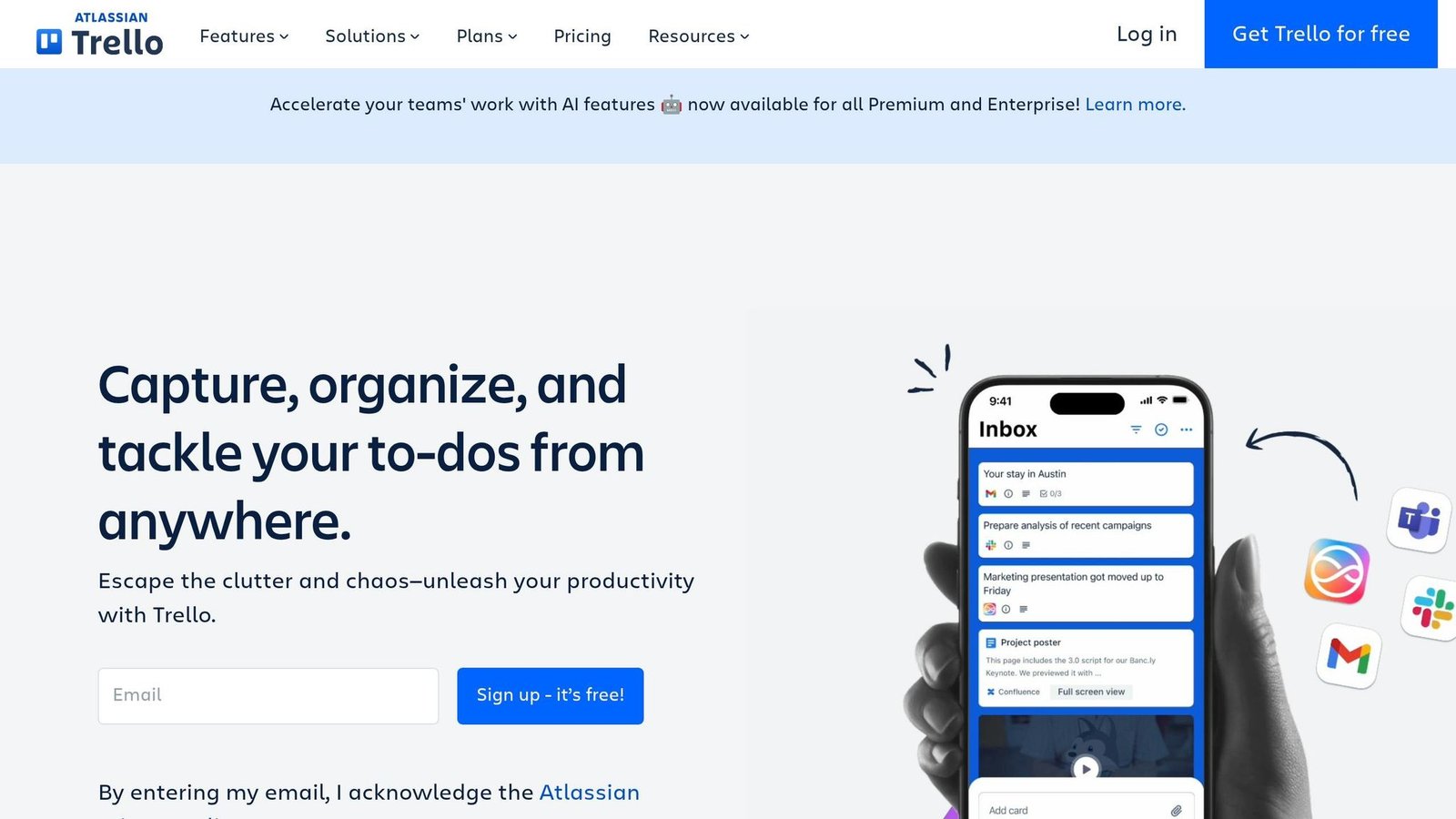
For freelancers and smaller teams looking for simple project management, Trello provides an easy-to-use solution.
Trello’s visual Kanban board design promotes quick productivity. Unlike more structured tools like Asana, Trello’s simplicity is the whole pitch.
Its card-and-board format (To Do, Doing, Done) offers clarity without requiring extensive training. Joey Rosenberg from Women Who Code shared:
“Trello is great for simplifying complex processes. As a manager, I can chunk processes down into bite-sized pieces for my team and then delegate that out, while retaining overall oversight.”
Adoption figures previously quoted here could not be traced to a published source and have been removed. What is verifiable is the feature set: the interface is simple, and automation handles the repetitive card-shuffling.
With Butler automation, users can automate tasks like moving cards or marking subtasks as complete – without needing to code. The Premium and Enterprise plans now include Atlassian Intelligence at no extra cost, offering features like summarizing emails into action items and generating card descriptions. Plus, with over 200 Power-Ups available, you can integrate tools like Slack, Google Drive, and Salesforce to create a tailored workflow.
Starting Price (USD)
Trello offers four pricing plans:
- Free: $0 – Includes up to 10 collaborators and 10 boards per workspace, unlimited cards and Power-Ups, and 250 automation runs per month.
- Standard: $5 per user/month (billed annually) or $6 monthly – Offers unlimited boards, custom fields, and 1,000 automation runs.
- Premium: $10 per user/month (billed annually) or $12.50 monthly – Adds AI tools, Timeline and Calendar views, and unlimited automation.
- Enterprise: $17.50 per user/month billed annually ($210 per user per year) – Adds organisation-wide permissions, Atlassian Guard Standard and 24/7 admin support. The per-user rate falls as seat count rises.
Trello’s simplicity is paired with powerful tools to boost team efficiency.
Key Features
Trello’s drag-and-drop Kanban interface is the easiest to pick up of any tool here; nobody needs training to use a board. Its Card Mirroring feature keeps tasks synced across multiple boards without manual updates. The Email-to-Board feature allows users to turn emails into cards with the help of AI. Free plans limit file attachments to 10MB, while paid plans allow up to 250MB. The mobile app supports offline access and quick-add shortcuts, though smaller screens only display one list at a time.
Ideal Use Cases
Trello is ideal for freelancers juggling multiple clients, small marketing teams managing campaigns, and HR teams onboarding new hires. The Free plan works well for individuals or small teams with straightforward workflows. The Standard plan ($5/user/month) is a good fit for growing teams that need unlimited boards and basic automation without breaking the bank. However, Trello isn’t designed for large-scale projects with complex task dependencies, which may require more advanced tools.
Pros
- No learning curve: Teams can start using Trello within minutes; a board needs no explanation.
- Affordable pricing: The Standard plan at $5 per user/month is cheaper than Asana’s Starter plan ($10.99) and ClickUp’s Unlimited plan ($7).
- User-approved interface: Trello has a 4.4/5 rating on G2 (13,000+ reviews) and a 4.5/5 rating on Capterra (23,400+ reviews).
- Shared visibility: A board everyone can see cuts down the “where is this up to?” messages.
Cons
- Free plan limitations: The 10-board cap and 250 automation runs per month may not be enough for active teams.
- Premium-only views: Timeline, Calendar, and Dashboard views require the $10/user Premium plan.
- Missing built-in features: Time tracking and Gantt charts require third-party Power-Ups, potentially adding $5–$15 per user/month.
- Automation limits: The Standard plan’s 1,000 automation runs per month may not suffice for busy teams.
- Not ideal for complex projects: Trello lacks advanced tools for managing subtasks and task dependencies in large projects.
5. Todoist
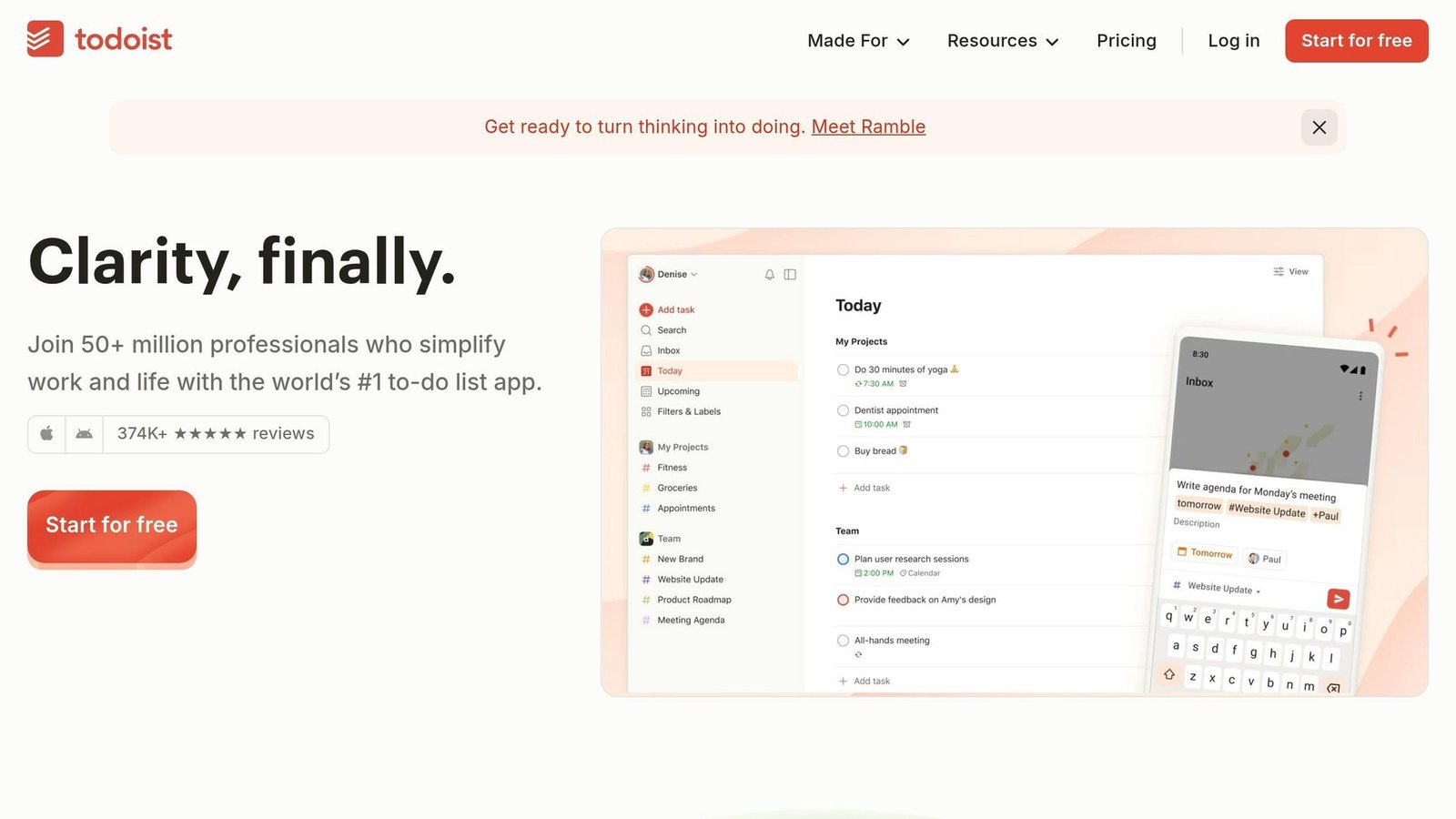
Todoist focuses on making task management fast and straightforward, catering to both individuals and small teams who need a quick and efficient way to organize their day-to-day work.
Todoist has a long-standing reputation for speed and simplicity. One standout feature is its natural language input, which allows you to type something like “Submit report every Friday at 2pm p1 #Work”, and the app will automatically assign the task’s date, recurrence, priority, and project.
Todoist is available on practically every platform you can think of – Windows, macOS, Linux, iOS, Android, web browsers, and even smartwatches. It syncs offline changes when you reconnect. The app’s AI-powered “Ramble” feature converts voice notes into tasks, while Todoist Assist helps break down bigger projects into manageable steps. Plus, with over 90 integrations – including Gmail, Slack, and Google Calendar – you can connect Todoist to your existing tools for smoother workflows.
In its review, PCMag gave Todoist a perfect 5.0/5 rating, stating:
“Todoist is a rare five-star Editors’ Choice winner because it’s simply the best to-do list app on the market.”
The app’s Karma system adds a fun twist to productivity by tracking streaks and daily goals, offering visual motivation without complicating things.
Starting Price (USD)
Todoist has three pricing options:
- Beginner: Free – Includes 5 active projects, 5 collaborators per project, task reminders, and a 1-week activity history.
- Pro: $5/month billed annually ($60/year) or $7/month billed monthly – Offers 300 active projects, calendar views, custom reminders, task duration tracking, and unlimited AI Ramble sessions.
- Business: $8 per user/month billed annually ($96 per user/year) or $10 per user/month billed monthly – Supports 500 team projects, shared workspaces, team roles and permissions, and centralized billing.
Key Features
Todoist’s natural language parser simplifies scheduling by handling complex task details in seconds, so you don’t have to navigate through multiple menus. The Quick Add shortcut (Ctrl+Alt+A) lets you jot down tasks in under 3 seconds, ensuring you never lose track of ideas. Pro users can customize filters to organize tasks by priority, labels (e.g., @deep-work), or due dates across projects. Even offline, the app retains full functionality, syncing updates once you’re back online. File uploads are capped at 5MB on the free plan and 100MB on paid plans.
Ideal Use Cases
Todoist is perfect for freelancers juggling multiple clients, small teams of fewer than 10 members, and individuals who follow productivity systems like Getting Things Done (GTD). The Beginner plan is great for solo users with simple workflows, while the Pro plan suits those who need more advanced features without the complexity of full-scale project management. Its Gmail and Outlook plugins even allow you to turn client emails into tasks, complete with links to the original messages. However, if your team requires Gantt charts or intricate task dependencies, you will need a heavier tool.
Pros
- Quick task entry: Natural language input and global shortcuts make adding tasks effortless.
- Cross-platform availability: Native apps for all major platforms with consistent performance and offline support.
- Affordable Pro plan: Advanced features for $5/month billed annually.
- Highly rated by users: Scores 4.6/5 on Capterra (2,619 reviews) and 4.5/5 on G2 (818 reviews).
- Mature product: Todoist has been in continuous development for well over a decade, and it shows in the polish.
Cons
- Limited free plan: Only 5 projects and 5 collaborators, with no access to custom reminders or labels.
- Basic sub-task structure: Sub-tasks can only be nested one level deep, which might not work for complex projects.
- No built-in time tracking: Requires third-party tools for tracking time spent on tasks.
- Key features behind paywall: Custom reminders, labels, and calendar views are locked behind the $5/month Pro plan.
6. Monday.com
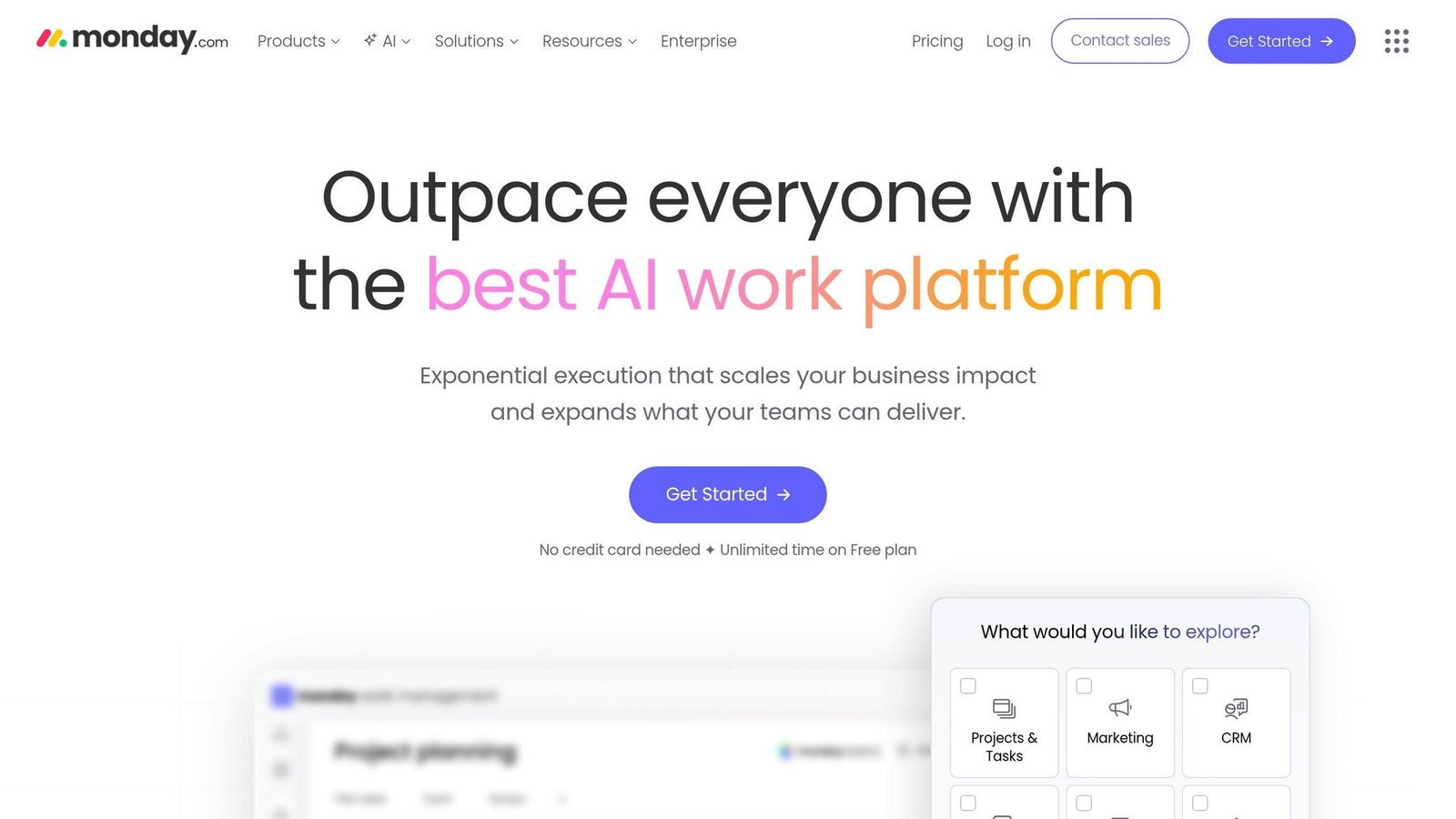
Monday.com has become a standout option in the world of productivity tools, thanks to its flexible Work OS platform. It combines project management, CRM, development tools, and service management into one cohesive system. It is aimed at both small teams and large enterprises, and the interface is the reason most people pick it. Customer-count and revenue figures previously quoted here could not be sourced and have been removed.
Its visual boards offer multiple views, including Kanban, Gantt, Timeline, Calendar, and Workload, making it adaptable to different workflows. A no-code automation engine ships with a large template library. In 2026, Monday.com introduced “Monday Agents” for AI-powered task management and “Monday Vibe”, which allows users to create workflows using plain English commands.
A Forrester Total Economic Impact study commissioned by monday.com reported a 346% three-year ROI for Motorola, on total benefits of $360,000 against costs of about $81,000. Read it as a vendor-commissioned study of one customer, not as a forecast for your own business. A customer quotation previously printed here could not be attributed and has been removed.
Here’s a breakdown of pricing and standout features that make Monday.com a top choice.
Starting Price (USD)
Monday.com offers a “Free Forever” plan for up to two users, which includes three boards, a variety of templates, and 500MB of storage. Paid plans begin at $9 per seat per month on the Basic tier, billed annually. monday.com sells seats in blocks rather than one at a time and applies a minimum seat count, so the real floor is higher than one seat; check the seat selector on its pricing page for the current minimum.
- Basic Plan ($9 per seat/month, billed annually): Unlimited items, 5GB of file storage and priority support. AI credit allowances change often and monday.com does not publish a stable figure, so treat any credit count you see as provisional.
- Standard Plan ($12 per seat/month): Adds Gantt/Timeline views and 250 automation actions per month.
- Pro Plan ($19 per seat/month): Includes time tracking and 25,000 automation actions.
- Enterprise Plan: Custom pricing with advanced security features and up to 250,000 automation actions monthly.
Key Features
Monday.com’s visual boards are highly customizable, featuring columns for status, priority, dates, files, and more, all designed for quick and easy navigation. The platform integrates with over 200 applications, such as Slack, Google Drive, Zoom, and QuickBooks. Freelancers, in particular, will appreciate the “time-to-invoice” feature, which links tracked hours directly to billing, and professional client portals for sharing updates, reducing the need for constant check-ins.
AI tools handle summarising and categorising, which takes some manual sorting off the pile. Recurring tasks still need a custom automation set up by hand.
Ideal Use Cases
Monday.com is a great fit for teams that need shared visibility across complex projects. It’s ideal for small businesses looking to unify tools across departments, marketing teams managing campaigns across multiple channels, and freelancers who need polished client dashboards. It reviews well on the mainstream software directories. Solo users, though, will find the seat minimum poor value.
Pros
- Easy-to-use visual interface: Color-coded boards and multiple view options make it accessible for teams without technical expertise.
- Strong automation capabilities: No-code automations can handle up to 250,000 actions monthly on enterprise plans.
- All-in-one platform: Combines project management, CRM and service management in one account.
- Documented ROI case: Forrester’s commissioned study of Motorola reported a 346% three-year return.
- Broad integrations: Connects with over 200 popular apps for added flexibility.
Cons
- Higher costs for small teams: The seat minimum makes it poor value for one or two people.
- Mobile app issues: Some users report occasional glitches on iOS and Android devices.
- AI features come at a cost: AI runs on a credit allowance rather than being unmetered, so heavy users end up buying more credits.
- Custom automation required for recurring tasks: There’s no built-in one-click solution for this functionality.
7. Notion
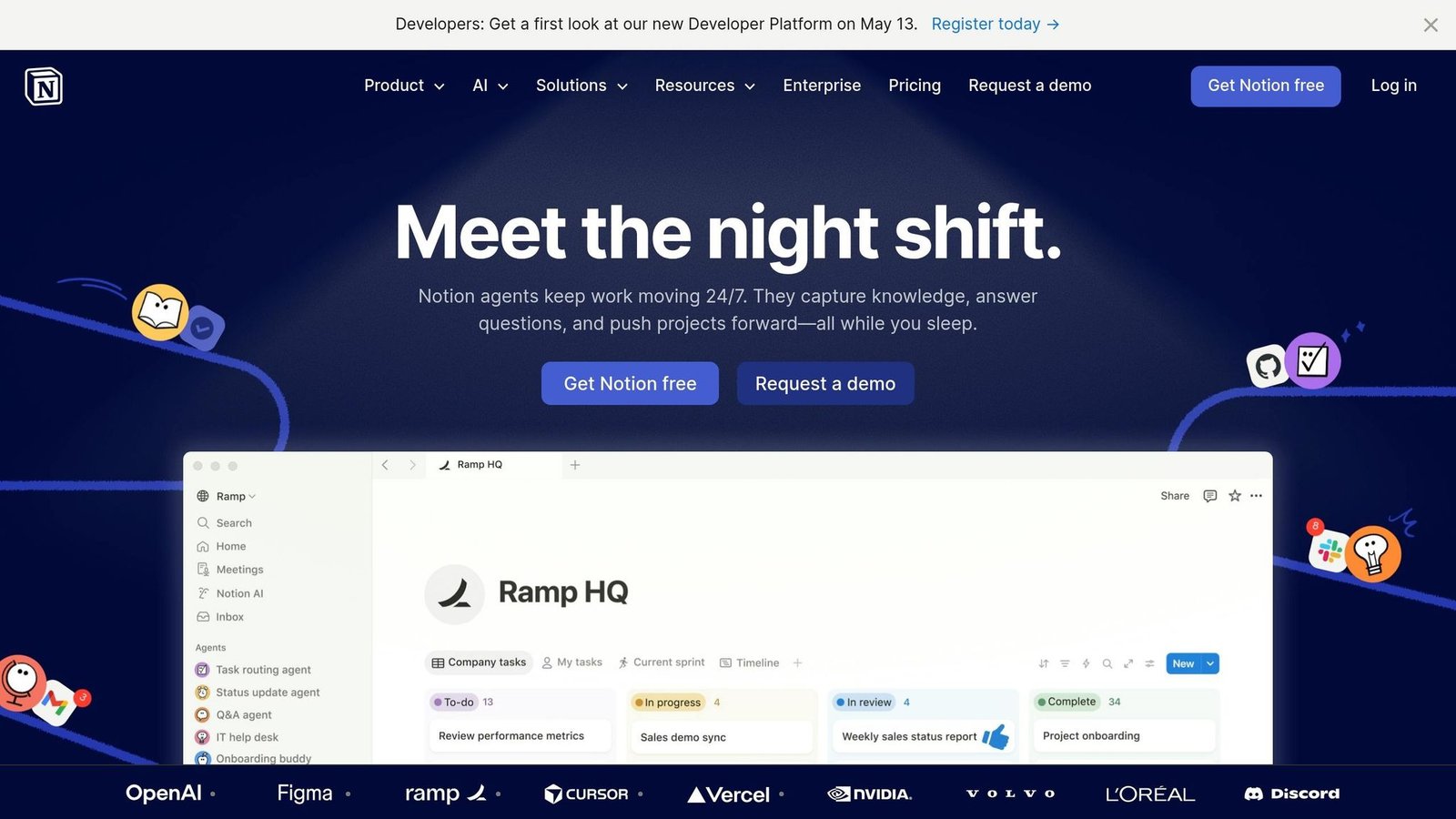
Notion takes a different approach compared to traditional task managers by serving as an all-in-one workspace that blends notes, tasks, wikis, and databases into a cohesive environment. While it’s not a dedicated project management tool, Notion is primarily designed for documentation and knowledge management with built-in task tracking capabilities. This setup helps teams minimize “productivity stack fragmentation”, which refers to the mental exhaustion caused by switching between multiple apps.
One of Notion’s standout features is its linked databases, which let users create intricate relationships – like connecting a project database to a client CRM. This data can then be filtered and viewed in various ways, such as by deadlines or client-specific details. In 2026, Notion introduced AI tools that simplify tasks like generating meeting summaries, drafting project briefs from bullet points, and creating database filters using plain English.
There is also a sizeable market in Notion templates, where people sell the workflows they have built. Two quotations previously printed in this section could not be attributed to a named, checkable source and have been removed.
However, this versatility comes at a cost – a steep learning curve. Teams may need 1–3 weeks to fully adopt the platform, unlike simpler tools like Trello, which can be set up in under an hour. New users are advised to dedicate a full day to configuring their workspace or consider purchasing pre-built templates to avoid “setup paralysis”.
Starting Price (USD)
Notion offers a free plan for individuals, which includes unlimited pages and blocks but limits file uploads to 5MB. The Plus Plan is $10 per member per month on monthly billing, offering unlimited file uploads and guest collaborators. The Business Plan is $20 per member per month on monthly billing and adds the Notion AI features that lower tiers no longer include. Notion advertises up to 20% off for yearly billing but does not publish the discounted per-member rate on the pricing page, so work out the annual cost from a quote rather than from a headline number.
Custom agents are charged separately at $10 per 1,000 monthly Notion credits. Enterprise pricing is on request. Guests are not charged on paid tiers.
Key Features
Notion’s customizable databases allow users to filter and view data in multiple layouts. However, it lacks native project management tools like Gantt charts, time tracking, and real-time workload management. These features can be added manually using databases and formulas. The platform excels at integrating documentation and SOPs with task tracking, making it ideal for teams that need both context and task management.
The free guest access option is a plus for freelancers and small businesses, enabling collaboration with clients on specific pages without requiring extra licenses. Notion’s AI tools can automate tasks like content summarization and data categorization, but frequent users may need to upgrade to the Business Plan to ensure consistent access to these features.
Ideal Use Cases
Notion is a strong choice for knowledge workers who need to centralize SOPs, wikis, and meeting notes alongside active projects. It’s particularly useful for consultants and content managers working with documentation-heavy workflows that demand detailed context. Freelancers and solopreneurs can also benefit by managing invoices, CRMs, and client project wikis within one workspace – and even selling these systems as templates.
For remote teams, Notion acts as a “shared source of truth”, reducing the need to switch between multiple apps during asynchronous work. It reviews well for flexibility, even though it is not the quickest tool to get started with.
Pros
- All-in-one workspace: Combines documents, tasks, wikis, and databases to reduce the need for multiple apps.
- Linked databases: Create complex relationships between projects, clients, and tasks, with flexible viewing options.
- Template economy: Build and sell your workflows as digital assets for passive income.
- Guests are free: Notion does not charge for guest collaborators on paid tiers, which suits client work.
- AI features: Automate tasks like summarizing content and filtering databases (available in the Business Plan).
Cons
- Steep learning curve: Teams may need weeks to fully adopt the platform, and initial setup requires significant time.
- Lacks native project management tools: Features like Gantt charts and time tracking must be manually created.
- AI restricted to higher-tier plans: Access to AI tools requires the $20 per member/month Business Plan, double the Plus rate.
- Performance issues with large workspaces: Can slow down when databases grow too large.
- Overkill for simple tasks: Solo users looking for basic to-do lists may find it unnecessarily complicated.
8. MeisterTask
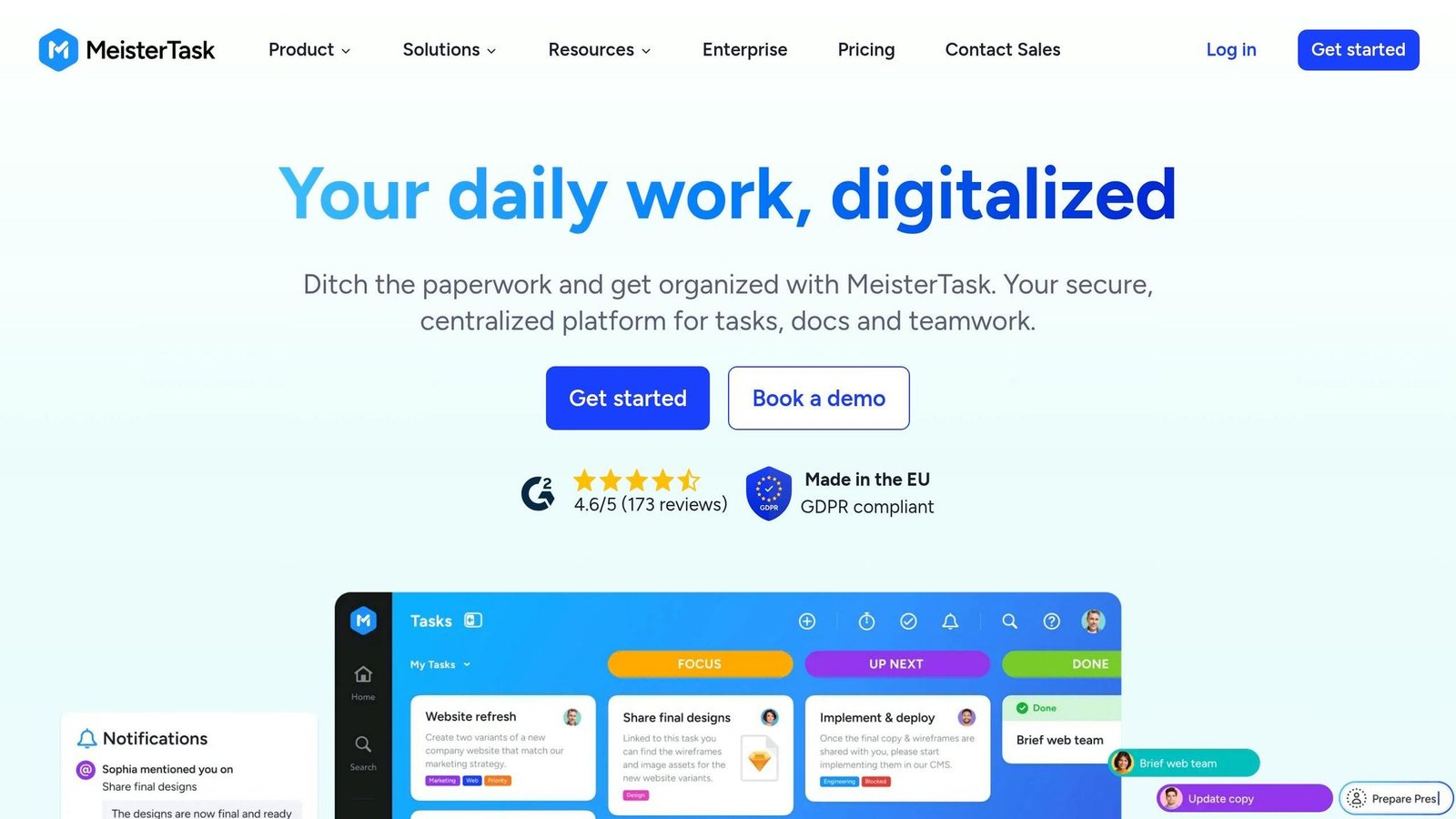
MeisterTask closes the list as a Kanban tool built around simplicity and data protection. The design is plain enough that most people need no training. The reason to shortlist it is where the data sits, not the feature count. Customer numbers and case studies previously quoted here could not be sourced and have been removed.
MeisterTask hosts in the EU and states ISO 27001 certification and GDPR compliance, which is what puts it on shortlists in regulated sectors where a US-hosted tool is a non-starter.
The platform includes MeisterAI for documentation search and drafting. AI usage is metered by credits and the allowance rises with the tier – the free plan includes 20 Meister AI credits per month.
The limitations are real. There is no native spreadsheet view and no advanced calendar; Timeline (Gantt) views, subtasks and custom fields sit on the higher paid tier. MeisterTask suits small and mid-sized teams that value ease of use and data residency over deep customisation.
Starting Price (USD)
- Free Plan: €0 forever, up to 3 projects, unlimited tasks and 20 Meister AI credits.
- Paid plans: priced per user, excluding VAT, and varying by region, with a discount for yearly billing. MeisterTask does not render its paid rates in a form we could read and verify, and third-party listings disagree with each other, so we have not published a figure. Get a quote in your own currency before budgeting.
- Enterprise: custom pricing, adding SSO, compliance exports and a named account contact.
Key Features
- Customizable Kanban Boards: Automate repetitive tasks, like assigning owners automatically when cards move between sections.
- Integrated Documentation: Comes with MeisterNote for a knowledge base alongside task tracking.
- Timeline View: A Gantt-style calendar for tasks and deadlines, on the higher paid tiers only.
- Template Gallery: Pre-built project templates to start from.
- MindMeister Integration: Turns mind maps into tasks.
Ideal Use Cases
MeisterTask fits banking, healthcare and public sector teams that have to answer questions about data residency before they can answer questions about features. It also suits small and mid-sized teams running simple to moderately complex Agile projects. Freelancers can work inside the free plan, which allows unlimited tasks across three projects. Teams already using MindMeister or MeisterNote get the tightest integration.
Pros
- High Security Standards: ISO 27001 certified with EU-based hosting, ideal for regulated industries.
- User-Friendly Interface: Offers a visually appealing design with a minimal learning curve.
- Built-In Documentation: MeisterNote integration simplifies knowledge management.
- Generous Free Plan: Includes unlimited tasks and up to three projects at no cost.
- Offline Mobile Access: Automatically syncs changes when reconnected to the internet.
Cons
- Limited View Options: Does not include native spreadsheet views or advanced calendar layouts beyond Kanban and Timeline modes.
- Paid tiers are not cheap for what you get: the feature set is narrower than ClickUp’s or monday.com’s at a comparable per-user rate.
- Fewer Integrations: Many workflows require third-party tools like Zapier.
- Advanced Features Restricted: Gantt charts and custom fields are only available in the Business plan.
- AI is metered: every tier has a monthly credit allowance rather than unlimited use.
Quick Comparison Table
Here’s a side-by-side look at eight tools to help you decide which one suits your needs. Each platform offers a freemium model with monthly per-user fees (annual billing discounts are available). Be aware that some, like Monday.com, apply a minimum seat count on paid plans, which raises the real starting cost for solo users and very small teams. The table below outlines pricing models, key strengths, ideal users, and potential drawbacks. For a deeper dive, check out the detailed reviews above.
| Tool | Pricing Model | Main Strengths | Best For | Key Weaknesses |
|---|---|---|---|---|
| Jira | Freemium (free tier available; paid plans per user) | Advanced process control, Scrum/Kanban boards, detailed issue tracking | Software development teams using Agile workflows | Steep learning curve; will overwhelm non-technical teams |
| ClickUp | Freemium (free plan available; paid plans per user) | Combines tasks, docs, and chat in one platform; highly customizable | Teams looking for an all-in-one solution for diverse workflows | Setup can be lengthy due to many customization options |
| Asana | Freemium (free for small teams; premium plans per user) | Great for multi-project coordination with timeline views; user-friendly for non-technical teams | Marketing, operations, and cross-functional teams managing projects | Offers less customization compared to some competitors |
| Trello | Freemium (free plan available; paid plans per user) | Simple, easy-to-use Kanban boards for quick task tracking | Freelancers and small teams needing visual task management | Lacks advanced features like Gantt charts and complex dependencies |
| Todoist | Freemium (free plan available; paid plans add more features) | Lightweight and fast for personal task management | Individuals and freelancers managing personal to-do lists | Not built for team collaboration or complex projects |
| Monday.com | Freemium (paid plans have a minimum seat count) | Strong visual boards and powerful automation with many integrations | Small to medium businesses needing structured project tracking | Higher starting cost due to minimum seat requirement |
| Notion | Freemium (free plan available; paid plans per user) | Highly customizable with relational databases, wikis, tasks, and docs | Teams creating custom workflows and knowledge bases | Steep learning curve and time-intensive setup |
| MeisterTask | Freemium (free and paid plans available) | Simple, user-friendly Kanban interface | Teams wanting straightforward visual task management | Missing some advanced project management features |
Conclusion
Pick a task management tool that suits both your workflow and budget. If you’re a freelancer working solo, Todoist (Pro, $5/month billed annually) or Trello ($5/user/month) are excellent options. Both are straightforward to set up and don’t come with additional seat fees.
For small teams watching their expenses, ClickUp’s free tier is a standout, offering unlimited tasks and members, though storage stops at 60 MB – fine for getting organised, not for storing files. If you’re part of a software development team, Jira continues to be a top choice, with a free plan accommodating up to 10 users and unlimited projects. Cross-functional teams needing visual dashboards and structured project tracking will appreciate Asana and Monday.com, though monday.com sells paid plans in fixed seat blocks rather than one seat at a time ($9 per seat/month on Basic, billed annually), which makes it poor value for solo users.
Two statistics previously quoted here – on small business automation spending and on time lost hunting for information – could not be traced to a published source, so they have been removed.
Start by experimenting with free tiers to establish organized workflows, and upgrade only when necessary. Be aware that some advanced features might require paid plans. Testing different formats – like a simple list tool (Todoist) versus a visual board (Trello) – can help you find what works best.
Ultimately, the best tool is the one your team consistently uses, not necessarily the one with the most features. The right choice will not only enhance productivity but also streamline operations, which is essential for growth and success.
For more tools and resources to improve your business operations, check out BizBot’s curated directory. It features accounting software, HR solutions, and management platforms tailored for freelancers and growing businesses.
FAQs
Which tool is best for my team size?
The ideal task management tool varies depending on your team’s size and requirements. For smaller teams or startups, Todoist and Trello are great options. They provide the basic features you need without overwhelming complexity.
If you’re part of a larger team, consider tools like Asana or Monday.com. These platforms offer advanced features for collaboration and tracking, making them better suited for more intricate workflows.
For enterprise-level projects or personal organization, Celoxis and Microsoft To Do are worth looking into. Many of these tools come with free trials, so you can test them out before committing to one.
What should I test on the free plan first?
When trying out a free plan for task management tools, start by examining the essentials: creating tasks, assigning them to team members, and setting deadlines. Take a closer look at how the tool handles collaboration – features like comments, notifications, or team updates can make a big difference. If your work relies on extras like visual boards, integrations with other tools, or time tracking, test those as well. Focusing on these basics will help you determine if the tool aligns with your workflow before exploring more advanced options.
When is it worth paying for AI features?
Paying for AI tools can be a smart investment when they help simplify workflows, improve scheduling, and adapt to changing priorities. These advantages not only ease the pressure of meeting deadlines but also increase productivity, making them a strong choice for efficient task management.
More on this topic
Browse all 40 articles on Project & Team Management, or jump straight to our buying guide: Best Project Management Tools for Small Teams.