Looking for the top project management tools to boost your team’s productivity? Here’s a quick rundown of the best options:
- Monday.com – Best for customizable workflows
- Smartsheet – Ideal for spreadsheet lovers
- Asana – Great for team collaboration
- ClickUp – All-in-one platform with AI features
- Trello – Perfect for visual task management
- Microsoft Project – Suited for complex, large-scale projects
- Jira – Tailored for agile software development teams
Quick Comparison:
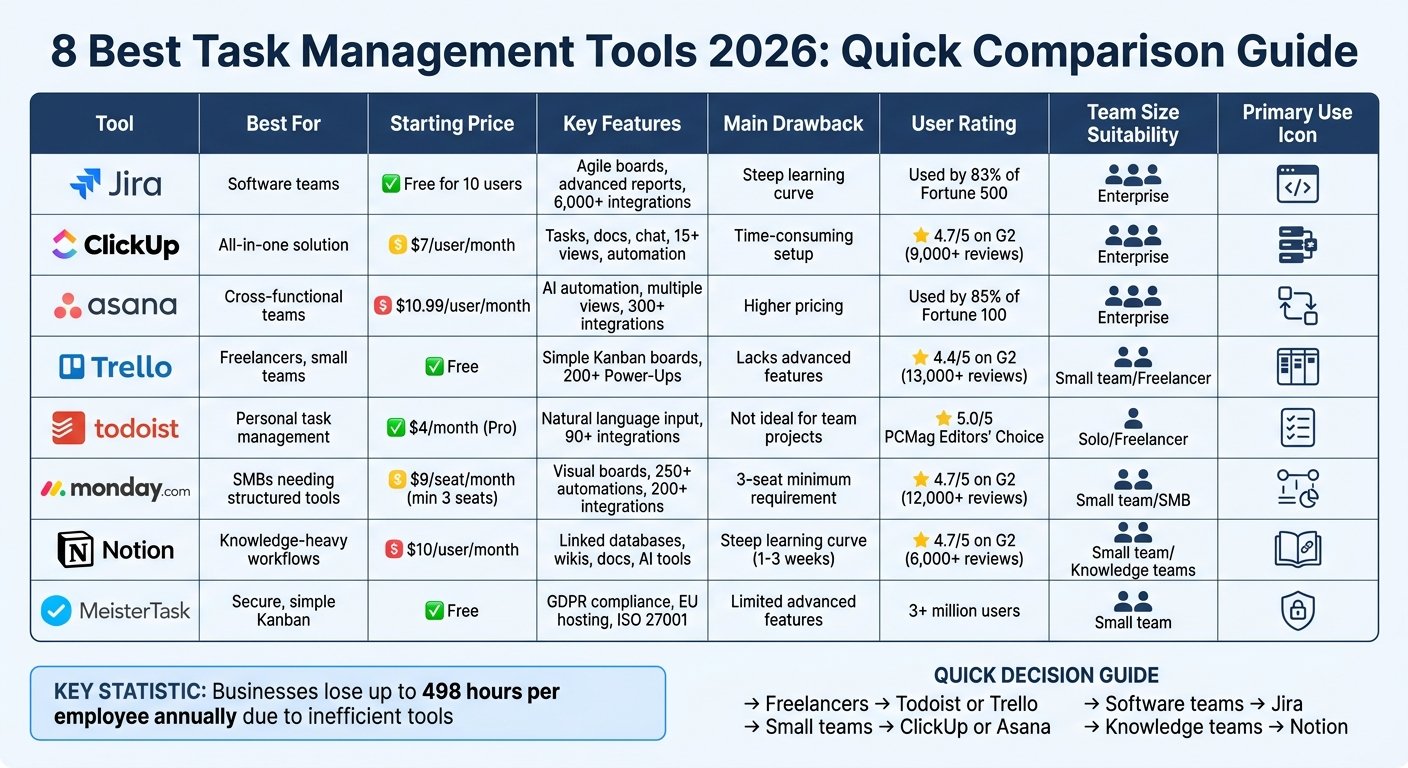
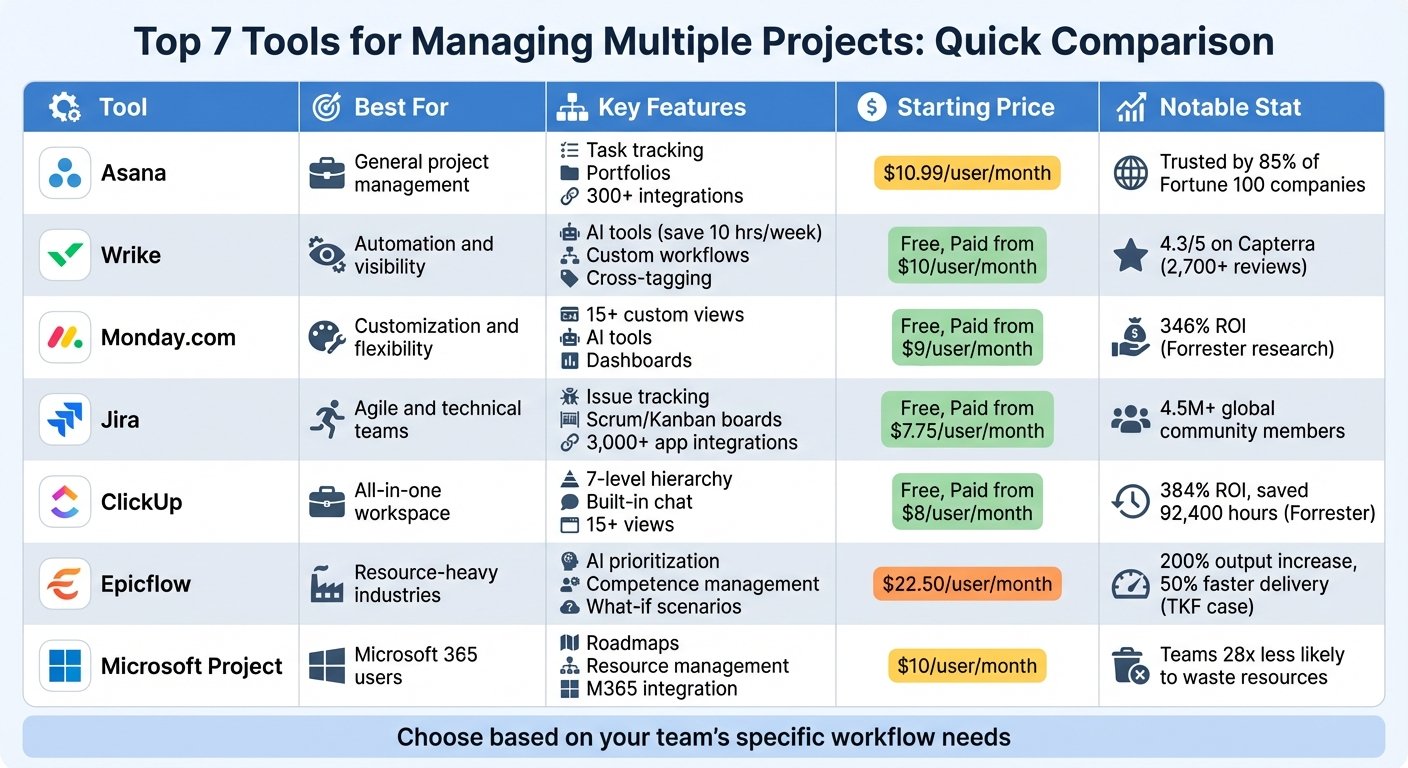
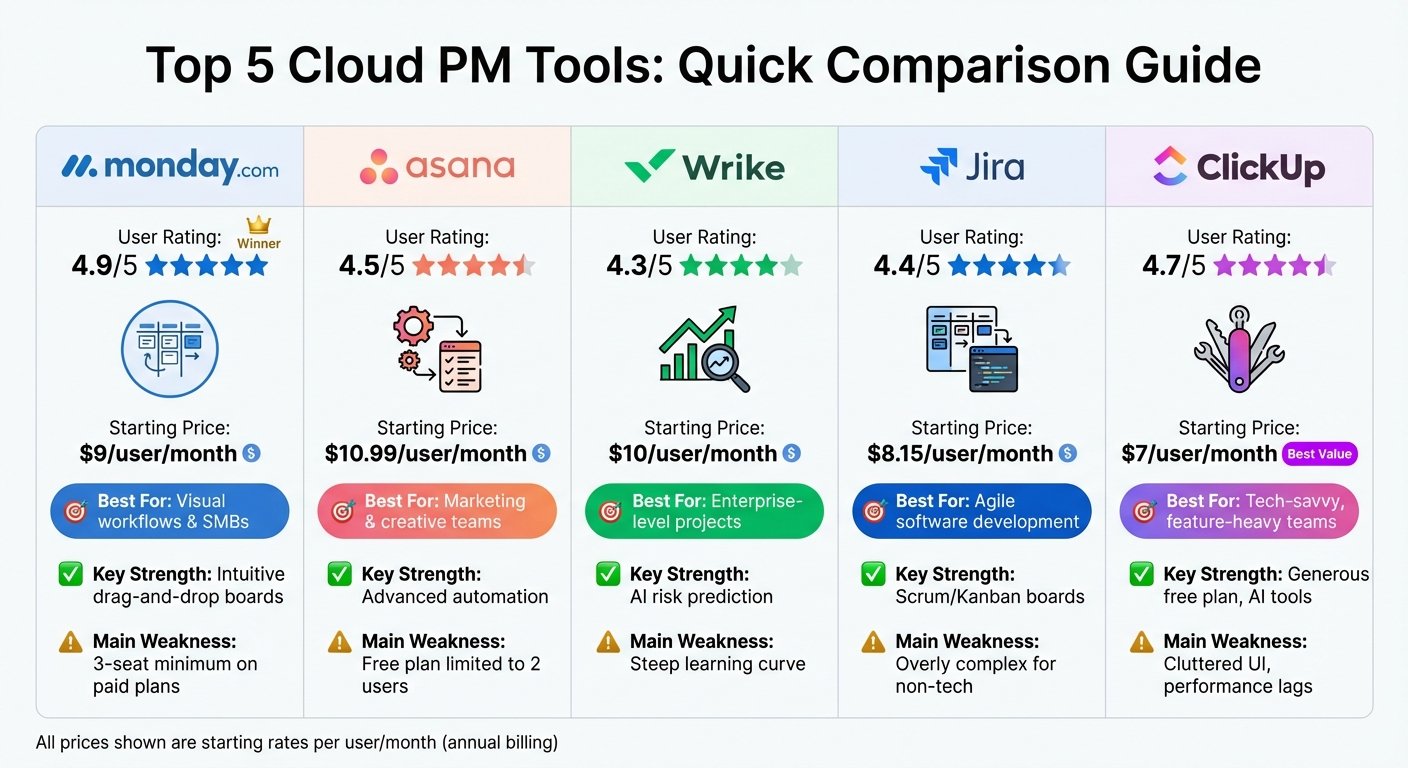
| Software | Standout Feature | Best For | Starting Price |
|---|---|---|---|
| Monday.com | Custom workflows | All team sizes | $9/user/month |
| Smartsheet | Spreadsheet-like UI | Data-heavy projects | Not published on Smartsheet’s page when checked |
| Asana | Task dependencies | Cross-team collaboration | $10.99/user/month (Starter, annual) |
| ClickUp | AI assistant | Startups, SMBs | $7/user/month (Unlimited, annual) |
| Trello | Kanban boards | Visual management | $5/user/month (Standard, annual) |
| Planner (formerly Microsoft Project) | Resource management | Large, complex projects | $10/user/month (Planner Plan 1, paid yearly) |
| Jira | Agile methodologies | Software dev teams | Not published on Atlassian’s page when checked |
A note on the prices in this article. Every figure was rechecked against the vendor’s own pricing page in August 2026, with the plan name and billing basis stated. Where a vendor did not display a US rate, we say so instead of repeating a number we could not source. Several plan names in this category have changed since this article was written, and those changes are flagged where they occur.
Key things to consider: • Your team’s specific needs and project complexity • Ease of use and learning curve • Integration with existing tools • Scalability as your business grows • Security features for sensitive data
Remember: The best tool is the one that fits your workflow and helps your team get more done with less hassle.
What Is Project Management Software?
Project management software is a digital tool that helps teams plan, organize, and execute projects efficiently. It’s like a supercharged to-do list that keeps everyone on the same page.
Here’s what project management software does:
- Tracks project progress
- Manages resources
- Helps teams work together
- Keeps an eye on budgets
- Makes workflows smoother
Core Features
Most project management tools come with:
- Task management
- Time tracking
- File sharing
- Visual project views (like Gantt charts or Kanban boards)
- Resource allocation
- Reports and analytics
These features work together to give you both a big-picture view and the ability to zoom in on details.
Real-World Impact
Using project management software can save real time. Two figures previously published here – hours wasted per week and an annual dollar cost per worker – were removed because neither was attributed to a study we could locate. The honest version: the saving comes from people not chasing status updates, and how big it is depends entirely on how bad your current process is.
Who Uses It?
Project management software isn’t just for big companies. It’s useful for:
- Marketing teams planning campaigns
- Construction companies managing build projects
- Software developers organizing sprints
- Teachers planning lessons
- Small businesses juggling multiple clients
Pricing: What to Expect
Prices vary, but here’s a rough guide:
Nearly all of these tools price per user per month and advertise the annual rate. Entry tiers cluster between $5 and $12 per user per month; the jump to a mid tier usually doubles that. A generic price-range table previously sat here with no source behind the numbers, and has been removed – your cost is headcount multiplied by tier, not a band. Many vendors offer free trials, and several have free tiers, though the user caps are lower than most people expect.
Cloud vs. On-Premise
You’ll need to choose between:
- Cloud-based: Cheaper, flexible, accessible from anywhere
- On-premise: Higher upfront cost, no ongoing fees
The Remote Work Revolution
With more people working from home, project management tools have become essential. They create a virtual workspace for teams to collaborate, no matter where they are. The market for these tools has grown steadily with remote work. A specific market-size forecast previously quoted here carried no source and has been removed.
Choosing the Right Tool
When picking project management software, think about:
1. What your team needs
2. How big your organization is
3. If it works with your other tools
4. How easy it is to use
5. If it has a mobile app
The best tool is the one that fits how you work, not the one with the most bells and whistles.
As Ian Sells, CEO of RebateKey, says:
“While automation features are nice and integrations can help make work easy, sometimes all of the ‘extra’ features in a project management tool make it overwhelming to use.”
The key is finding a balance between what it can do and how easy it is to use.
How We Picked the Best Tools
Choosing project management software can make or break your team’s productivity. To be clear about what this article is: it is a desk comparison built from each vendor’s own documentation and pricing pages, not a hands-on test. An earlier version claimed the tools had been tested; they had not been. Here is what we compared:
Ease of Use
We focused on tools that are simple to use. After all, what’s the point of powerful software if your team can’t figure it out?
We looked at:
- How intuitive the interface is
- How quick the onboarding process is
- What tutorials and guides are available
Cost-Effectiveness
We compared published rates, plan by plan, and priced each at a realistic team size rather than one seat. A second unsourced price-range table sat here and has been removed for the same reason as the first: the bands were not attributable to anything.
Integration Capabilities
Your project management tool needs to work well with other software. We checked:
- How many integrations are available
- How easy it is to set up integrations
- The quality of the API for custom integrations
Security Measures
Security is crucial when dealing with sensitive project data. We looked at:
- Data encryption
- Role-based access controls
- Compliance with industry standards (like GDPR and HIPAA)
Quality of Support
When problems arise, you need good support. The support channels each vendor advertises:
- Live chat
- Email support
- Phone support
- Knowledge base and documentation
A note on the research we removed
This article previously carried a Project Management Institute statistic about wasted money, quoted without a link, and a separate PMI figure about resource waste repeated in three product sections. Neither could be traced to a specific PMI publication, so both have been removed rather than passed on. If you want the underlying research, go to PMI directly.
User Feedback
Beyond vendor claims, the things worth reading review sites for are:
- How easy the tool is to adopt
- How satisfied they are with the features
- Whether they feel they’re getting good value for money
- Their experience with customer support
1. Monday.com
Monday.com is shaking up the work management scene. Here’s why it’s a top pick:
Key Features
Monday.com turns boring spreadsheets into colorful, easy-to-read boards. You can:
- Create custom workflows for any team
- Switch between different views (list, calendar, timeline, Gantt)
- Automate repetitive tasks
- Connect with tons of other tools (on higher-tier plans)
Pricing
Monday.com’s pricing is tiered:
| Plan | Price per seat/month (annual) | What you get |
|---|---|---|
| Individual | Free (2 seats max) | Basic stuff, 500 MB storage |
| Basic | $9 | Unlimited free viewers, 5 GB storage |
| Standard | $12 | Timeline view, guest access, 20 GB storage |
| Pro | $19 | Private boards, time tracking, 100 GB storage |
| Enterprise | Custom | Advanced security, custom onboarding |
Heads up: You need at least three seats for paid plans.
Who It’s For
Monday.com works great for:
- Small to medium businesses
- Growing companies
- Teams with different departments
Pros and Cons
Pros:
- Easy on the eyes and brain
- Fits any workflow
- Great for teamwork
- Solid mobile app
Cons:
- Can be pricey for tiny teams
- Some cool features only come with pricier plans
A note on removed testimonials. This article carried the same customer quotation five times over, with only the product name swapped – the identical sentence was attributed to the same named person praising Monday.com, Smartsheet, Asana, Trello and Jira in turn. A second quotation was reused four times the same way, alongside an identical customer result attributed to four different products. None of it could be sourced, and the pattern makes clear it was never real. All of it has been removed from this article. Nothing has been invented to replace it.
Bottom line: If you want to ditch the spreadsheet chaos and get your team on the same page, Monday.com is worth a look. It’s visual, flexible, and built for modern teams.
2. Smartsheet
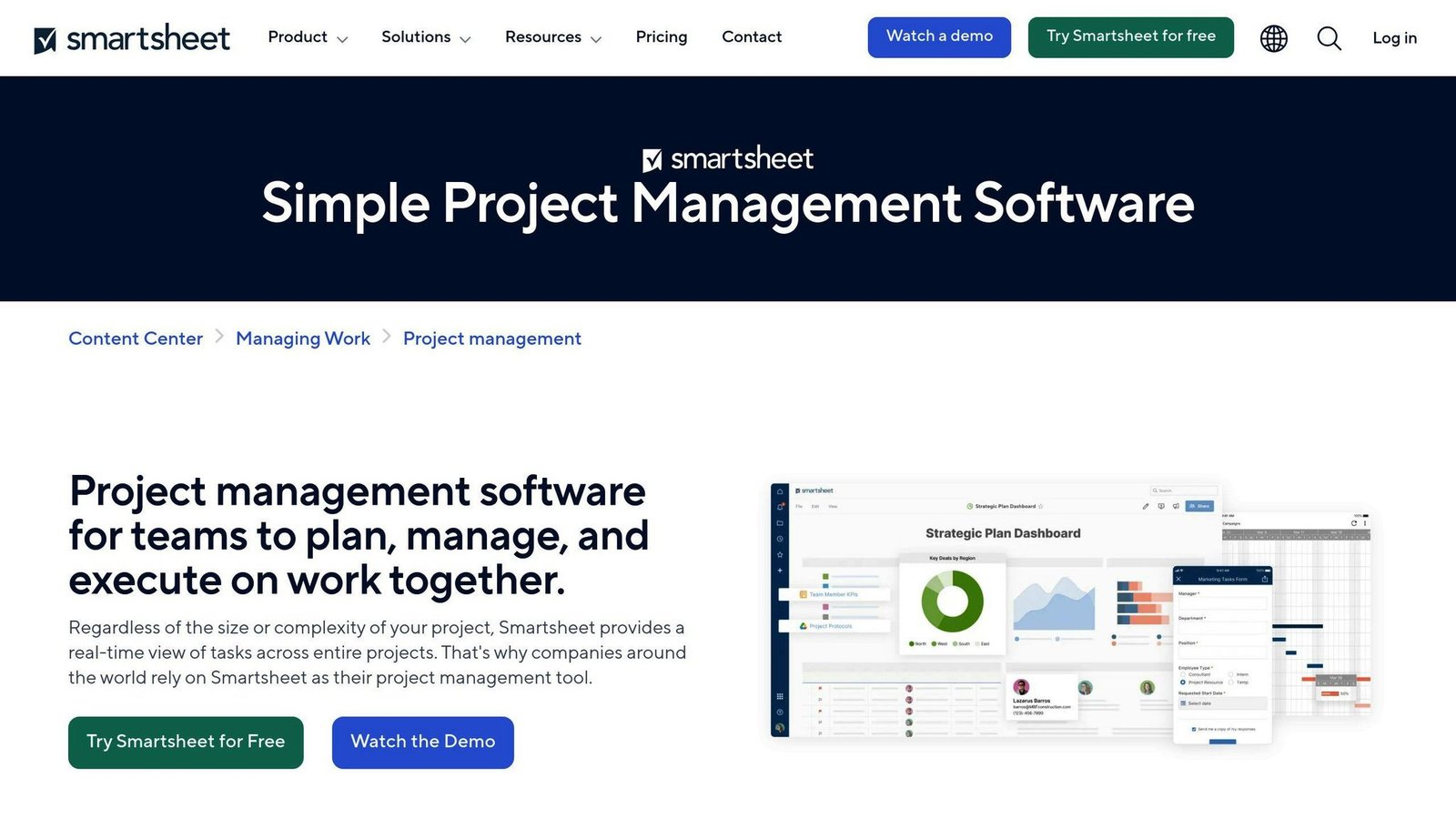
Smartsheet takes spreadsheets to the next level. It’s a project management tool that feels familiar but packs a punch with advanced features. Here’s what you need to know about Smartsheet:
Key Features
Smartsheet isn’t just another spreadsheet. It’s got:
- Multiple views (Grid, Gantt, Kanban, Calendar)
- Automation for tedious tasks
- Custom reports and dashboards
- Real-time collaboration tools
Pricing
Smartsheet offers plans for teams of all sizes:
| Plan | Price (per user/month) | What You Get |
|---|---|---|
| Pro | Per member per month; 1-10 members | Unlimited contributors |
| Business | Per member per month; 3-member minimum | Unlimited guests and contributors |
| Enterprise | Custom; 10-member minimum | Advanced security, custom integrations |
Smartsheet’s pricing page did not render US dollar figures for us in August 2026, so the $7 and $25 rates this article previously carried have been removed rather than repeated. Note the structure, which is the part that catches people out: Smartsheet charges per member (people who create and edit) and lets contributors and guests in free, so the seat count you pay for may be far smaller than your headcount. Get a current quote.
Who’s It For?
Smartsheet shines for:
- Growing businesses that need scalability
- Teams across different departments
- Big companies with complex needs
The Good and The Not-So-Good
What’s Great:
- Easy to use if you know spreadsheets
- Lots of automation options
- Connects with 70+ apps
- Top-notch security (HIPAA, SOC, ISO, FedRAMP)
What’s Not:
- Advanced features can be tricky to learn
- Might be expensive for small teams
- Some users say it struggles with big data sets
Smartsheet might be the upgrade your growing team needs to stay organized and efficient.
3. Asana
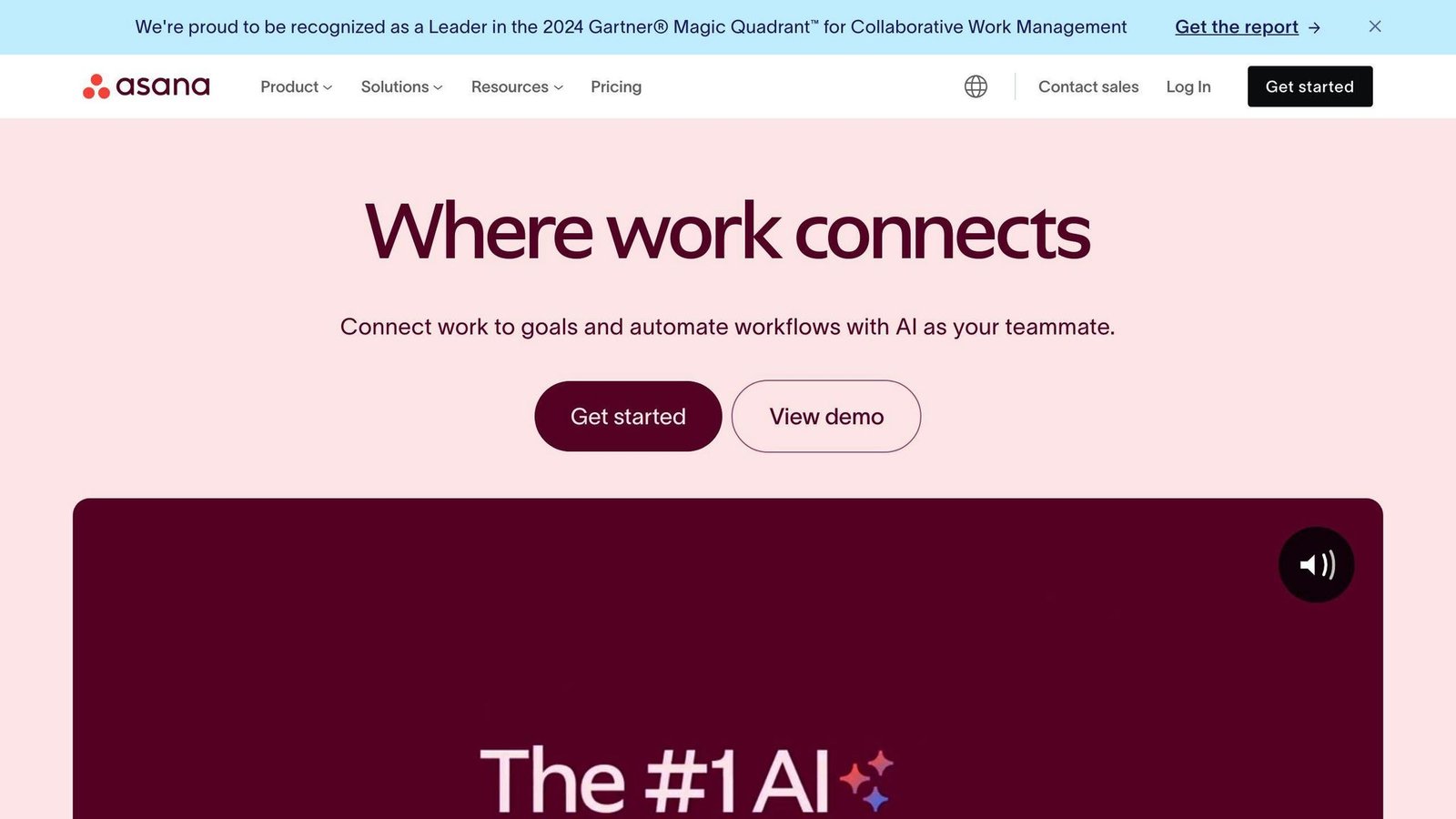
Asana has become a popular project management tool for businesses of all sizes. Here’s why it’s making waves:
Key Features
Asana packs a punch with its feature set:
- Multiple project views (List, Timeline, Calendar, Kanban, Gantt)
- Task dependencies and cross-project indexing
- Workflow automation
- Universal reporting and workload management
- Video messaging for team communication
Here’s something cool: You can assign a single task to up to 20 projects without duplicating it. This cross-indexing is a big deal for complex, multi-team projects.
Pricing Overview
Asana’s pricing fits different team sizes and needs:
| Plan | Price (per user/month) | What You Get |
|---|---|---|
| Personal (free) | Free (2 users max) | Unlimited tasks, projects, messages |
| Starter (formerly Premium) | $10.99 annual / $13.49 monthly | Timeline, Workflow Builder, Milestones |
| Advanced (formerly Business) | $24.99 annual / $30.49 monthly | Portfolios, Goals, Workload management |
| Enterprise | Custom pricing | Advanced security, custom branding |
Heads up: Asana offers discounts for nonprofits and educational institutions.
Who’s It For?
Asana works great for:
- Small to medium-sized businesses that want to scale
- Teams needing flexible project management
- Organizations big on collaboration
- Companies looking to automate routine tasks
The Good and The Not-So-Good
The Good:
- Easy-to-use interface
- Tons of customization options
- Over 150 integrations with other tools
- Strong team collaboration features
- Multiple project views for different work styles
The Not-So-Good:
- No single view for all tasks across projects
- Only one assignee per task
- Higher-tier plans can be pricey for smaller teams
Pro Tip
Want to save even more time? Use Asana’s email integration. Just forward emails to Asana, and it’ll create tasks automatically. The email subject becomes the task name, and the body becomes the description. Easy peasy!
Asana’s mix of user-friendly design, powerful features, and flexibility makes it a top pick for businesses looking to level up their project management game.
4. ClickUp
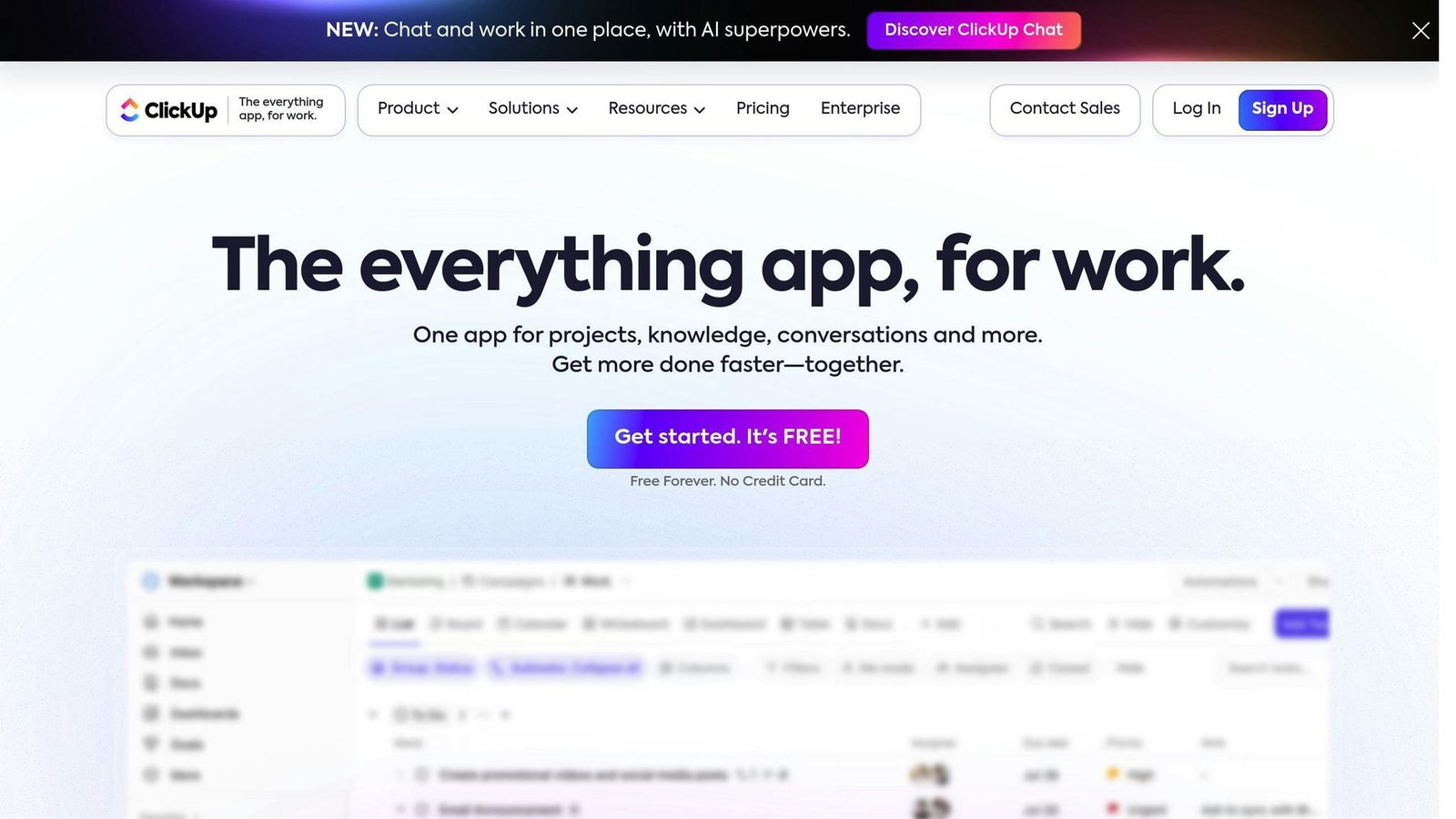
ClickUp is shaking things up in the project management world. Here’s why it’s turning heads:
Key Features
ClickUp’s packed with features:
- Multiple views (List, Board, Calendar, Gantt, Timeline)
- Task dependencies and subtasks
- Time tracking and reporting
- Docs and wikis
- AI writing assistant
- 1,000+ integrations
The AI assistant can draft emails, summarize meetings, and brainstorm project ideas. Note that ClickUp’s AI is sold as a separate per-user add-on, not bundled into the plan prices below.
Pricing Overview
ClickUp’s pricing won’t break the bank:
| Plan | Price (per user/month) | What You Get |
|---|---|---|
| Free Forever | $0 | 100MB storage, Unlimited tasks |
| Unlimited | $7 annual / $10 monthly | Unlimited storage, Integrations |
| Business | $12 annual / $19 monthly | Google SSO, Advanced automation |
| Enterprise | Custom | White labeling, Enterprise API |
Paid plans are billed yearly. Non-profits and schools get a sweet 30% discount.
Best Suited For
ClickUp’s a hit with:
- Startups and small businesses on a budget
- Teams who need flexible project views
- Companies looking to ditch multiple tools for one platform
Strengths and Limitations
What’s Great:
- Customizable to the max
- Awesome bang for your buck
- Always improving based on user feedback
- Solid free plan for small teams
What’s Not:
- Can be overwhelming at first
- Might slow down with huge projects
- Mobile app needs some love
ClickUp’s mix of affordability, flexibility, and features makes it a top pick for project management. It might take some time to set up, but the payoff in smoother workflows and productivity is huge.
5. Trello
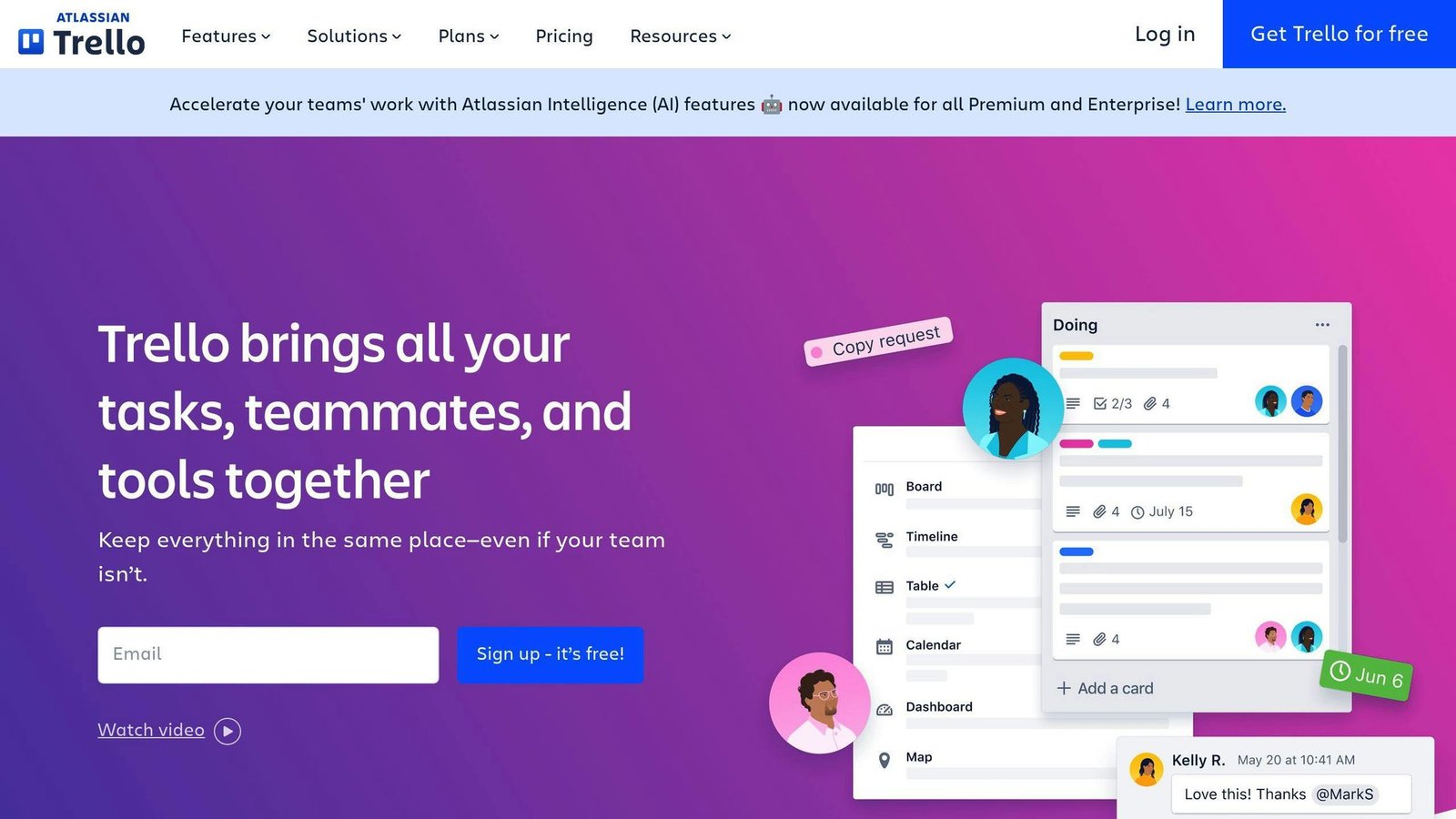
Trello’s visual approach to project management has made it a favorite for businesses. Here’s why it’s turning heads:
Key Features
Trello’s magic comes from its Kanban-style boards:
- Boards, Lists, and Cards for visual task organization
- Over 200 Power-Ups to boost functionality
- Butler for task automation
- Multiple views including Kanban, timeline, and calendar
Pricing Overview
| Plan | Price (per user/month) | What You Get |
|---|---|---|
| Free | $0 | 10 boards per workspace, unlimited cards |
| Standard | $5 | Unlimited boards, advanced checklists |
| Premium | $10 | Multiple views, unlimited workspace command runs |
| Enterprise | $17.50 | Organization-wide permissions, unlimited workspaces |
Prices shown for annual billing. Enterprise rates may drop for larger teams.
Who’s It For?
Trello works best for:
- Small to medium-sized teams
- Visual thinkers
- Basic project management needs
- Startups and freelancers
The Good and The Bad
Trello shines with its user-friendly interface, solid free plan, and Kanban-style management. It even offers unlimited storage on the free tier.
But it’s not all roses. Trello lacks built-in Gantt charts, can get messy with big projects, and needs third-party apps for time tracking.
However, larger organizations might find Trello too simple. And heads up: as of April 2024, free workspaces are capped at 10 users. Growing teams might need to upgrade.
But don’t write off Trello just yet. Its automation features are the underrated part. Imagine a content team setting up Butler to move a card to “Review” and ping the editor when a writer finishes a draft. That’s hours of manual updates saved each week.
Microsoft Project remains a top choice for complex project management. Here’s why it’s still a big deal:
Key Features
Microsoft Project packs a punch with:
- Multiple views (Grid, Board, Timeline)
- Resource management tools
- Built-in financial features
- Gantt charts
- Task automation
- Microsoft 365 integration
Pricing Overview
The plan names have changed. Microsoft has folded Project into the Planner brand:
| Plan | Price (per user, paid yearly) | What You Get |
|---|---|---|
| Planner Plan 1 (formerly Project Plan 1) | $10 | Basic features, web access |
| Planner and Project Plan 3 (formerly Project Plan 3) | $30 | Desktop app, resource management |
| Planner and Project Plan 5 | End of sale | Microsoft states this plan moved to end of sale on 1 May 2026 and is no longer available for new purchases |
A basic Planner is also included with Microsoft 365 at no extra charge, which is worth checking before you buy anything.
Perpetual desktop editions still exist, but the specific one-time prices this article used to quote were for 2021 versions and could not be reconfirmed, so they have been removed. Ask Microsoft or a reseller for the current perpetual pricing.
Best Suited For
Microsoft Project works great for:
- Big companies juggling complex projects
- Teams already using Microsoft products
- Those needing advanced resource and money management
- Project managers who love detailed scheduling
Strengths and Limitations
Strengths:
- Handles complex projects like a pro
- Plays nice with other Microsoft tools
- Great for resource and budget planning
- Smart scheduling features
Limitations:
- Takes time to learn
- Pricier than some other options
- Doesn’t connect well with non-Microsoft tools
- Might be too much for small teams
If you’re all-in on Microsoft, Project fits like a glove. Picture pulling SharePoint data into your project timeline or chatting about tasks on Teams. It’s smooth sailing for big organizations.
But heads up: Microsoft Project is powerful, but it’s not simple. Be ready to invest time in learning it. For teams tackling big, complex projects, though? It could be worth every penny.
7. Jira
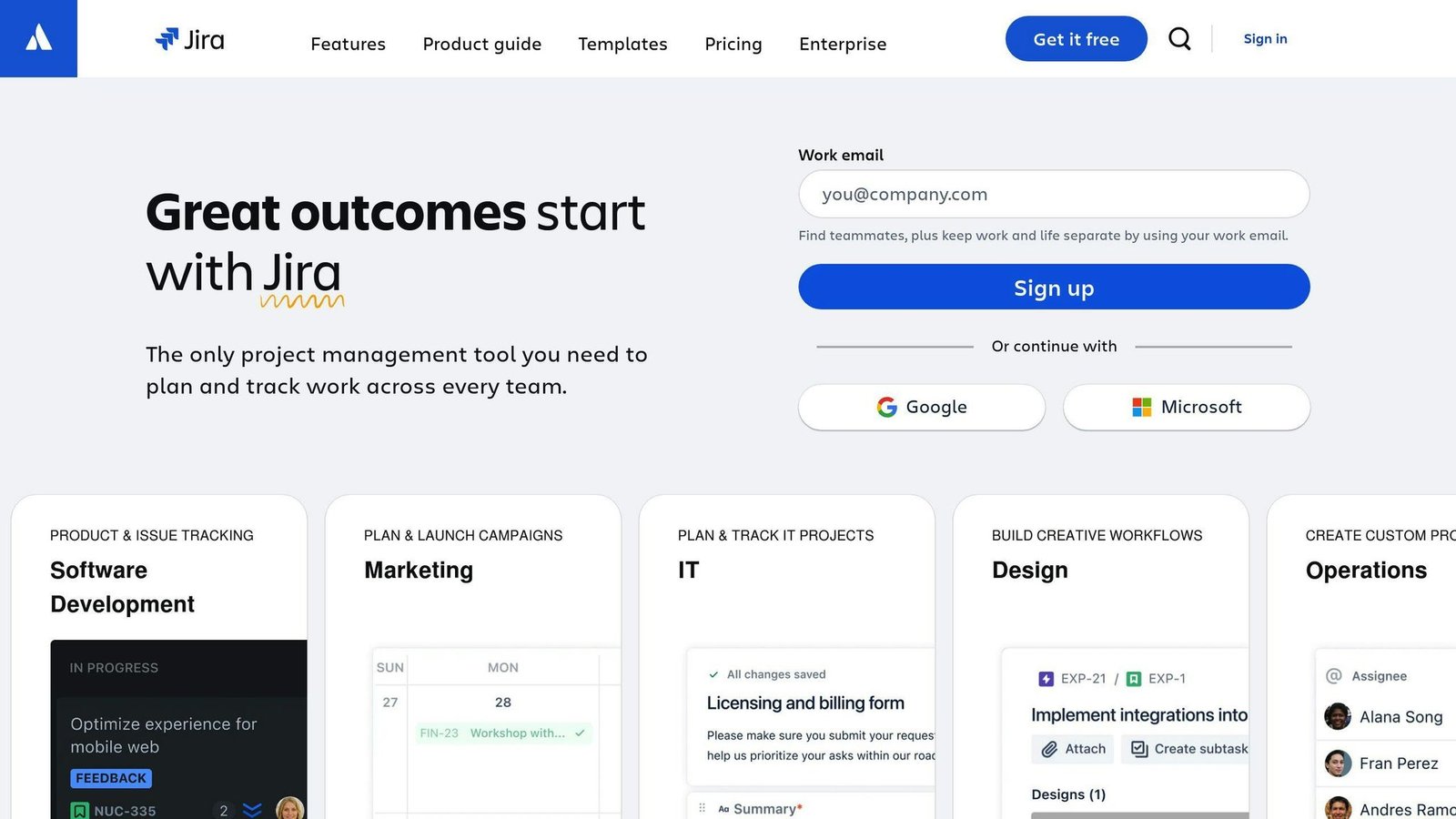
Jira is a powerhouse for software development teams and agile project management. Here’s what you need to know:
Key Features
Jira comes packed with features tailored for agile teams:
- It’s built for Scrum and Kanban methodologies
- You can customize workflows to fit your team’s needs
- It offers advanced reporting with burndown charts and velocity tracking
- There’s a thorough issue tracking system for managing bugs and tasks
- It connects with over 3,000 apps and tools
Pricing
Jira’s pricing scales with your team size:
| Plan | Price (per user/month) | What You Get |
|---|---|---|
| Free | $0 (up to 10 users) | Core features, 2GB storage |
| Standard | Per user, tiered by team size | Advanced permissions, more storage |
| Premium | Per user, tiered by team size | Unlimited storage, advanced roadmaps |
| Enterprise | Custom | Enhanced security, dedicated support |
Atlassian’s pricing page did not display per-user dollar rates when we checked in August 2026 – it prices interactively by team size – so the $7.75 and $15.25 figures this article previously carried have been removed. What we can confirm from Atlassian is that the free plan covers up to 10 users. Use Atlassian’s own calculator with your actual headcount, because the rate steps down as the team gets bigger.
Who It’s For
Jira works best for:
- Software development teams
- Agile project managers
- IT support departments
- Large enterprises needing scalable solutions
Pros and Cons
Pros:
- You can customize complex workflows
- It has powerful reporting and analytics
- It integrates with tons of other tools
- It’s secure across all plans
Cons:
- It can be tough for non-tech folks to learn
- It might be overkill for small teams or simple projects
- Setting up automation requires some tech skills
For teams deep into agile, Jira’s specialized features earn their keep. The backlog management and sprint planning tools help keep team velocity on track.
But remember, Jira’s power comes with complexity: expect to spend real time on workflow and permission configuration before it earns its keep.
Jira remains a top pick for tech-savvy teams who need a deep, scalable project management tool. If you’re committed to agile practices and continuous improvement, Jira could be a smart long-term investment for your business.
Tools at a Glance
Let’s compare the top project management tools. We’ll look at their key features, pricing, and overall value to help you pick the best one for your team.
Feature Comparison
| Tool | Standout Features | Best For |
|---|---|---|
| monday.com | Custom workflows, visual interface | All team sizes, various uses |
| Jira | Agile methods, issue tracking | Software dev teams |
| Asana | Task dependencies, timeline view | Cross-team collaboration |
| ClickUp | All-in-one platform, AI helper | Startups, small/medium businesses |
| Trello | Kanban boards, simplicity | Visual management, small teams |
| Smartsheet | Spreadsheet-like UI, advanced reports | Data-heavy projects, enterprise |
| Microsoft Project | Resource management, financial tools | Big, complex projects |
Pricing Overview
| Tool | Starting Price (per user/month) | Free Plan |
|---|---|---|
| monday.com | $9 | Yes (2 users max) |
| Jira | Not published | Yes (10 users max) |
| Asana | $10.99 | Yes (2 users max) |
| ClickUp | $7 | Yes (unlimited users) |
| Trello | $5 | Yes (10 collaborators, 10 boards) |
| Smartsheet | Not published | No |
| Planner (formerly Microsoft Project) | $10 | Basic Planner included with Microsoft 365 |
Note: Prices are for annual billing. Monthly rates might be higher.
Value for Money
Review-site scores previously quoted in this section carried no source and have been removed. On price alone, Trello and ClickUp are the cheapest way into a paid tier; Asana and Planner cost roughly twice as much per seat; Smartsheet and Jira do not publish comparable rates.
User Experience and Ease of Use
monday.com is the usual recommendation for teams coming off spreadsheets, because the board view maps onto how they already think about work.
Trello shines in customer support. Its simple Kanban boards are perfect for teams new to project management tools.
Integration Capabilities
These tools integrate well with other software:
- monday.com works smoothly with Microsoft 365
- Jira has over 3,000 app integrations
- Asana connects well with Google Workspace and Slack
Automation and Advanced Features
Every tool here automates repetitive updates to some degree; the difference is how much configuration it takes. Asana and monday.com put automation in front of non-technical users; Jira gives you more control and expects more of you.
ClickUp’s AI assistant can summarize meetings and help brainstorm project ideas, boosting productivity and creativity.
Scalability
monday.com and ClickUp can easily grow with your team. Microsoft Project handles large, complex projects for big companies.
Final Thoughts
The right project management tool can make your team more productive. The wrong one becomes another place status updates go to die.
Final Thoughts
Picking the right project management software can make or break your team’s productivity. Here’s what you need to focus on:
Know Your Needs
Before you get lost in features and pricing, figure out what your team actually needs:
- How complex are your projects?
- How big is your team?
- Do you need tools for remote collaboration?
- What’s your budget?
Must-Have Features
Most teams can’t live without:
- Easy task management
- Smooth team communication
- Customizable workflows
- Integration with your existing tools
Keep It Simple
Don’t pick a tool that needs a PhD to operate. As Nicky Taveras, CEO of DNT Home Buyers, puts it:
“If It’s Not Easy to Learn, I Don’t Want It.”
A tool that’s easy to use means your team will actually use it.
Try Before You Buy
Take those free trials for a spin. Get your team involved – they’re the ones who’ll be using it every day.
Think Long-Term
Will the software keep up as your business grows? Switching tools later is a headache you don’t need.
Lock It Down
If you’re dealing with sensitive info, make sure your tool has solid security features. This is extra important for remote teams or regulated industries.
Automate Everything
Look for tools that can take repetitive tasks off your plate. For example, ClickUp’s AI can summarize meetings and help brainstorm ideas.
Real Results
A named customer result previously quoted here – a percentage of extra projects completed and hours saved per month – was attributed to four different products in four different sections of this article. It has been removed. If a vendor shows you a case study, ask what the baseline was and who measured it.
FAQs
What is the most popular project management software?
Popularity in project management software can vary. But here’s what our Editors’ Choice picks look like:
- GanttPro for beginners
- Teamwork for client-based work
- Zoho Projects for growing teams
But here’s the thing: popular doesn’t always mean perfect for you. Your team’s needs should guide your choice.
Which platform is best for project management?
There’s no one-size-fits-all answer. The “best” platform depends on what your team needs. Here are some top picks:
1. Jira
Great for product development teams. It’s built for agile workflows.
2. Confluence
If you love whiteboard notes, this one’s for you.
3. Airtable
Perfect for data-driven companies. It’s like a spreadsheet on steroids.
4. Trello
Kanban-style boards are its specialty. Visual task management at its finest.
5. Coda
Need to create forms? Coda’s got you covered.
6. Todoist
Task management made simple. It’s clean, it’s straightforward.
7. TeamGantt
As the name suggests, it’s all about Gantt charts.
Remember: the best tool is the one that fits YOUR workflow. Don’t just follow the crowd.
How much does project management software cost?
Project management software prices are all over the map. Here’s a quick breakdown:
Average-cost-per-user figures previously printed here had no source and have been removed. What we can give you is the actual entry rates, checked against each vendor:
- monday.com Basic: $9 per seat per month, three-seat minimum – so about $27 a month at the floor
- Asana Starter: $10.99 per user per month billed annually, $13.49 month to month
- Trello Standard: $5 per user per month billed annually, $6 month to month
- ClickUp Unlimited: $7 per user per month billed annually, $10 month to month
- Planner Plan 1: $10 per user per month paid yearly
But here’s a pro tip: many providers offer free basic versions. These can be a lifesaver for small teams or tight budgets.
And for the big players? Enterprise pricing is often negotiable. So pick up the phone and talk to sales for the real deal.
More on this topic
Browse all 40 articles on Project & Team Management, or jump straight to our buying guide: Best Project Management Tools for Small Teams.